
Ask Dave Taylor
  • Facebook
  • Instagram
  • Linkedin
  • Pinterest
  • Twitter
  • YouTube
  • Home
  • YouTube Channel
  • Most Popular
  • Newsletter!
  • Ask Me A Question
  • Meet Dave
  • Home
  • Mac & MacOS Help
  • How do I import my iCal calendar to Google Calendar?

How do I import my iCal calendar to Google Calendar?

September 1, 2006 / Dave Taylor / Mac & MacOS Help / 14 Comments

I’ve been using iCal for quite a while, but finally need to share my calendar with some others on my team but I don’t have a “.mac” account, so… so I think I’m going to switch to Google Calendar and live in the Web 2.0 world. My question: how do I export my iCal calendar events and import them all into Google Calendar?

  ★ ASKDAVETAYLOR WEEKLY EMAIL! ★
Guaranteed to Make you Smarter.
Click Here to Subscribe.

This process is pretty darn easy, actually, as Google has paid a lot of attention to letting people transfer their existing calendars into the Google Calendar system. Similarly, Apple has made it pretty easy to convert iCal calendars into a different system too, perhaps unusually so for a company that likes to import your data into proprietary data formats.
Let’s get started!
Go to iCal and choose File –> Export and without much explanation you’ll be asked for an output file:
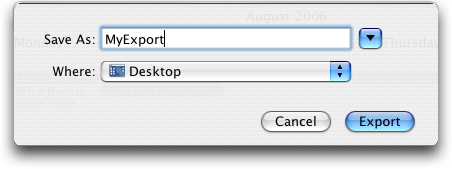
Apple iCal Export Window

Choose one, press “Export” and you’re done with iCal and can quit the program.
Now you’ll want to log in to Google Calendar and find the tiny little “manage calendars” at the bottom of the left Calendars box (you might need to click on the little triangle to the left of the word “Calendar” to display this entire area):
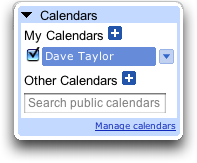
Google Calendar: Nav View

You can see the link you need, even though it’s fairly well hidden on the Calendar…
Click on it and you’ll get the Calendar Settings view:
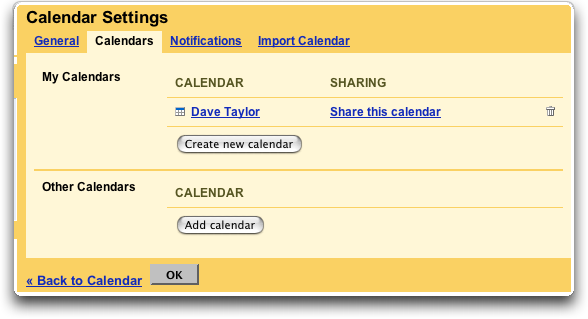
Google Calendar: Settings

Note along the top one of the tab options is “Import Calendar”. Click on that and you’ll see the import window:
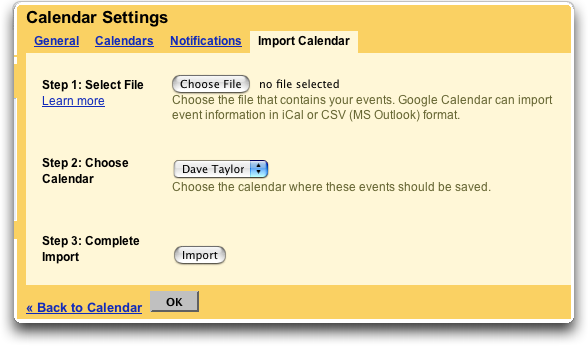
Google Calendar: Import Calendar from Apple iCal

It’s pretty easy to figure out what to do at this point: choose the file you just exported from iCal, pick a calendar to use (I’ll use my own) and click “Import”. It’ll take a few seconds up to a minute or longer, depending on how many events you have, then you’ll finally get a status update:
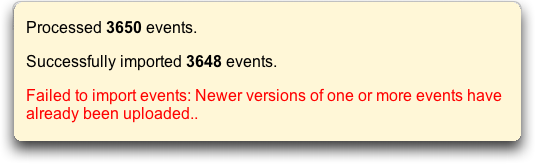
Google Calendar: Import from iCal Done

I had a few errors, but note that even though it says “Failed to import events” right above it is confirmation that “Successfully imported 3648 events”. Good! Now when I view my calendar main window, I can see all my events properly imported from iCal:
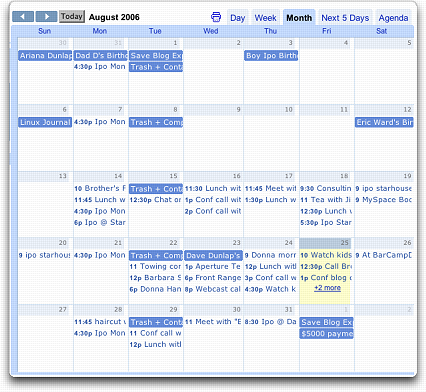
Google August Calendar

That’s all there is. Enjoy Google Calendar!

Enjoy watching videos? I've got hundreds of lively and interesting product reviews you can enjoy with just a click. Please check 'em out: AskDaveTaylor Video Gallery.

About the Author: Dave Taylor has been involved with the online world since the early days of the Internet. Author of over 20 technical books, he runs the popular AskDaveTaylor.com tech help site. You can also find his gadget reviews on YouTube and chat with him on X as @DaveTaylor.

Let’s Stay In Touch!

Never miss a single article, review or tutorial here on AskDaveTaylor, sign up for my fun weekly newsletter!
Name: 
Your email address:*
Please enter all required fields
Correct invalid entries
No spam, ever. Promise. Powered by FeedBlitz
Please choose a color:
Starbucks coffee cup I do have a lot to say, and questions of my own for that matter, but first I'd like to say thank you, Dave, for all your helpful information by buying you a cup of coffee!
google calendar, ical, online calendar, web 2.0

14 comments on “How do I import my iCal calendar to Google Calendar?”

  1. Joris says:
    July 13, 2012 at 2:39 am

    As for synchronizing iCal and Google Calendar, CalDav Support might help. I’m not sure, I’ve yet to try it.
    http://support.google.com/calendar/bin/answer.py?hl=en&answer=99357

    Reply
  2. Richard Keleher says:
    March 12, 2012 at 9:56 pm

    You say to “Export” from iCal. When you choose “Export” you actually have two choices (a sub drop-down). They are, “Export” (again), which generates a .ics file, and “iCal Archive,” which generates a .icbu file. Which one do you mean to export?

    Reply
  3. Dave Taylor says:
    January 2, 2011 at 8:14 am

    Marissa, the problem is that the tutorial shows you how to do a one-time import and it sounds like you want to have an active subscription that constantly sync’s between iCal and Google Calendar. That’s possible, but quite a bit more tricky to set up. Google “sync ical google calendar mac” and see what you find. Good luck!

    Reply
  4. Marissa says:
    January 2, 2011 at 4:15 am

    Hi There.
    When I enter new events into my I cal it is not updating in my google cal. I tried refresh and nothing is happening. Any thoughts?

    Reply
  5. Kay says:
    April 7, 2010 at 12:22 pm

    This worked great – only difference I found is that rather than a line that says ‘manage’ if found my way there under ‘settings’ – located in the same area. Maybe this is an update from earlier google calendar versions. Thanks!

    Reply
  6. ollie brody says:
    March 28, 2010 at 11:03 am

    Thank you so much…helped me to upgrade to DROID wo losing any info!!! Even I could follow advice!

    Reply
  7. Steve says:
    December 7, 2009 at 9:42 pm

    Hi David. I was having the same problem and followed your advice. It didn’t work the first 12 times because of a specific thing I missed. To select the proper calender I had to do more then uncheck the boxes for the calenders I did not want. I had to have the exact calender highlighted/clicked on, when I pushed “export”. That way it did the right calender. A small but important watch out. Thanks for your help and hopefully my tip will help others.

    Reply
  8. Vishal Agarwal says:
    June 7, 2009 at 2:12 pm

    @ David – buddy thanx a heap for your comment. I was facing the same problem and your comment helped me zero in on the problem. So your comment actually did help some one 🙂

    Reply
  9. David says:
    May 24, 2009 at 3:32 pm

    I ran into something that these instructions don’t cover.
    I kept running the import over and over and getting “zero events imported”. After bringing the file up in Textedit, I found that it was indeed empty. After scratching my head, I noticed that iCal was defaulting it’s calendar selection to one of the color-coded calendars that I had never used. Instead of exporting everything, it was only exporting the entries from that empty calendar. After selecting the proper calendar and trying your directions again, everything worked perfectly. I hope this helps someone else out who might run into this problem.

    Reply
  10. Eck says:
    March 17, 2009 at 6:58 pm

    Hi. Can I import my address book into Google (have an app for that?)?
    Also, my Parallells has two arrows (pointers)! Very confusion. Can you advise?
    Font size in XP/IE waaay to small–even when adjusted.

    Reply
  11. Andra says:
    September 2, 2008 at 7:46 pm

    Thank for this! It really did help me out. Kind of you to take the time to post it.

    Reply
  12. Tom says:
    August 5, 2008 at 12:30 pm

    Hi – the “Import calendar” link has dissapeared from google calender, and as the man says – that’s a one off import. Can’t google hook into Apple’s publish system?

    Reply
  13. Sara Koopman says:
    March 18, 2008 at 1:55 pm

    the frustrating thing is that if your ical file is more than 1MB gcal can’t handle it. gcal’s help suggests telling ical to save it in smaller chunks, but I can’t figure out how to get it to do this. any idea?

    Reply
  14. Jim Scolman says:
    September 1, 2006 at 10:23 am

    Hi, this is good information, but this is not the same as linking the calendars together….that is updates/adds/changes do not flow back and forth….do they? Is there a way to setup this sort of thing? Thanks, Jim

    Reply

Leave a Reply Cancel reply

Your email address will not be published. Required fields are marked *

Search

Recent Posts

  • How to Update the Software on your KOBO Ebook Reader
  • How to Change Your Default Web Browser in Windows
  • How to Check for Spam DM’s in Facebook Messenger
  • How to Automatically Close Your Garage Door with MyQ App
  • Best Time to Post on Facebook Business Pages?

On Our YouTube Channel

Endless Cleaning with the Roborock Q10 S5+ Robot Vacuum & Mop

Cleer ARC 4 Open Ear Headphones: Ideal for Outdoors - DEMO & REVIEW

Categories

  • AdSense, AdWords, and PPC Help (106)
  • AI and ChatGPT Help (75)
  • Alexa, Kindle, and Nook Help (112)
  • Amazon, eBay, and Online Shopping Help (176)
  • Android Help (321)
  • Apple iPad Help (156)
  • Apple Watch & Smartwatch Help (63)
  • Articles, Tutorials, and Reviews (361)
  • Auto Tech Help (31)
  • Business Advice (202)
  • Chromebook & ChromeOS Help (80)
  • Computer & Internet Basics (847)
  • d) None of the Above (169)
  • Facebook Help (405)
  • Google, Chrome & Gmail Help (227)
  • HTML & Web Page Design (249)
  • Instagram, Bluesky & Threads Help (70)
  • iPhone & iOS Help (702)
  • iPod & MP3 Player Help (173)
  • LinkedIn Help (98)
  • Linux Help (182)
  • Linux Shell Script Programming (95)
  • Mac & MacOS Help (994)
  • Microsoft Outlook and Office 365 Help (53)
  • Most Popular (16)
  • PayPal Help (69)
  • Pinterest Help (58)
  • Reddit Help (24)
  • SEO & Marketing (83)
  • Spam, Scams & Security (130)
  • Trade Show News & Updates (23)
  • Video Game Tips (66)
  • Web Site Traffic Tips (62)
  • Windows PC Help (1,093)
  • Wordpress Help (207)
  • Writing and Publishing (72)
  • X/Twitter Help (233)
  • YouTube Help (54)
  • YouTube Video Reviews (159)
  • Zoom, Skype & Video Chat Help (80)

Archives

Social Connections:

Ask Dave Taylor


Follow Me on Pinterest
Follow me on Twitter
Follow me on LinkedIn
Follow me on Instagram


AskDaveTaylor on Facebook


microsoft insider mvp


This web site is for the purpose of disseminating information for educational purposes, free of charge, for the benefit of all visitors. We take great care to provide quality information. However, we do not guarantee, and accept no legal liability whatsoever arising from or connected to, the accuracy, reliability, currency or completeness of any material contained on this site or on any linked site. Further, please note that by submitting a question or comment you're agreeing to our terms of service, which are: you relinquish any subsequent rights of ownership to your material by submitting it on this site. Our lawyer says "Thanks for your cooperation."
© 2025 by Dave Taylor. "Ask Dave Taylor®" is a registered trademark of Intuitive Stories, LLC.
FTC Notice: If you buy products through links on this site we may receive a modest affiliate commission. This won’t affect the price you pay.
Privacy Policy - Terms and Conditions - Accessibility Policy - Humix Video Content
  • Home
  • YouTube Channel
  • Most Popular
  • Newsletter!
  • Ask Me A Question
  • Meet Dave