
Ask Dave Taylor
  • Facebook
  • Instagram
  • Linkedin
  • Pinterest
  • Twitter
  • YouTube
  • Home
  • YouTube Channel
  • Most Popular
  • Newsletter!
  • Ask Me A Question
  • Meet Dave
  • Home
  • Linux Help
  • How do I Import Favorites and Bookmarks from Chrome into Firefox?

How do I Import Favorites and Bookmarks from Chrome into Firefox?

May 21, 2021 / Dave Taylor / Linux Help / No Comments

Hi Dave! I’m running Firefox as my main Web browser on my new Linux system and really want to have the same favorites bar bookmarks as I do on Chrome on my MacBook Air. How can I get those favorites copied across?

  ★ ASKDAVETAYLOR WEEKLY EMAIL! ★
Guaranteed to Make you Smarter.
Click Here to Subscribe.

Always great to hear from a fellow Linux enthusiast. While Google Chrome is available for Linux, I do have to admit that I prefer using either Firefox or Brave as my default browser on that platform. There are even more Web browsers, but unless you’re a Web developer and need to test interoperability, few people should need more than one or two browsers. However, by choosing a different browser on your Linux box, you are preventing the system from automatically synchronizing your favorites and settings across platforms if you’re a Chrome user on your Mac.

Fortunately, there’s a standard HTML format that is shared by Web browsers that makes it quite easy to export bookmarks and favorites from one browser and import them into another. Better yet, it’s cross-OS too, so your PC, Mac, and Linux systems can all have the same bookmarks, even if you have completely different browsers hither and yon!

EXPORT BOOKMARKS AND FAVORITES FROM GOOGLE CHROME

The first step is on your Mac. To export bookmarks from your MacOS copy of Google Chrome, press Command+Option+B to launch the bookmarks manager. That’ll open in a new tab and makes it easy for you to change, rename, even delete bookmarks as you desire. More importantly, on the right side of the bookmarks manager is a “•••” link (they’re vertically oriented, not horizontal like I’m showing here). Click on it and a menu appears:

export bookmarks from google chrome

First off, you can choose “Sort by name”, something a lot of people ask about, but for this task, choose “Export bookmarks” as highlighted. Then make note of where you save the file, it’ll be called something like “bookmarks_MON_DAY_YEAR.html”. My copy was generated on May 21, so it’s “bookmarks_5_21_21.html”.

That’s it. You can quit Chrome and turn away from your Mac entirely. It’s time to Linux…

IMPORT BOOKMARKS INTO FIREFOX ON LINUX

I run Ubuntu Linux mostly, so that’s what I’ll demonstrate. Make sure you have the latest version of Firefox on your own Linux box, then we can proceed. I’ll start with a baseline, here’s my Firefox without any special or custom favorites or bookmarks:

linux firefox import bookmarks - no favorites

As you can see, that bar below the address bar is a pretty desolate place. To proceed, click on the tiny books-on-a-bookshelf icon on the toolbar, then choose “Bookmarks” from the menu.

A menu will pop up with any and all bookmarks you might have (not all show up on the favorites bar). At the bottom is the key entry, however:

linux firefox import bookmarks - bookmark manager

Choose “Manage Bookmarks” or use the convenient shortcut of Control-Shift-O. Either way, you’ll open up the Firefox bookmark manager window:
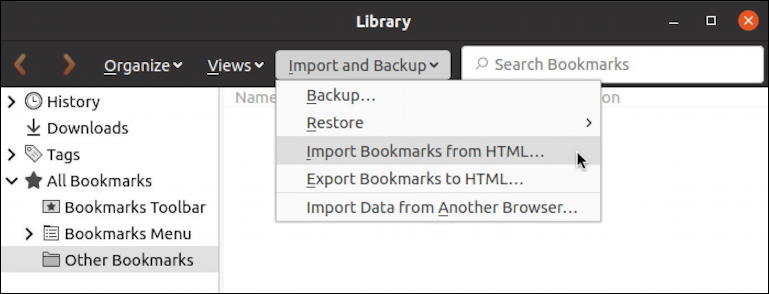
linux firefox import bookmarks - bookmark manager

As you can see from the above, choose “Import Bookmarks from HTML…” from the “Import and Backup” tab along the top of the bookmark manager.

A standard Linux file selection window will appear:

choose bookmarks html file import

You can see that I’ve copied it over from my Mac (I emailed it to myself, truth be told) and am grabbing it from Downloads.

A click on the green “Open” button on the top right and the bookmarks are all pulled into Firefox, whether you have a half-dozen or hundreds.
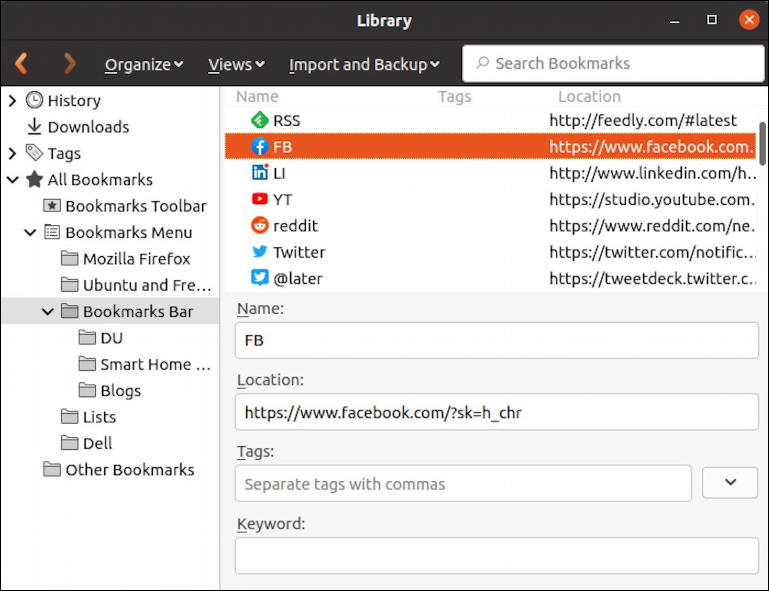
linux firefox import bookmarks - manager imported bookmarks

It’s not always easy to see where the import has happened, but mine all imported in “Bookmarks Bar” under All Bookmarks > Bookmarks Menu. You can edit individual bookmarks if you want, but if your goal is to have them all appear on the favorites bar, you’ll need to know that Firefox calls that the “Bookmarks Toolbar“. Look closely, you’ll see it’s one of the folders.

To copy all your favorites, I suggest that you simply click to select every favorite…

linux firefox import bookmarks - select all favorites

In this case, my highlight color is this stark orange, but that works: A click and drag to move them all onto the “Bookmarks Toolbar” and *boom* they show up on the favorites bar instantly:
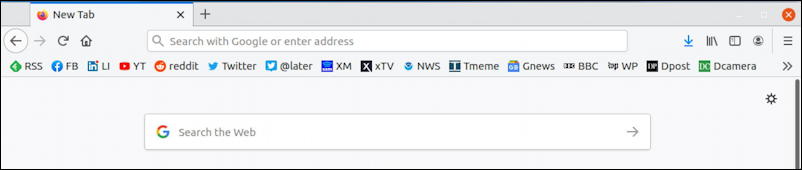
firefox linux favorites toolbar imported bookmarks

Want to delete one? You can do that while you’re in the bookmarks manager easily enough with a right-click:

linux firefox import bookmarks - right click delete

You can accomplish the same thing by right-clicking on a favorite in the toolbar too. And that’s it. You’ve exported your favorites from Chrome on your Mac, copied them to your Linux system, and imported them all into Firefox. Well done.

Pro Tip: I’ve been writing about Linux since the dawn of the operating system, and Unix before that. Please check out my extensive Linux help area for lots of additional tutorial content while you’re visiting. Thanks!

Enjoy watching videos? I've got hundreds of lively and interesting product reviews you can enjoy with just a click. Please check 'em out: AskDaveTaylor Video Gallery.

About the Author: Dave Taylor has been involved with the online world since the early days of the Internet. Author of over 20 technical books, he runs the popular AskDaveTaylor.com tech help site. You can also find his gadget reviews on YouTube and chat with him on X as @DaveTaylor.

Let’s Stay In Touch!

Never miss a single article, review or tutorial here on AskDaveTaylor, sign up for my fun weekly newsletter!
Name: 
Your email address:*
Please enter all required fields
Correct invalid entries
No spam, ever. Promise. Powered by FeedBlitz
Please choose a color:
Starbucks coffee cup I do have a lot to say, and questions of my own for that matter, but first I'd like to say thank you, Dave, for all your helpful information by buying you a cup of coffee!
chrome bookmarks, chrome favorites, firefox bookmarks, firefox favorites, firefox linux, import bookmarks, import favorites

Leave a Reply Cancel reply

Your email address will not be published. Required fields are marked *

Search

Recent Posts

  • How to Use Microsoft OneDrive on a Mac System
  • How to Update the Software on your KOBO Ebook Reader
  • How to Change Your Default Web Browser in Windows
  • How to Check for Spam DM’s in Facebook Messenger
  • How to Automatically Close Your Garage Door with MyQ App

On Our YouTube Channel

The NearHub Frames 10 Smart Photo Frame Really is SMART

Endless Cleaning with the Roborock Q10 S5+ Robot Vacuum & Mop

Categories

  • AdSense, AdWords, and PPC Help (106)
  • AI and ChatGPT Help (75)
  • Alexa, Kindle, and Nook Help (112)
  • Amazon, eBay, and Online Shopping Help (176)
  • Android Help (321)
  • Apple iPad Help (156)
  • Apple Watch & Smartwatch Help (63)
  • Articles, Tutorials, and Reviews (361)
  • Auto Tech Help (31)
  • Business Advice (202)
  • Chromebook & ChromeOS Help (80)
  • Computer & Internet Basics (847)
  • d) None of the Above (169)
  • Facebook Help (405)
  • Google, Chrome & Gmail Help (227)
  • HTML & Web Page Design (249)
  • Instagram, Bluesky & Threads Help (70)
  • iPhone & iOS Help (702)
  • iPod & MP3 Player Help (173)
  • LinkedIn Help (98)
  • Linux Help (182)
  • Linux Shell Script Programming (95)
  • Mac & MacOS Help (995)
  • Microsoft Outlook and Office 365 Help (53)
  • Most Popular (16)
  • PayPal Help (69)
  • Pinterest Help (58)
  • Reddit Help (24)
  • SEO & Marketing (83)
  • Spam, Scams & Security (130)
  • Trade Show News & Updates (23)
  • Video Game Tips (66)
  • Web Site Traffic Tips (62)
  • Windows PC Help (1,093)
  • Wordpress Help (207)
  • Writing and Publishing (72)
  • X/Twitter Help (233)
  • YouTube Help (54)
  • YouTube Video Reviews (159)
  • Zoom, Skype & Video Chat Help (80)

Archives

Social Connections:

Ask Dave Taylor


Follow Me on Pinterest
Follow me on Twitter
Follow me on LinkedIn
Follow me on Instagram


AskDaveTaylor on Facebook


microsoft insider mvp


This web site is for the purpose of disseminating information for educational purposes, free of charge, for the benefit of all visitors. We take great care to provide quality information. However, we do not guarantee, and accept no legal liability whatsoever arising from or connected to, the accuracy, reliability, currency or completeness of any material contained on this site or on any linked site. Further, please note that by submitting a question or comment you're agreeing to our terms of service, which are: you relinquish any subsequent rights of ownership to your material by submitting it on this site. Our lawyer says "Thanks for your cooperation."
© 2025 by Dave Taylor. "Ask Dave Taylor®" is a registered trademark of Intuitive Stories, LLC.
FTC Notice: If you buy products through links on this site we may receive a modest affiliate commission. This won’t affect the price you pay.
Privacy Policy - Terms and Conditions - Accessibility Policy - Humix Video Content
  • Home
  • YouTube Channel
  • Most Popular
  • Newsletter!
  • Ask Me A Question
  • Meet Dave