
Ask Dave Taylor
  • Facebook
  • Instagram
  • Linkedin
  • Pinterest
  • Twitter
  • YouTube
  • Home
  • YouTube Channel
  • Most Popular
  • Newsletter!
  • Ask Me A Question
  • Meet Dave
  • Home
  • iPod & MP3 Player Help
  • How do I use a Mac-formatted iPod on a Windows 7 PC?

How do I use a Mac-formatted iPod on a Windows 7 PC?

February 25, 2011 / Dave Taylor / iPod & MP3 Player Help, Windows PC Help / 4 Comments

My brother gave me his Apple iPod Nano because he’s now just using his iPhone and it’s sweet, but it’s paired to his Mac. I have a Dell laptop running Windows 7, tho, and want to put my music on it. What’s the easy way to reformat it and start from scratch with my iPod?

  ★ ASKDAVETAYLOR WEEKLY EMAIL! ★
Guaranteed to Make you Smarter.
Click Here to Subscribe.

Though it may not seem like it, your iPod has a hard disk inside of it, which means that it has to be formatted so that the appropriate computer operating system can read it and understand what’s on the drive. And that means that, yup, there are Mac-friendly iPods and there are PC-friendly iPods, depending on how they were configured when first setup.
Fortunately, if you’re willing to wipe it clean of all data, this process can be reversed and a PC-formatted iPod can become a Mac-friendly one and vice versa. This is what you need to do with your own iPod Nano because it’s not that it’s paired to another computer that’s the problem (though that is a problem) but that it’s paired to another computer and that computer was running a different OS to you.
No fear, though, once you get past the warning windows that are going to pop up fast and furious when you plug it into your Dell Win7 PC, it’s not too bad a process.
Again, though, a warning: this process deletes everything on the iPod. If you want to save stuff, you’ll need to enlist your brother’s help (or just ask him to email you the songs you really like).
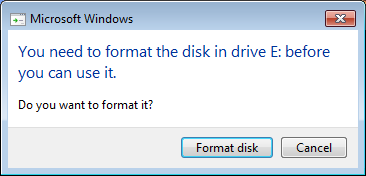
When you first plug in the iPod Nano to your Windows 7 laptop, Windows itself will detect a device that isn’t formatted for its OS and complain:
windows 7 ipod reformat itunes 1

This you can safely ignore. Click on “Cancel”. What you want is for iTunes to reformat the device, not Windows.
Speaking of which, I trust you have the latest copy of iTunes installed on your PC? If not, then grab a copy here: download iTunes.
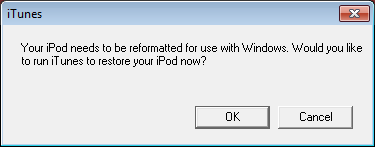
Now start iTunes and it too will have a warning message:
windows 7 ipod reformat itunes 2

This dialog box you want to answer by clicking on “OK”, which will cause iTunes to have a closer look at the iPod and realize that…
windows 7 ipod reformat itunes 3

Okay, that’s what we’re trying to accomplish! Click “OK” and it’s quite possible you’ll see that your version of iTunes is out of date…
windows 7 ipod reformat itunes 4

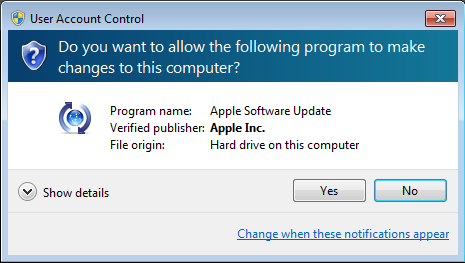
Slight sidetrack, but it’s important to stay current with iTunes, particularly if we’re restoring (e.g., deleting all the data and reformatting) an iPod. I click on “Download iTunes” and Windows 7 jumps in to confirm that I want to allow iTunes to update itself:
windows 7 ipod reformat itunes 5

Choose “Yes” and iTunes downloads the update and restarts itself. Sidetrack complete.
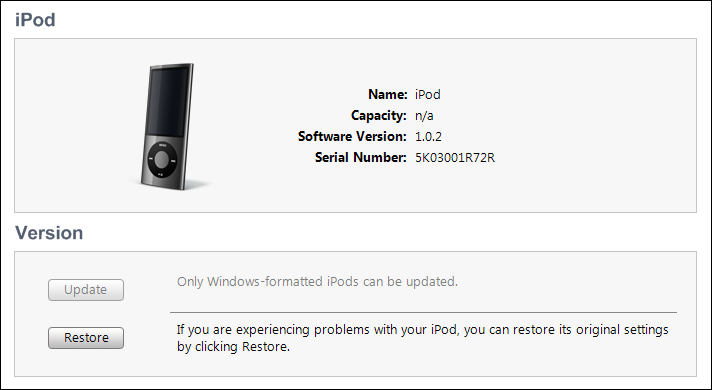
Now, where were we? Oh yes, restoring the iPod. In iTunes, this is now what you’ll see:
windows 7 ipod reformat itunes 6

You need to click on the “Restore” button here. Notice, by the way, that iTunes can’t figure out what size iPod it is, but it can figure out the style and color. Interesting!
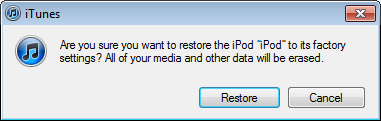
windows 7 ipod reformat itunes 7

That’s fine. We want to proceed and I’ve already warned you that it’s going to erase all the data — and songs — on the device. Click “Restore” and it’s quite likely that you’ll find out that the iPod itself has an upgrade pending too:
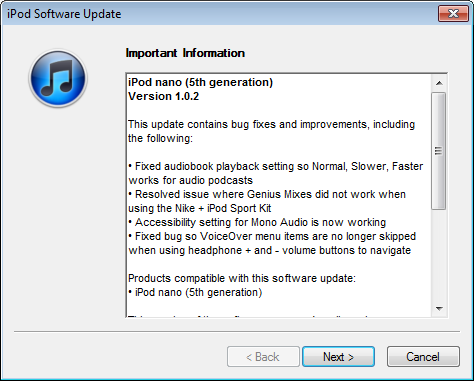
windows 7 ipod reformat itunes 8

Choose “Next” and it’ll download the iPod Nano firmware update…

windows 7 ipod reformat itunes 9

Once it downloads, it’ll apply the update automatically as part of the restore process:
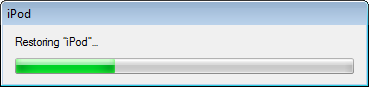
windows 7 ipod reformat itunes 9a

After a few minutes it’s done and you just have to wait for the system to boot the iPod and reconnect:
windows 7 ipod reformat itunes 9b

You can click “OK” or you can just be patient and let it work by itself.
Eventually the iPod restarts and reattaches to your Win7 system, and now iTunes recognizes it as a brand new device, ready to be named and setup to your preferences:
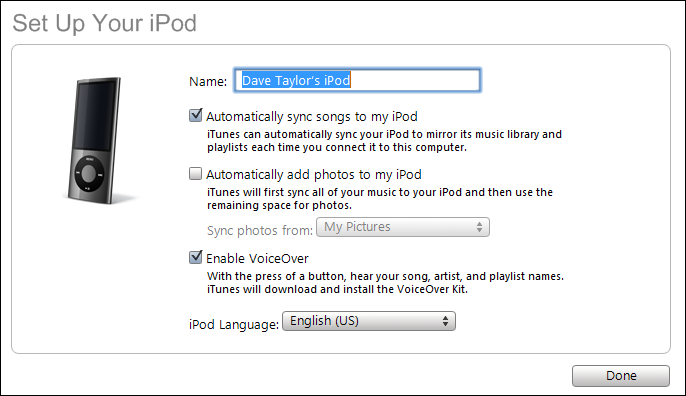
windows 7 ipod reformat itunes 9c

At this point you’re ready to copy music, videos, photos, and anything else you’d like to have on what has become your brand-new, empty iPod Nano. Good luck!

Enjoy watching videos? I've got hundreds of lively and interesting product reviews you can enjoy with just a click. Please check 'em out: AskDaveTaylor Video Gallery.

About the Author: Dave Taylor has been involved with the online world since the early days of the Internet. Author of over 20 technical books, he runs the popular AskDaveTaylor.com tech help site. You can also find his gadget reviews on YouTube and chat with him on X as @DaveTaylor.

Let’s Stay In Touch!

Never miss a single article, review or tutorial here on AskDaveTaylor, sign up for my fun weekly newsletter!
Name: 
Your email address:*
Please enter all required fields
Correct invalid entries
No spam, ever. Promise. Powered by FeedBlitz
Please choose a color:
Starbucks coffee cup I do have a lot to say, and questions of my own for that matter, but first I'd like to say thank you, Dave, for all your helpful information by buying you a cup of coffee!

4 comments on “How do I use a Mac-formatted iPod on a Windows 7 PC?”

  1. joy says:
    December 10, 2016 at 7:47 pm

    hi there, thanks for help w/ display imgs for ipod mac/ itune format.

    Reply
  2. maria garcia says:
    March 17, 2015 at 12:50 pm

    my dad gave me a ipod nano 7th generation, the I connect it to my computer to sync music already had in itunes, he left a warning that itunes detected a formatting macintosh to ipod and that this needs to be restored to use with windows. when I give the accept button I get a new window that says iTunes could not contact the server ipod software updates that is not connected to the internet where they send me to make sure you have a good internet connection. I do not understand is that the computer have the perfect internet and the ipod nano 7th generation does not suit you the option to connect to the internet.

    Reply
  3. Francis says:
    September 13, 2012 at 2:07 am

    i am getting a error with this message
    the iPOD software update server could not be contacted
    kindly help me this error

    Reply
  4. Winter84 says:
    February 25, 2011 at 8:45 am

    Alternatively, just install the free NTFS-3G on you Mac, and then you should have no problem using the Windows-formatted iPod as is.

    Reply

Leave a Reply Cancel reply

Your email address will not be published. Required fields are marked *

Search

Recent Posts

  • How to Update the Software on your KOBO Ebook Reader
  • How to Change Your Default Web Browser in Windows
  • How to Check for Spam DM’s in Facebook Messenger
  • How to Automatically Close Your Garage Door with MyQ App
  • Best Time to Post on Facebook Business Pages?

On Our YouTube Channel

Endless Cleaning with the Roborock Q10 S5+ Robot Vacuum & Mop

Cleer ARC 4 Open Ear Headphones: Ideal for Outdoors - DEMO & REVIEW

Categories

  • AdSense, AdWords, and PPC Help (106)
  • AI and ChatGPT Help (75)
  • Alexa, Kindle, and Nook Help (112)
  • Amazon, eBay, and Online Shopping Help (176)
  • Android Help (321)
  • Apple iPad Help (156)
  • Apple Watch & Smartwatch Help (63)
  • Articles, Tutorials, and Reviews (361)
  • Auto Tech Help (31)
  • Business Advice (202)
  • Chromebook & ChromeOS Help (80)
  • Computer & Internet Basics (847)
  • d) None of the Above (169)
  • Facebook Help (405)
  • Google, Chrome & Gmail Help (227)
  • HTML & Web Page Design (249)
  • Instagram, Bluesky & Threads Help (70)
  • iPhone & iOS Help (702)
  • iPod & MP3 Player Help (173)
  • LinkedIn Help (98)
  • Linux Help (182)
  • Linux Shell Script Programming (95)
  • Mac & MacOS Help (994)
  • Microsoft Outlook and Office 365 Help (53)
  • Most Popular (16)
  • PayPal Help (69)
  • Pinterest Help (58)
  • Reddit Help (24)
  • SEO & Marketing (83)
  • Spam, Scams & Security (130)
  • Trade Show News & Updates (23)
  • Video Game Tips (66)
  • Web Site Traffic Tips (62)
  • Windows PC Help (1,093)
  • Wordpress Help (207)
  • Writing and Publishing (72)
  • X/Twitter Help (233)
  • YouTube Help (54)
  • YouTube Video Reviews (159)
  • Zoom, Skype & Video Chat Help (80)

Archives

Social Connections:

Ask Dave Taylor


Follow Me on Pinterest
Follow me on Twitter
Follow me on LinkedIn
Follow me on Instagram


AskDaveTaylor on Facebook


microsoft insider mvp


This web site is for the purpose of disseminating information for educational purposes, free of charge, for the benefit of all visitors. We take great care to provide quality information. However, we do not guarantee, and accept no legal liability whatsoever arising from or connected to, the accuracy, reliability, currency or completeness of any material contained on this site or on any linked site. Further, please note that by submitting a question or comment you're agreeing to our terms of service, which are: you relinquish any subsequent rights of ownership to your material by submitting it on this site. Our lawyer says "Thanks for your cooperation."
© 2025 by Dave Taylor. "Ask Dave Taylor®" is a registered trademark of Intuitive Stories, LLC.
FTC Notice: If you buy products through links on this site we may receive a modest affiliate commission. This won’t affect the price you pay.
Privacy Policy - Terms and Conditions - Accessibility Policy - Humix Video Content
  • Home
  • YouTube Channel
  • Most Popular
  • Newsletter!
  • Ask Me A Question
  • Meet Dave