
Ever gone to a website just to have it complain that it can’t display the page because you aren’t a subscriber? Or, even more commonly, to have it refuse to show you the content because you have an “ad blocker” running? In both cases there are ways to try to get around the problem. Let’s look at some of the basics…
While it’s generally free to browse the World Wide Web and its billions of webpages, hosting and managing a website comes with a cost. For instance, this website costs a few hundred dollars each month just to stay online and function smoothly. It’s no wonder many web publishers try to recover these expenses. Subscriptions are a common option, where readers pay a small weekly or monthly fee for full access to premium content. However, that doesn’t work for every site, so many rely on ads – sometimes a few, sometimes a lot! – to generate revenue and keep the site running.
That’s exactly how I operate here at AskDaveTaylor.com: I want my tutorial content to remain freely accessible because dealing with technical issues is frustrating enough without being forced to pay for solutions upfront. So instead, I rely on ads. However, with the rise of ad blockers – tools that hide most advertisements – this has become a challenge for website owners. While ad blockers are great for users (I use one too!), they make it harder for sites to cover their costs without dipping into personal funds. This is why some sites are coded such that pages won’t load if ad blockers prevent ads from displaying.
Shortcuts: Microsoft Edge | Immersive Reader Options | Can AI Sidestep? | Chrome, and Safari
What most people don’t realize is that modern web browsers can help bypass ad blocker restrictions, and even subscription paywalls in some cases. Let’s explore this while also keeping in mind that a completely ad-free internet would look drastically different from what we know today.
Sidestepping Ad-Blocker Blocks in Microsoft Edge
One of the most capable web browsers in this regard, perhaps surprisingly, is Microsoft Edge. This browser, based on the open source Chromium browser that also underlies Google Chrome, has evolved to be one of the most capable available. You can get it for Windows, where it’s the default, but it also runs beautifully on a Mac system.
For this demo, I’m going to utilize a link to the following article at the site MakeUseOf.com. You can click on the following image if you’d like to see if your browser will display the article without any problems:

Since I run an ad blocker as part of NordVPN, here’s what happens when I click on that link in Microsoft Edge:
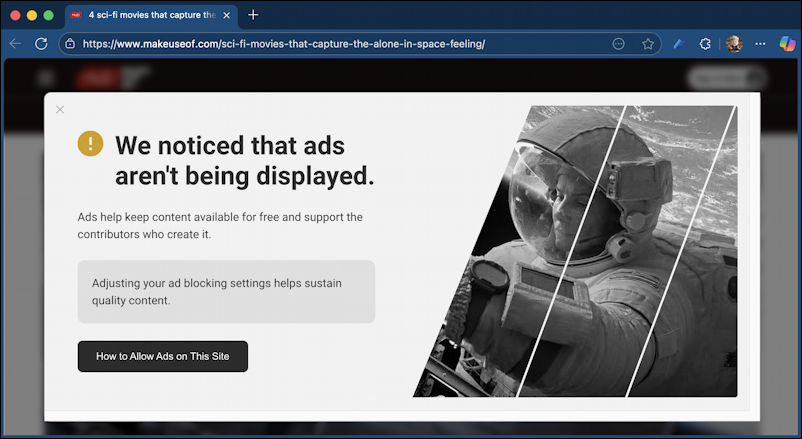
This is a quite reasonable error message, and does a good job of explaining both the problem and proposing a workable solution. But, with all due respect, I don’t want to see the ads on this particular site, I just want to read the article. Yes, you might feel exactly the same way about this tutorial here on AskDaveTaylor.com.
What’s key to notice here in Microsoft Edge is the tiny circle in the address bar with the three dots. Clicking on that offers up the following menu of options:
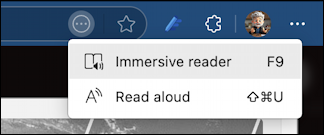
Read aloud can be an excellent feature for people who have difficulty reading or just prefer hearing rather than reading content. But what we are interested in is “Immersive reader”. I can use F9 as a shortcut or simply choose that menu option. In the background, the browser now fetches the page again, and stripped out everything that it ascertains isn’t actually core content. Here’s what that looks like:
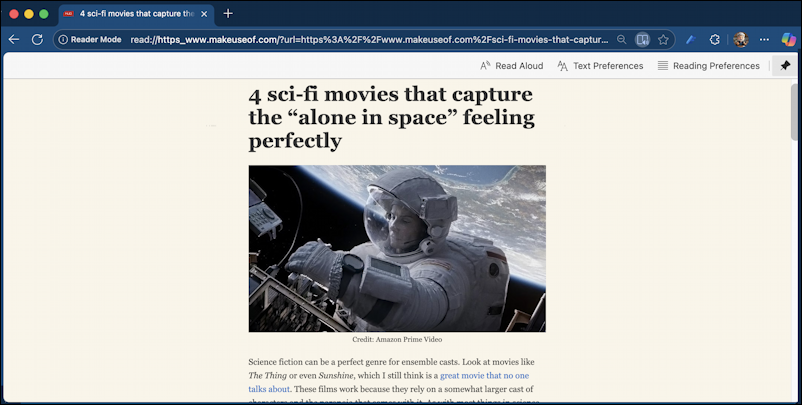
Not only has it sidestepped the ad blocker complaint window, it has stripped out all advertising and other content. Immersive reader view is actually a wonderful way to read content online because it eliminates all of the distractions. And, there are a lot of other settings you can tweak to make it perfect for you too…
Adjusting Preferences in the Microsoft Edge Immersive Reader
Look along the very top of the Immersive reader view and you’ll see there are three options: Read Aloud, Text Preferences, and Reading Preferences. Let’s start with Text Preferences to see some of the options there:
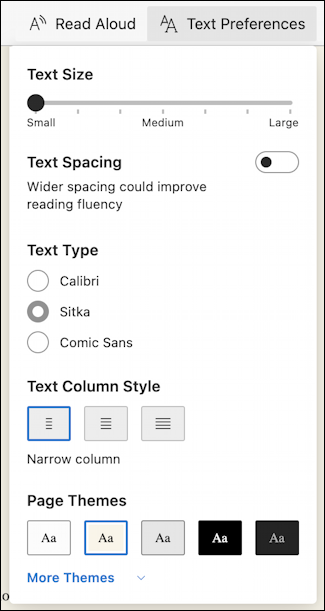
It’s quite reminiscent of the experience on an Amazon Kindle device. In fact, it’s not unreasonable to observe that this particular utility turns webpages into e-book articles. And there are more themes than shown, as suggested by the “more themes” link at the bottom.
Not enough ability to fine-tune things? You can also choose to look at the options associated with Reading Preferences:
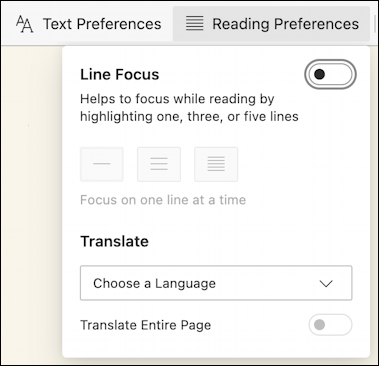
While these features are mostly associated with accessibility, there’s absolutely no reason that everyone can’t enjoy a cleaner, more streamlined version of the webpages that you visit.
Can AI Sidestep These Problems?
One reasonable question to ask is whether web browsers with built-in AI capabilities can now also sidestep these sort of paywalls, and the answer is, not so much…
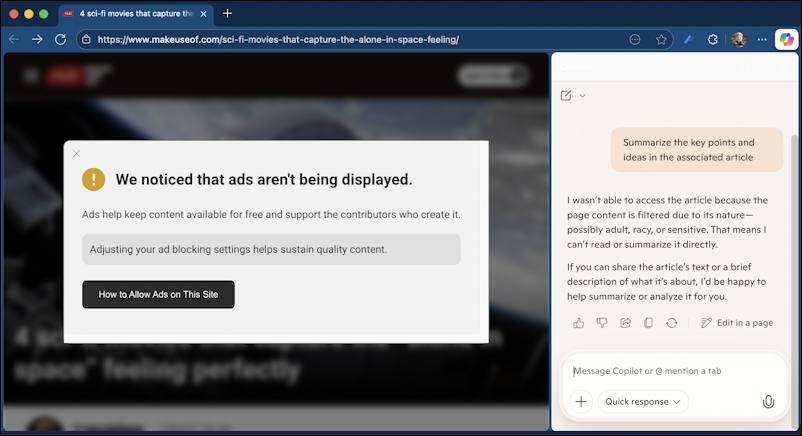
In case you can’t read it, on the right hand side, after I have asked for a summary of the article, Microsoft copilot in edge has responded “I wasn’t able to access the article”.
But ChatGPT itself doesn’t necessarily have that problem, as is demonstrated when I give it to URL and ask it to summarize the article:
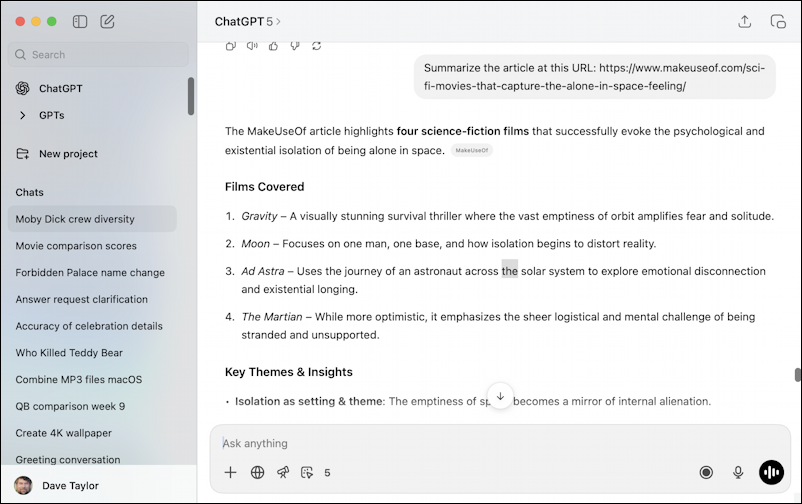
Well, it’s not flawless. This points to an important and powerful use of AI as part of your web exploration: analyzing, summarizing, and critiquing content that you find. Turns out, it’s quite useful and quite easy.
How about other web browsers? How do they deal with this?
Sidestepping Ad Block Blockers from Chrome and Safari
Let’s start with Google Chrome. Surprisingly, given that it shares base code with Microsoft Edge, it’s less sophisticated in its ability to show pages without ads. Perhaps it’s because Google makes so much money off of ads on webpages? In any case, check it out:
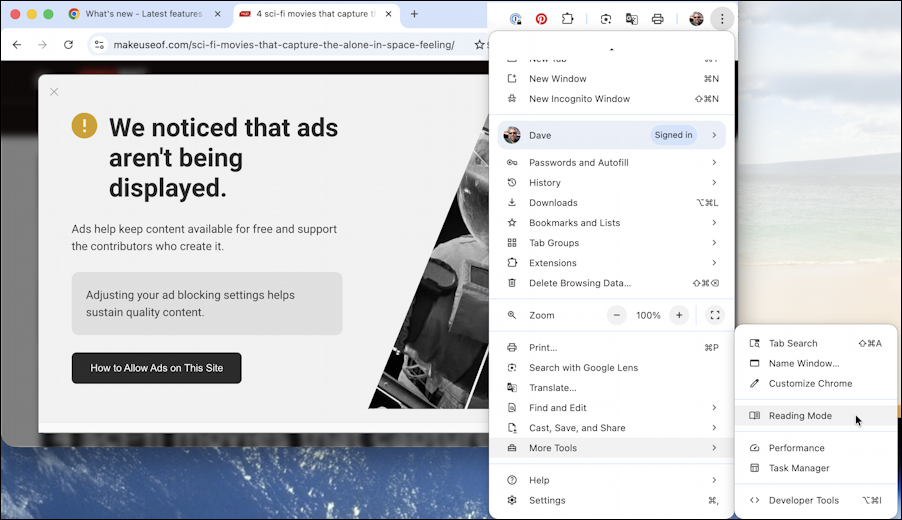
As shown in the cascading menu, chrome does have a feature called “Reading Mode”, but I don’t find it, particularly reliable. On the other hand, simply clicking on the background on this particular webpage let me step beyond the content block window and read the article. Of course, all the ads another distractions were right there on the page:
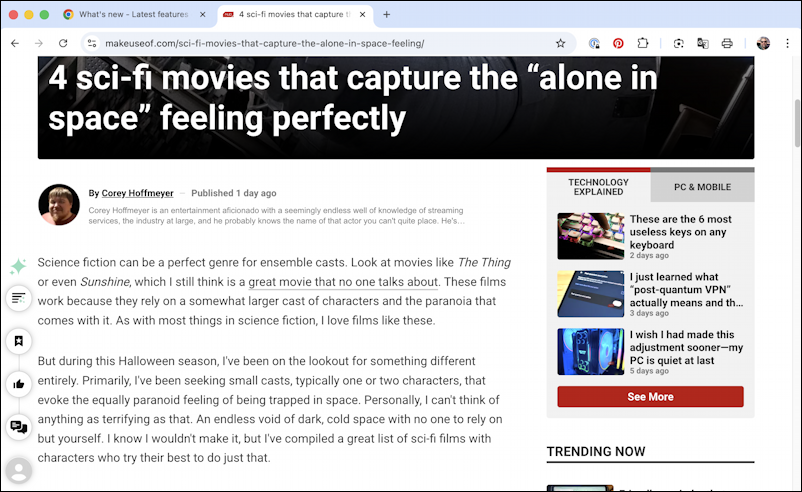
There are lots of other web browsers available, but since I’m on a macOS system, let’s have a quick peek at Apple Safari. Turns out that it also has an excellent immersive reader view.
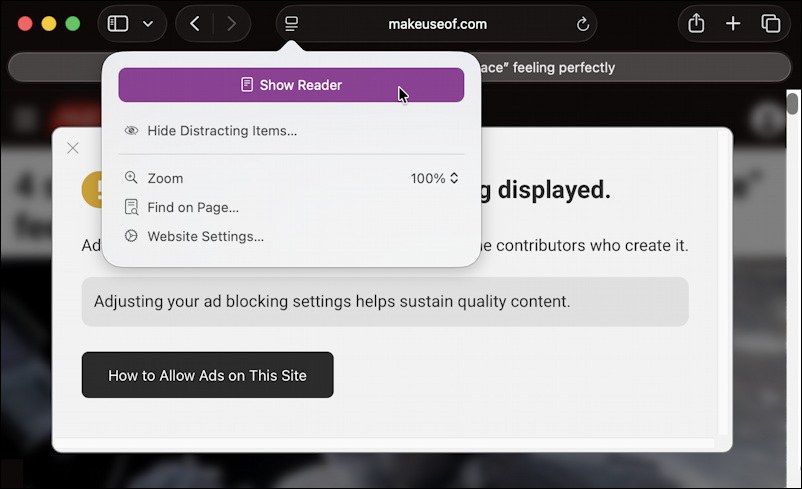
When I encountered the same error because I had my ad blocker running, I simply clicked on the icon in the Safari address bar and chose “Show Reader”. The results should look familiar:
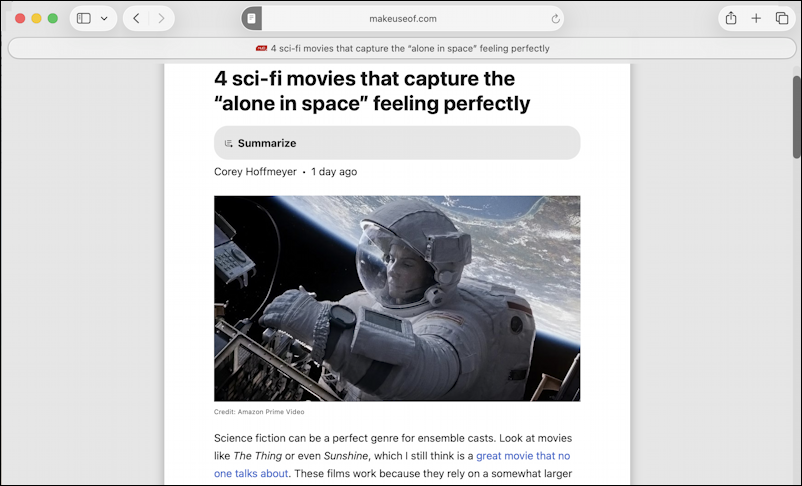
I appreciate the integration of Apple Intelligence here, but did not find that clicking on “Summarize” ever actually generated a summary of the article. Hopefully you have a better experience in that regard, if that’s something you’re interested in doing.
And that’s it. These tools do a great job of giving you, the reader, more control over your experience when you’re running an ad blocker and visit a website that has clutter, too many distractions, or simply more ads than you want to see. Many of these same techniques can be used to sidestep subscription pay walls. Though the very biggest sites have figured this out and are much harder to crack, but it’s worth a try. Of course, I will wrap up by saying that all of these pages are paying money to offer their content so please don’t forget to occasionally support them and even consider paying for a subscription if it’s a site you visit on a daily basis.
Pro Tip: I’ve been writing about Amazon and Amazon Prime for many years. Please check out my computer basics help area while you’re visiting for more helpful tutorials. Thanks!
Hi Dave. Great site, thanks for all you do. I run MacOS Safari here. uBlock Origin (even the Lite version) does an amazing job of hiding ads without being detected. I also use Safari’s “Hide Distracting Items” function to kill annoying popups on a permanent basis. It remembers the item choices in any future site reload. Turning Javascript off sometimes also helps bypass the subscription demand. A tough test is the NY Times or Wash Post web sites.