
Hey Dave is there anyway we can have the “Computer” icon show up on the desktop, and the Hardsisks mounted within this folder. Much like Windows? Coz I have too many partitions (3 Harddisks with almost 5-6 partitions on each disks)
This is a really great question and the solution is easier than you may think. The first step is to make sure that all your hard disks and partitions show up on the Desktop (at least for the duration of creating your Mac version of My Computer). You can do that by following the steps detailed here: Move the hard disk icon onto the Dock.
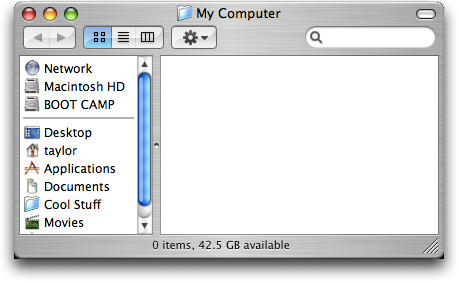
Once they all show up on the Desktop, simply create a new folder on your desktop called My Computer by using File –> New Folder or pressing Cmd-Shift-N for the keyboard shortcut. Open up the folder, then you should see something like this:
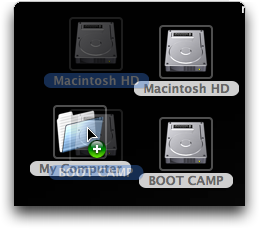
Now you simply want to drag all of your hard disk icons from your Desktop into that folder, like so:
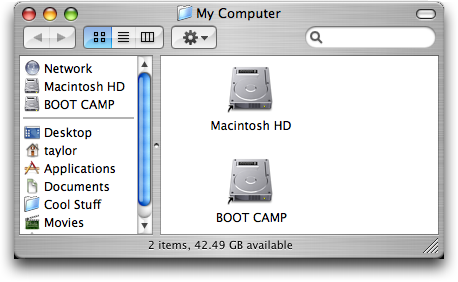
Now when you open up the folder, like magic, there are aliases for each of your hard disks:
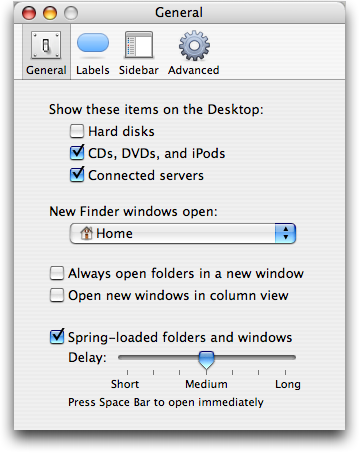
Final step: go back into the Finder and turn off all those pesky Desktop icons by selecting Finder –> Preferences… and clicking on the General tab:
That’s all there is to it. You now have a folder on your desktop called “My Compute” that will let you have quick access to the dozens of different drives and partitions you’ve installed, without having them all clutter up your desktop.
Note: I wanted to demonstrate the Mac’s slick “Smart Folder” capability to solve this, but it has a bug in the selector Type Volume that it doesn’t choose partitions that are foreign file system formats (e.g., “Boot Camp”). Hopefully that’ll be fixed or they’ll add a “Device” type because then you really could have a dynamic My Computer that would expand or contract based on what devices and volumes you had mounted at that moment, including CDs, DVDs, iPods, digital cameras, etc.
what do you mean by “alias”
Ladies and Gentlemen, you will notice that there is “NO WAY” to make an alias for your computer under devices in the finder. Even though you can open the finder and click on your computer name and see all of the associated hard drives etc… there is no way to make this on your desktop.
Furthermore, even though you can follow the instructions in this posting to make a folder called MY COMPUTER, the author says nothing about what happens when you unplug/eject your external hard drives and then plug them back in.. does the folder concept remember this?? Probably not…
Yes, I’m a beta tester of Yosemite and no, it doesn’t even work there either… How Sad huh??
Not sure what you’re talking about, Rik. I just went through the steps detailed in the article on my Mac system that’s running 10.10 (14A314h) and it all works just fine. And if you have an alias to a hard drive that you remove, then the alias doesn’t vanish, it just points to a non-existent device. Plug it in again and the alias will work just fine. 🙂
Is mountain lion OS better than win 7 ultimate ? And like my computer in win could we have same in Mac book
need info in how be able to instaal icon on my computer face please respond thanks,joe
I purchased one Imac computer then uploaded windows but at present there is no apple computer in my pc please help me to get back the apple machintosh in my pc
Agree, anyway.. can we just talk about mac? haha..
man… try to learn how the mac works… You don’t need the “My Computer” hack.
It seems to me that the simplest way to create a My Computer type of folder that also will “magically include ALL volumes”, is to just make an alias of the /Volumes folder and name it “My Computer”. Done.
whatever…
the point is still the same. Apple was the first to use GUI as their main interface — and like a box of Kleenex other systems don’t think that far out of the box. It amazes me when PC switchers try to make their Mac more PC like — only to create complicated hacks for items that are readily available and have been around on the for a while in the Mac.
Dara, I appreciate your enthusiasm, but it’s inaccurate to say that Apple invented any sort of GUI, actually. It was an evolution with contributions from many parties, including Stanford Research Institute (now just “SRI”), Xerox PARC (notably the Alto and Star) and many others. 🙂
DUDE!!! Just go to Finder Menu –> Preferences –> Sidebar and check off the little mark to show the Computer. Wala.. any finder window has a direct link to “My” Computer.
Remember — Apple invented the GUI!!!!!!!!
Yes, I always wanted a way to go into my computer by going into my computer. 🙂
I never really liked the Computer metaphor, and prefer the disks on my desktop. It is a bit quicker. I do wish windows offered this as an option like MacOS does… Well, it does, but… well, just try _mounting_ the C: drive to a folder on the Desktop, and then searching for something… fun!
aptmunich means to Command-click in the title bar of a hard drive window to pop up to the “Computer” level, then to click on the “Computer” icon in the title bar and command-option drag it to someplace.
Alas, it doesn’t work – you can’t make an alias of the “Computer” object because you can’t copy it to various places. But that hardly seems an obstacle – from anywhere in Finder, press Command-Shift-C and you’ll get a “Computer” window. If you have a frontmost window, it changes to that view; if you have no window, Finder opens one.
It’s been there since Mac OS X was released six years ago today, and is even in the menu bar (“Go > Computer”), so you can change the keyboard shortcut to whatever you want. It will also magically include ALL volumes this way, including network and removable volumes, not just whatever disks you had handy when you made the alias Dave recommends.
Why the workaround? OS X has this view built-in:
Go to your harddrive and press command+arrow up to navigate to ‘Your Computer’.
(Alternatively show your harddrive in Finder, right-click the title of the finder window and select the enclosing folder).
Now you’ll see all mounted volumes in one pretty window.
Drag an Alias to your desktop and you have “My Computer”.
I thought the point of getting a Mac was to try and get away from what the Windows PC offers. By having everything available on your desktop you avoid the extra step of having to open a window to see what’s going on. To each their own!
Also, check out http://www.switchingtomac.com/