
 I should start with a candid admission: I’m not a huge television watcher. I catch soccer matches on Fox Soccer Channel, and watch old movies on Turner Classic Movies, but other than that, it’s a rare series that catches my attention. I do like Game of Thrones and The Newsroom on HBO and The Walking Dead on AMC, but that’s about the extent of my viewing.
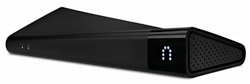
Enter Slingbox. The company makes a line of devices that you plug in between your television and your video source and it allows remote viewing and – far more impressive – remote access to the device via a virtual remote control. This means that if you have a DVR, for example, the Slingbox device will let you not only set up future recordings but enjoy previously recorded programming quite literally from anywhere in the world.
What makes the series, and particularly the top-of-the-line Slingbox 500 so darn cool, however, isn’t that it lets you view your television and DVR programming while you’re on the road, but that it effectively means you can turn any screen in your house into an additional television screen. Want to lay in bed and watch a show? The iPad app works great for that, and iPhones work well too, as you’ll see.
The first part of the puzzle is figuring out how to get the Slingbox 500 to fit into your existing TV setup. Mine isn’t too complex, and I have a Comcast box that gives me digital HD and a digital video recorder (DVR). That’s not directly hooked up to the TV, however, because I have a big Yamaha soundbar that gives me 100x the sound that the Sony HDTV would by itself. In fact, there’s also a Western Digital TV Live box and an Apple TV hooked up to the Yamaha too, along with my Panasonic Blu-Ray player. So, well, I guess it is pretty complicated.
Since the Slingbox can’t interact with multiple devices (yet: it’d be sweet if I could control my TV Live box via Slingbox some day) it’s really designed to hook up directly to a cable box, satellite box or similar, rather than be stuck in the rats nest of video cables around the TV. Further, while the Slingbox 500 has the ability to take HDMI in and out, tapping the signal on the passthrough I found from experimentation that the component output was quite sufficient to get a crisp and eminently watchable picture via the device.
In fact, realizing that made the setup easy because I just added the Slingbox 500 to my system without it actually having any pass-through signal at all. There’s nothing connected to the “output” of the Slingbox. Instead, I have the HDMI out from the cable box fed to the sound bar, and thence to the TV, while the component output of the cable box, not quite as good as an HDMI signal but still quite good, fed directly to the Slingbox.
As you can see, the device has a ton of plugs on the back:

Pay attention to the “in” and “out” plugs because if you get anything wrong when hooking things up, you’ll wonder why you’ve got a blank signal rather than the TV channel you were hoping to watch. Yes, I did that. 🙂
Finally, though, once it’s all set up with the very well designed on-screen prompts and configuration system, the end result is rather astounding. For example, on my MacBook, here’s what I can watch:
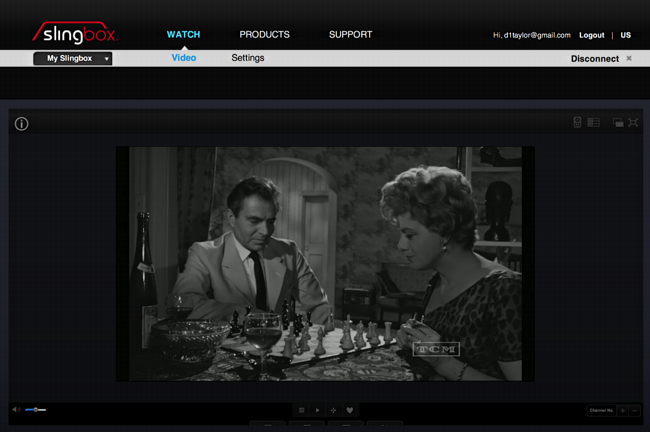
It’s an easy matter to click and make it full screen too, and if you have sufficient bandwidth (one reason you might want to consider a hardwired Ethernet connection to the 500 rather than a wifi connection if you don’t have at least 802.11n in your house/office) it’s really quite clear and impossible to distinguish from actually having a raw TV signal coming into your computer.
Along the top in the previous screen cap you can just faintly see the control icons. Click on the remote icon and a working video remote appears on screen, letting you change channels, pop up the on-screen programming guide, and, most importantly, get to the DVR too:
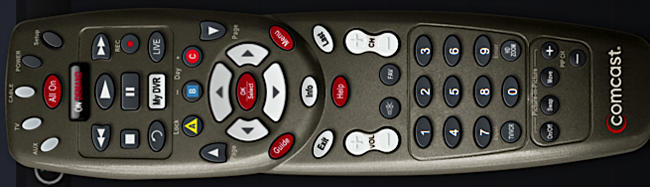
(I’ve flipped it sideways for layout reasons, but it shows up on the left edge of your screen, oriented vertically)
If that’s too confusing, Slingbox also offers a program guide of its own that’s tailored to your own channel lineup. Click on “guide” and here’s what shows up:

This is obviously a lot easier to read and search than poking about with the digital remote, and it’s a breeze to work with, other than that it shows every channel by default, which is annoying if you ignore 80% of them, as I do. Still, you can mark favorites and have it default to just showing that subset if you work at it.
In the house, and even in the neighborhood (think “comfortable cafe down the street, but don’t want to miss the big football game”) it works great. Really quite amazing, actually.
But how does the Slingbox 500 work on the road?
To test it, I flew down to Houston, Texas from my home base of Denver, Colorado, about 950 miles as the proverbial crow flies. I further tapped into the AT&T 4G service on my iPhone rather than using a high-speed wireless connection, and then added another compexity: I was in a cab driving through downtown.
And here’s how it looked:

I’m watching a trailer for The Walking Dead on AMC. Via 4G and the Internet. From 950 miles away. Eminently watchable!
A tap on the screen and the controls appear:
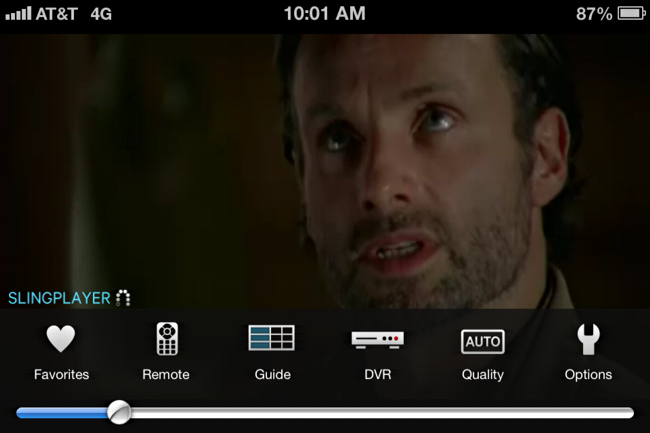
These are laid out differently than on the Web interface, and I rather prefer the Web design, but an actual remote would be way too small to work with on the tiny iPhone screen, so ya just have to get used to it.
The pricing structure of the Slingbox is a bit confusing and I’m not sure I agree with the company’s logic: The Slingbox 500 itself will run you about $300 at Amazon.com and it includes a ton of cables and really everything you need. Except that if you want to access your Slingbox on an iOS device, it costs extra. In fact, Slingbox Player for the iPhone runs $14.99 and Slingbox Player for the iPad runs another $14.99. Why those aren’t included in the price of the device is just plain weird.
I asked Brian Jaquet over at Slingbox about it and here’s his comment:
In the big picture, $30 to have apps that let you watch your TV and DVR content on your various iOS devices is probably not that big a deal, but it’s really the only complaint I have with a device that’s really otherwise quite amazing. And remember that if you want to turn that spare monitor in your office into a second TV screen or want to catch the big game on your laptop there’s no additional software needed, it all just works in your Web browser, no additional payment required.
If you find that you really don’t need the HDMI and would be okay with slightly lower quality streaming video content, Slingbox does have the lower cost Slingbox 350, which supports full 1080p HD, just not via easy HDMI in and out plugs. That one has a street price of $179, roughly half the cost of its big brother. Unsure about the comparison? Here’s a handy comparison chart from the company.
In summary, I’m very impressed with the Slingbox 500. It was a bit tricky to set up because of the complexity of my home theater configuration and the wealth of devices I have connected, but with the addition of my new 802.11ac router, it really works astonishingly well, and is quite sufficient for catching the latest Spurs soccer match or Game of Thrones episode while I’m on the road.