
Ask Dave Taylor
  • Facebook
  • Instagram
  • Linkedin
  • Pinterest
  • Twitter
  • YouTube
  • Home
  • YouTube Channel
  • Most Popular
  • Newsletter!
  • Ask Me A Question
  • Meet Dave
  • Home
  • Articles, Tutorials, and Reviews
  • Review: Automatic Smart Driving Assistant

Review: Automatic Smart Driving Assistant

March 25, 2014 / Dave Taylor / Articles, Tutorials, and Reviews / No Comments

Like most people, I spend a fair amount of time in my car driving back and forth, running errands and occasionally going on road trips. My oldest is also learning how to drive so it gets double duty as a teaching vehicle too.

But while our cars have become increasingly sophisticated with dozens of on-board computers, we know remarkably little about the day-to-day operation.

Enter the slick Automatic Smart Driving Assistant.

  ★ ASKDAVETAYLOR WEEKLY EMAIL! ★
Guaranteed to Make you Smarter.
Click Here to Subscribe.

There are two parts to the Automatic Smart Driving Assistant, the $99 device that plugs into your vehicle and the free mobile app that interfaces with the unit. Just about every car made since 1996 has what’s called an OBD, an on-board diagnostic port. Usually they’re used by mechanics and auto companies to plug in their fancy diagnostic computers and analyze the usage data logs, but the protocol is open and the Automatic hardware unit plugs directly in. I have a 2008 Toyota Highlander, so my car was ready to go when the device arrived.

The second part is the companion app (the device and app share data via Bluetooth but otherwise the device has no user interface and is essentially invisible to all but the most eagle-eyed. In my car, it’s tucked underneath the dashboard above the brake pedal to the left (and below) the steering wheel. The app is available for both Android and iOS too.

As a product tester, I actually already had a device plugged into the OBD port on the Toyota, the Audiovox Car Connection. Once unplugged, the OBD port was easily located and ready to go:
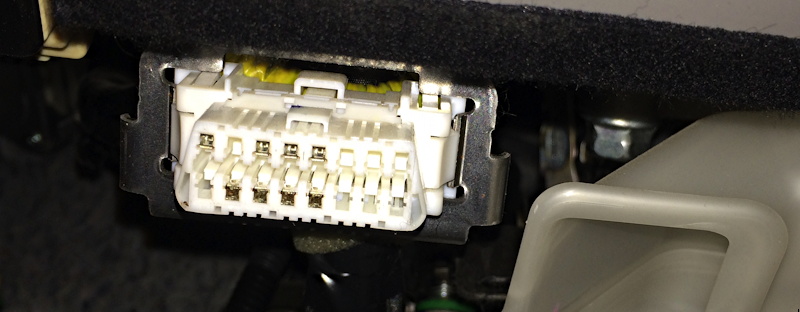
toyota highlander obd onboard diagnostics port

For scale, the port is approximately 3-inches across, and maybe an inch high.

With the Automatic Link unit plugged in, here’s the view looking down:
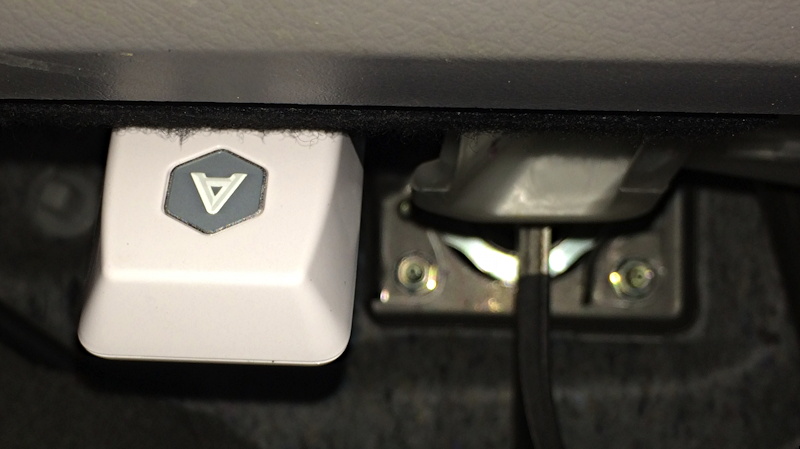
automatic unit installed in 2008 toyota OBD

Again, the unit’s not much bigger than a half-dollar, I’ve just zoomed way in so you can see it in action!

On the iPhone 5s, a quick click downloads the Automatic app:
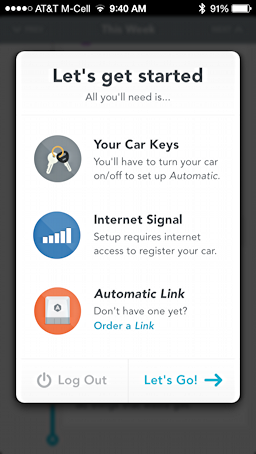
get started with automatic app driving car vehicle

A few simple steps (including entering a unique serial number located on the Automatic Link) and…
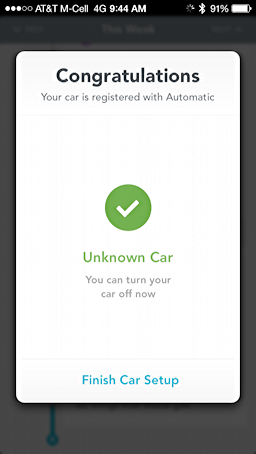
Automatic Link paired to phone

One thing: Cars apparently don’t identify themselves to the app, so you’ll need to tap on “Finish Car Setup” to add information about your particular vehicle. This also helps the Automatic Link figure out how to communicate with your vehicle: apparently there are at least five distinct protocols being used by OBD systems.

It does identify its own VIN (vehicle identification number), however, as shown when I go to finish the setup:

VIN already identified, car model still unknown

All easily accomplished.

When it’s all setup, by default the little Link unit beeps if you’re driving too fast, braking too hard or accelerating too aggressively. Neat when my daughter’s driving (though disconcerting) but not so much when I’m behind the wheel.

Fortunately you can turn this feature off from within the app:

disable audio feedback

Whether or not you want the audio feedback, however, the main point of the Automatic Link is to analyze how you drive and give you feedback on your driving style and routes.

After a few days, here’s what it was sharing with me:
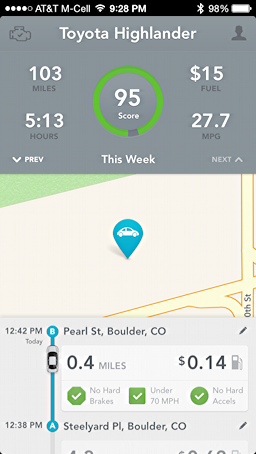
automatic app

You can see that in the previous seven days I’ve driven 103 miles across 5:13, with an average fuel efficiency of 27.7 MPG. That translates to $15 in gas costs (though you can’t tweak gas price so my assumption is that there’s a standard price that it’s getting from Automatic HQ).

More interestingly, I did well with a driving score of 95. Just a couple of times I braked too hard and once time I was a bit too eager to get going from a dead stop. This becomes far more interesting when my daughter starts being able to drive without me in the car, of course, and also note that for each segment driven, it shows starting and ending point, can show places you stopped for 15min or less, and gives a performance feedback score for that specific leg.

With the OBD being monitored by the Link, your smartphone can now pop up alerts when there are problems with the vehicle, darn handy but not something I could test short of draining out all my oil or throwing a tire iron in the fan. 🙂

Finally, the map shown is interactive and is handy when you’re not sure where you parked. Better, if someone borrows your car and just leaves it, you can find it then too, as you could also if it’s stolen (at least until the thief yanked the unit out). Carjackers, beware!

I really like the Automatic Smart Driving Assistant, actually. It’s simple, small, super easy to install and offers up all sorts of interesting information and diagnostics about both your car and how you drive. Priced at $99 for everything you need, it’s also quite affordable. Check it out: Automatic.com.

Disclaimer: Automatic sent us an Automatic Link for the purposes of this review.

Enjoy watching videos? I've got hundreds of lively and interesting product reviews you can enjoy with just a click. Please check 'em out: AskDaveTaylor Video Gallery.

About the Author: Dave Taylor has been involved with the online world since the early days of the Internet. Author of over 20 technical books, he runs the popular AskDaveTaylor.com tech help site. You can also find his gadget reviews on YouTube and chat with him on X as @DaveTaylor.

Let’s Stay In Touch!

Never miss a single article, review or tutorial here on AskDaveTaylor, sign up for my fun weekly newsletter!
Name: 
Your email address:*
Please enter all required fields
Correct invalid entries
No spam, ever. Promise. Powered by FeedBlitz
Please choose a color:
Starbucks coffee cup I do have a lot to say, and questions of my own for that matter, but first I'd like to say thank you, Dave, for all your helpful information by buying you a cup of coffee!
audiovox, automatic link, car interface, find your car, map your driving, onboard diagnostics, toyota highlander, vehicle diagnostics

Leave a Reply Cancel reply

Your email address will not be published. Required fields are marked *

Search

Recent Posts

  • How to Change Your Default Web Browser in Windows
  • How to Check for Spam DM’s in Facebook Messenger
  • How to Automatically Close Your Garage Door with MyQ App
  • Best Time to Post on Facebook Business Pages?
  • How to Find and Remove Stray Android Background Apps

On Our YouTube Channel

Endless Cleaning with the Roborock Q10 S5+ Robot Vacuum & Mop

Cleer ARC 4 Open Ear Headphones: Ideal for Outdoors - DEMO & REVIEW

Categories

  • AdSense, AdWords, and PPC Help (106)
  • AI and ChatGPT Help (75)
  • Alexa, Kindle, and Nook Help (111)
  • Amazon, eBay, and Online Shopping Help (176)
  • Android Help (321)
  • Apple iPad Help (156)
  • Apple Watch & Smartwatch Help (63)
  • Articles, Tutorials, and Reviews (361)
  • Auto Tech Help (31)
  • Business Advice (202)
  • Chromebook & ChromeOS Help (80)
  • Computer & Internet Basics (847)
  • d) None of the Above (169)
  • Facebook Help (405)
  • Google, Chrome & Gmail Help (227)
  • HTML & Web Page Design (249)
  • Instagram, Bluesky & Threads Help (70)
  • iPhone & iOS Help (702)
  • iPod & MP3 Player Help (173)
  • LinkedIn Help (98)
  • Linux Help (182)
  • Linux Shell Script Programming (95)
  • Mac & MacOS Help (994)
  • Microsoft Outlook and Office 365 Help (53)
  • Most Popular (16)
  • PayPal Help (69)
  • Pinterest Help (58)
  • Reddit Help (24)
  • SEO & Marketing (83)
  • Spam, Scams & Security (130)
  • Trade Show News & Updates (23)
  • Video Game Tips (66)
  • Web Site Traffic Tips (62)
  • Windows PC Help (1,093)
  • Wordpress Help (207)
  • Writing and Publishing (72)
  • X/Twitter Help (233)
  • YouTube Help (54)
  • YouTube Video Reviews (159)
  • Zoom, Skype & Video Chat Help (80)

Archives

Social Connections:

Ask Dave Taylor


Follow Me on Pinterest
Follow me on Twitter
Follow me on LinkedIn
Follow me on Instagram


AskDaveTaylor on Facebook


microsoft insider mvp


This web site is for the purpose of disseminating information for educational purposes, free of charge, for the benefit of all visitors. We take great care to provide quality information. However, we do not guarantee, and accept no legal liability whatsoever arising from or connected to, the accuracy, reliability, currency or completeness of any material contained on this site or on any linked site. Further, please note that by submitting a question or comment you're agreeing to our terms of service, which are: you relinquish any subsequent rights of ownership to your material by submitting it on this site. Our lawyer says "Thanks for your cooperation."
© 2025 by Dave Taylor. "Ask Dave Taylor®" is a registered trademark of Intuitive Stories, LLC.
FTC Notice: If you buy products through links on this site we may receive a modest affiliate commission. This won’t affect the price you pay.
Privacy Policy - Terms and Conditions - Accessibility Policy - Humix Video Content
  • Home
  • YouTube Channel
  • Most Popular
  • Newsletter!
  • Ask Me A Question
  • Meet Dave