Ask Dave Taylor
  • Facebook
  • Instagram
  • Linkedin
  • Pinterest
  • Twitter
  • YouTube
  • Home
  • YouTube Channel
  • Most Popular
  • Newsletter!
  • Ask Me A Question
  • Meet Dave
  • Home
  • Microsoft Outlook and Office 365 Help
  • Can I Play Wordsearch Within the Microsoft Edge Web Browser?

Can I Play Wordsearch Within the Microsoft Edge Web Browser?

August 18, 2025 / Dave Taylor / Microsoft Outlook and Office 365 Help / No Comments

I work as a temp receptionist and so am constantly using different computers. A lot of time it’s boring so I like to play games and puzzles. I can’t use my phone, so I’m wondering, can I play puzzles like word search in a web browser instead?

  ★ ASKDAVETAYLOR WEEKLY EMAIL! ★
Guaranteed to Make you Smarter.
Click Here to Subscribe.

I’ve had many friends who have worked as receptionists and similar and know just what you mean about it sometimes being fairly quiet job punctuated by bursts of activity. I’m pretty sure it’s also why Microsoft Solitaire became such a popular game: A lot of receptionists still seem to favor it as the time filler between tasks! Things have improved since then, however, so you won’t be surprised to learn that there are now hundreds of games you can play within your Web browser.

Even better, if you use a browser like Google Chrome or Microsoft Edge, you can log in to your account when you start your day and instantly have access to all your bookmarks and installed web apps. That’s what I’ll demonstrate in this tutorial, using Microsoft Edge, the default Windows browser, and MSN.com, where they have a remarkably large collection of games and puzzles, all playable from within a browser.

FIND YOUR GAME IN MSN.COM

Fire up Edge, log in (click the profile icon on the top right and choose “Sign in”), then go to msn.com/play to get to the game library. Here’s what you’ll see:
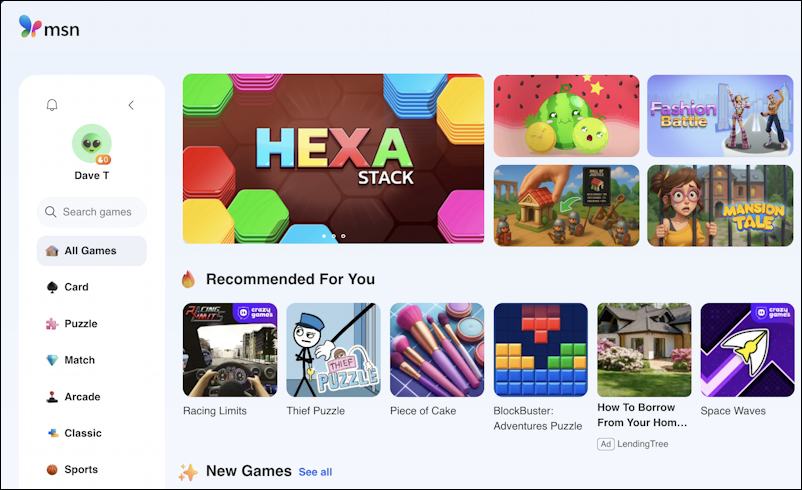
microsoft edge msn.com games - home screen

If you look on the left side, you can see that there are a lot of categories from which to choose! You can definitely peruse the catalog, but it’s easier to use the tiny search box just below your profile. Click where it shows “Search games” and you can look for Tetris-like games…
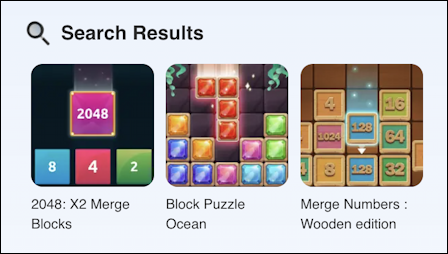
microsoft edge msn.com games - tetris

or poker games…

microsoft edge msn.com games - poker

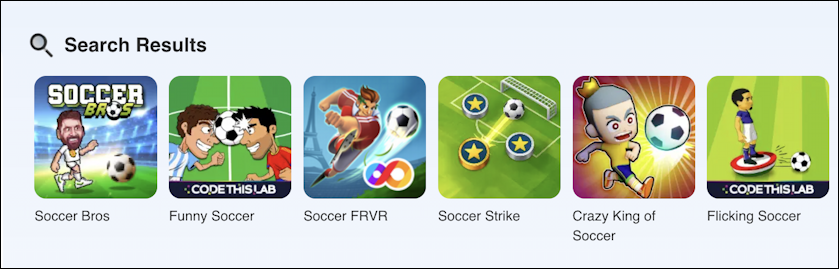
or soccer games…

microsoft edge msn.com games - soccer

or just stay on theme and look for word search puzzles:
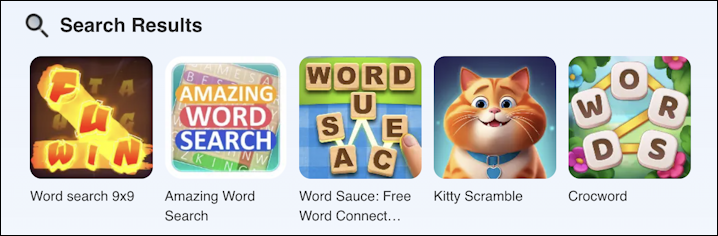
microsoft edge msn.com games - word search

I haven’t tried all of these, but I do like Amazing Word Search for a quick puzzle, so that’s what I’ll install.

HOW TO PLAY AN MSN.COM GAME

What’s great is you don’t have to install anything; click on the game and you can immediately play it within your Web browser:
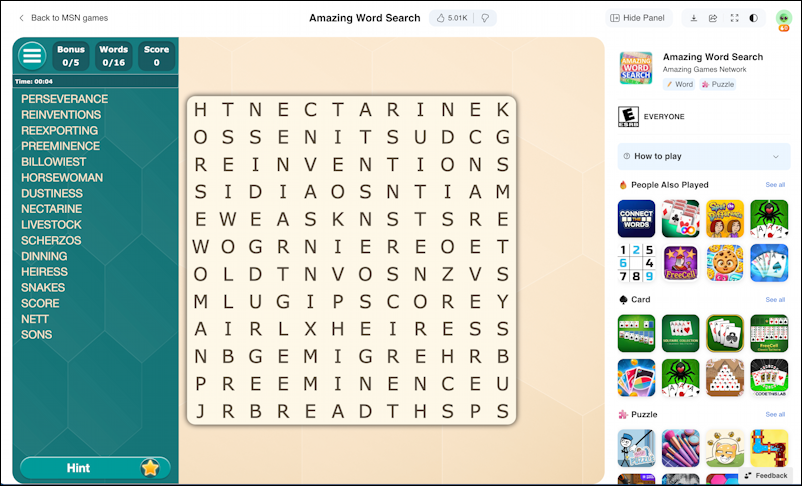
microsoft edge msn.com games amazing word search - home screen puzzle

If you bookmark or favorite this page, since you’re logging in to your Edge browser at the beginning of each day, that bookmark will be easily accessible on any PC or Mac you use. This is the lowest impact solution and if your clients ask that you not change the computer configuration, this might be your best bet.

HOW TO INSTALL IT AS AN EDGE APP

Modern Web browsers can serve as entire operating systems – hence Google Chrome and Chromebooks – so it’s no surprise that Microsoft Edge supports its own app ecosystem. What’s really cool about it is that with just a few clicks, you can have your favorite games on their own menu right from the toolbar. Log in to a new system, and you can optionally install them on that within seconds.

On the MSN game page, notice that on the top right there are some buttons. You want the downward pointing arrow from the lineup:

microsoft edge msn.com games amazing word search - install amazing word search

The other buttons let you easily share the game link with friends, zoom it to full screen, change light/dark color scheme, and access your MSN games profile. Click on “Install” and you’ll be prompted to download the app into MS Edge:
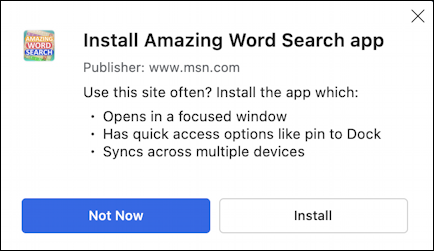
microsoft edge msn.com games amazing word search - install game app?

Handy, right? Click on “Install” to proceed. Once it’s done, though, no new icon appears on the toolbar. Instead, you’re left with a new puzzle to solve: Where are your installed Edge apps?

FINDING YOUR NEW GAMES IN MS EDGE

It’s a bit of menu spaghetti to find your apps, but we’ll solve that in a moment. For now, click on “•••”, then “More Tools”, then “Apps”:
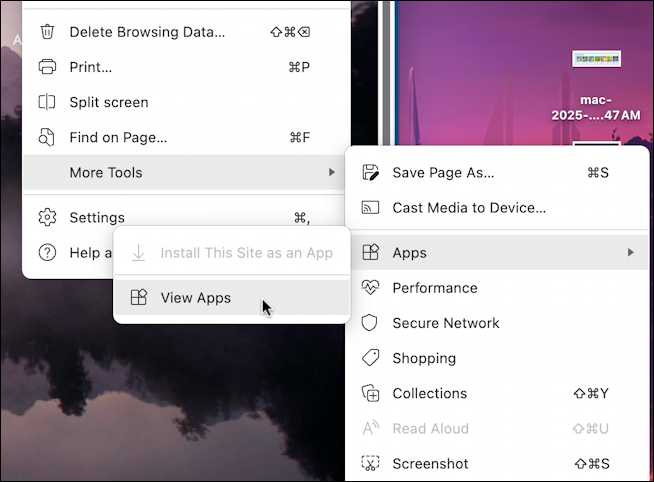
microsoft edge msn.com games amazing word search - finding your installed apps in edge

“View Apps” will open up a side window that offers a convenient list of everything you’ve installed on any of your Microsoft Edge systems. Yes, this means you can install all your favorite games at home on your PC and then have them accessible from any work system you use too.
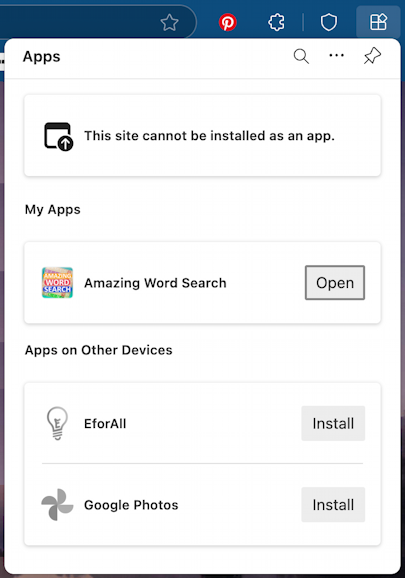
microsoft edge msn.com games amazing word search - installed apps

Don’t worry about the first line here: I was on a blank tab when taking this screenshot so it, of course, cannot be an app. Notice instead that Amazing Word Search is ready to go, but that I can also see that I have an EforAll app and Google Photos both installed on Microsoft Edge on other computers, and that a single click on “Install” will add them to this system.

More than that, however, notice that there’s a button added to the toolbar along the very top, four squares, with the top right one akilter. That’s the Apps button, and you can lock it into the taskbar by searching for “apps” in Settings:
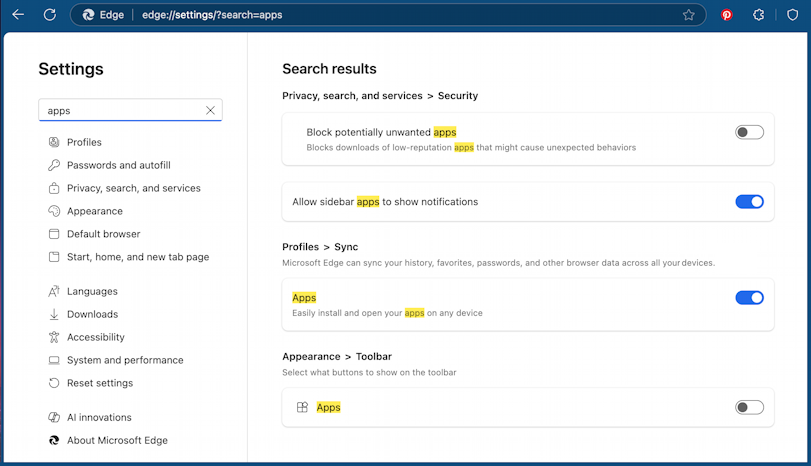
microsoft edge msn.com games - search for apps in edge settings

The last match is Appearance > Toolbar, and if you click the slider to enable it, the Apps button will remain on your Toolbar even when you close the Apps sidebar. That’s the move. Done. Now, go and try a quick wordsearch!

Pro Tip: I’ve been using and writing about Microsoft’s Office Suite and other online tools for many years. Please check out my Microsoft Edge & Outlook help library for lots and lots of useful tutorials! Thanks.

Enjoy watching videos? I've got hundreds of lively and interesting product reviews you can enjoy with just a click. Please check 'em out: AskDaveTaylor Video Gallery.

About the Author: Dave Taylor has been involved with the online world since the early days of the Internet. Author of over 20 technical books, he runs the popular AskDaveTaylor.com tech help site. You can also find his gadget reviews on YouTube and chat with him on X as @DaveTaylor.

Let’s Stay In Touch!

Never miss a single article, review or tutorial here on AskDaveTaylor, sign up for my fun weekly newsletter!
Name: 
Your email address:*
Please enter all required fields
Correct invalid entries
No spam, ever. Promise. Powered by FeedBlitz
Please choose a color:
Starbucks coffee cup I do have a lot to say, and questions of my own for that matter, but first I'd like to say thank you, Dave, for all your helpful information by buying you a cup of coffee!
microsoft edge, msn games, msn.com, online word search

Leave a Reply Cancel reply

Your email address will not be published. Required fields are marked *

Search

Recent Posts

  • How to Change Your Default Web Browser in Windows
  • How to Check for Spam DM’s in Facebook Messenger
  • How to Automatically Close Your Garage Door with MyQ App
  • Best Time to Post on Facebook Business Pages?
  • How to Find and Remove Stray Android Background Apps

On Our YouTube Channel

Endless Cleaning with the Roborock Q10 S5+ Robot Vacuum & Mop

Cleer ARC 4 Open Ear Headphones: Ideal for Outdoors - DEMO & REVIEW

Categories

  • AdSense, AdWords, and PPC Help (106)
  • AI and ChatGPT Help (75)
  • Alexa, Kindle, and Nook Help (111)
  • Amazon, eBay, and Online Shopping Help (176)
  • Android Help (321)
  • Apple iPad Help (156)
  • Apple Watch & Smartwatch Help (63)
  • Articles, Tutorials, and Reviews (361)
  • Auto Tech Help (31)
  • Business Advice (202)
  • Chromebook & ChromeOS Help (80)
  • Computer & Internet Basics (847)
  • d) None of the Above (169)
  • Facebook Help (405)
  • Google, Chrome & Gmail Help (227)
  • HTML & Web Page Design (249)
  • Instagram, Bluesky & Threads Help (70)
  • iPhone & iOS Help (702)
  • iPod & MP3 Player Help (173)
  • LinkedIn Help (98)
  • Linux Help (182)
  • Linux Shell Script Programming (95)
  • Mac & MacOS Help (994)
  • Microsoft Outlook and Office 365 Help (53)
  • Most Popular (16)
  • PayPal Help (69)
  • Pinterest Help (58)
  • Reddit Help (24)
  • SEO & Marketing (83)
  • Spam, Scams & Security (130)
  • Trade Show News & Updates (23)
  • Video Game Tips (66)
  • Web Site Traffic Tips (62)
  • Windows PC Help (1,093)
  • Wordpress Help (207)
  • Writing and Publishing (72)
  • X/Twitter Help (233)
  • YouTube Help (54)
  • YouTube Video Reviews (159)
  • Zoom, Skype & Video Chat Help (80)

Archives

Social Connections:

Ask Dave Taylor


Follow Me on Pinterest
Follow me on Twitter
Follow me on LinkedIn
Follow me on Instagram


AskDaveTaylor on Facebook


microsoft insider mvp


This web site is for the purpose of disseminating information for educational purposes, free of charge, for the benefit of all visitors. We take great care to provide quality information. However, we do not guarantee, and accept no legal liability whatsoever arising from or connected to, the accuracy, reliability, currency or completeness of any material contained on this site or on any linked site. Further, please note that by submitting a question or comment you're agreeing to our terms of service, which are: you relinquish any subsequent rights of ownership to your material by submitting it on this site. Our lawyer says "Thanks for your cooperation."
© 2025 by Dave Taylor. "Ask Dave Taylor®" is a registered trademark of Intuitive Stories, LLC.
FTC Notice: If you buy products through links on this site we may receive a modest affiliate commission. This won’t affect the price you pay.
Privacy Policy - Terms and Conditions - Accessibility Policy - Humix Video Content
  • Home
  • YouTube Channel
  • Most Popular
  • Newsletter!
  • Ask Me A Question
  • Meet Dave