
I just switched over to Mac OS X 10.7 Lion and am kinda weirded out about what happens when I go to edit a file that’s more than a few weeks old. Instead of letting me edit the file like the computer used to do, now I get an error that the file is locked “because you haven’t made any changes to it recently”? What’s the story and how do I disable this feature?
I keep bumping into that too and while it’s indicative of one of the newest — and weirdest — new features of the Mac OS X Lion file system, it’s also rather annoying and confusing for us old school computer users who are used to having a file and having it constantly replaced by newer versions. If we want a “backup” copy, it’s up to us to do so. No more. In Lion it does versioning, which means that it keeps a separate copy of each version of the file. The result can be weird: open up a graphic, edit it, and you don’t need to save it: that’s been happening automatically. Um, okay.
For older files, you can simply “unlock” the file to edit it as you would have in the pre-Lion days, then it continues with its versioning approach, no worries, but I am concerned about the disk space used over time. We’ll see, perhaps there’s some automated tool that’s part of Lion or a utility that we’ll learn about in a few months. Or we’ll all just buy bigger drives and become appreciative of being able to roll back for any file that we edit, be it a document, image or (presumably) video.
Meanwhile, the fastest way to proceed when you get to one of these “file is locked” error messages really is just to click on the “Unlock” button. Here’s one I hit just today:
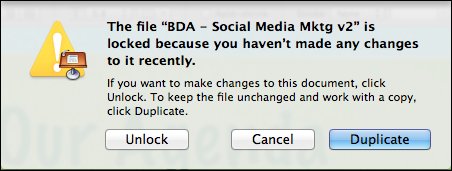
You have three choices here: Unlock lets you edit the file as you would have in earlier versions of Mac OS X (and it keeps versions behind the scenes), Cancel is your panic button (no towel included), and Duplicate creates a backup version that’s a completely separate file and lets you edit the new version. So the first and last are essentially the same, but the difference is that when you choose “Duplicate” it’s explicit what’s happening.
Now, let’s say that you want to turn this feature off, though I don’t particularly recommend it. Still, your computer, your choice. 🙂
To disable the version tracking feature of Mac OS X 10.7 Lion, go to System Preferences from the Apple menu on the top left. You’ll see a bunch of options, but what we’re interested in is in the “System” row:

The versioning capability is part of the new Time Machine backup subsystem, so that’s what you want to launch. Intuitive? Not so much.
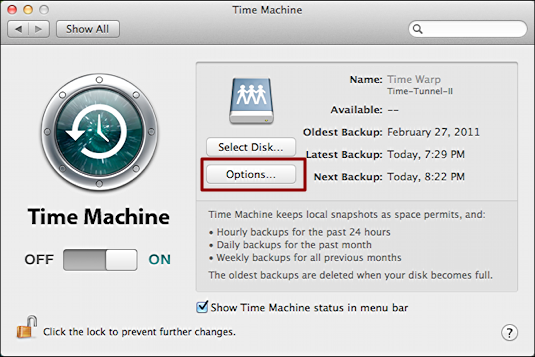
Hopefully you have an external drive or network drive and are actually doing regular backups, as I am. If not, I strongly, strongly encourage you to get this set up. The life you save will be your own.
Anyway, click on “Options…” and you’ll finally get to the spot you want:
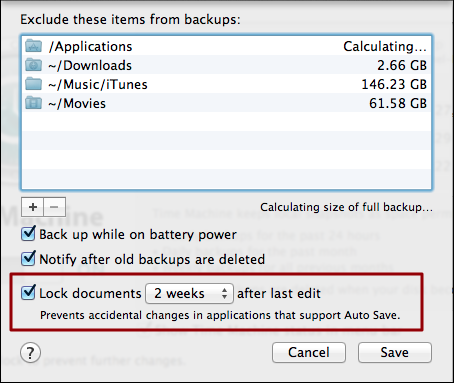
It’s the last checkbox: “Lock documents [2 weeks] after last edit”. You can change that to a longer period if you’d like (not a bad solution) or you can disable the feature entirely by unchecking the box.
Thought it through? Decided what you want to do? Click on “Save” and you’ve solved your locked file problem.
nobody is worried about hard drive space anymore…if you creating a bunch of documents you could edit them until the cows come home and not burn anymore space…
Kit, I’m pretty sure that if you disable the feature in Time Machine preferences, you’ll have disabled it.
Dave, can this ‘versioning’ feature be disabled completely? I am an experienced power user who has developed sophisticated reliable methods to do this *when I want to* and not the way Lion wants to do it. In time I might be persuaded that this new feature is a benefit to me, but in the meantime, is there a way to turn it off? Cheers, and thanks, KL
Good stuff, William. Have another article on version management I’m working on currently. Once you get the hang of it, it’s VERY cool to have every file automatically version as they do in Lion…
Just found an Apple Knowledge Base article:
http://support.apple.com/kb/HT4753
OS X Lion: About Auto Save and Versions
Oh yeah, I forgot… File versioning was a Feature of Digital Equipment Corporation’s (DEC) VMS operating system back in the 70s. Other OSs have had assorted versioning systems over the years, but none was as useful/controllable/functional as VMS.
Here’s another UNDOCUMENTED (that I can find) piece of this “locked/version” puzzle.
Hover the mouse over (any?) file name in the title bar (definitely true with TextEdit files).
A little arrow will appear to the right of the filename which, when you click on it, “pops-up” a drop-down menu…
Lock
Duplicate
Reverte to last opened version
Browse all versions …
Now we begin to see why the “control” is in the Time Machine preferences…. The “Browse all versions” selections opens up a “Time Machine” like window – displaying the “current document itself” and 3 buttons… current document, done, restore… and a “stack” of copies of the file…. and a companion information/error message…. “No previous versions available” under which appears (in my case more or less correctly) “Error Retrieving Versions from Time Machine” … since I do not have Time Machine turned on.
However, turning Time Machine on does not change the error message… This happens to be a new file that has never been backed up.