
I finally updated the operating system on my second generation iPhone and the new OS is definitely cool – and faster – but I’m not too sure how to use Spotlight, the search feature that so many people have been talking about on Twitter and elsewhere. What does it really do for me and how do I get to it?
I have had an Apple iPhone since they were first released a couple of years ago and it’s pretty amazing to me how quickly the data on the phone has grown and expanded. I now have over 1500 songs in the music library, ten screenfuls of applications, almost 250 contacts in my address book and always have at least 75 messages in the mail inbox.
That’s all well and good – it’s clear that I use my phone heavily – but it’s been a pain to find things as the data collection has grown.
On my Mac, it’s a no brainer because on the top right corner is the handy magnifying glass icon of Spotlight, which lets you have fast and easy access to a powerful file searching system that not just looks at filenames but at their content, neatly organizing the results by the type of application that created the file.
Finally that same Spotlight technology has made it to the Apple iPhone with the release of iPhone 3.0, the OS that was released simultaneous to the new iPhone 3GS third generation hardware. Have an older iPhone? No problem: next time you resync iTunes will tell you that there’s a new OS and give you the chance to upgrade. Do so and you’ll find that you have a snappier operating system on your phone that gives you a bunch of new features in addition to Spotlight.
Once you’re running Spotlight, how do you get to it? Press the HOME button once when you’re looking at App icons and if you’re not already on the home screen, you’ll slide there. If you are, you’ll now slide one more step leftward and be in the Spotlight screen. On the little dot line at the bottom of the screen there’s now a tiny magnifying glass too:

When you get to the Spotlight screen, it looks like this:
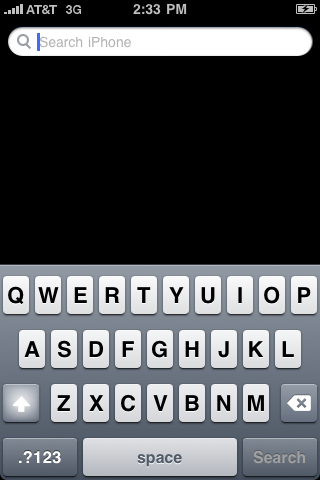
As you start typing in letters, you’ll start to see results:
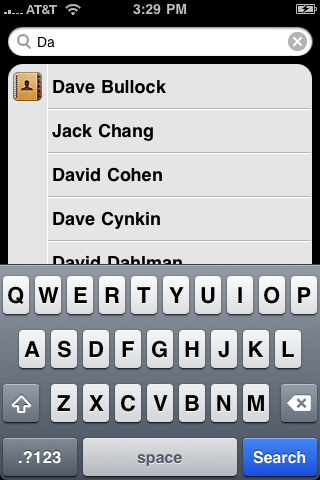
Type in a few more letters and things narrow down:

Notice in this screen that you can see matches in Address Book, Twitter and the Notes app, all neatly organized.
Tap the “Search” button in the lower right to indicate that you’re done searching and now the keyboard will vanish and you’ll get a greater view:

Super useful feature for the phone, no question!!
If any of those matches are what you seek, just tap on it and you’ll jump to that data entry in the appropriate application.
Configuring Apple iPhone Spotlight
In addition to just using this feature, you might also want to tweak what kind of results you’ll see in Spotlight. It’s a bit buried, but you can do this on your phone too.
Go to Settings –> General, then scroll down a bit until you can see…
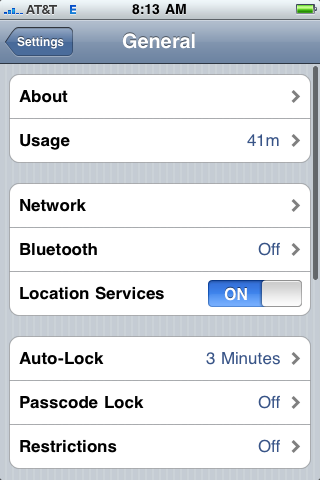
Here you want to tap on “Home”, which will let you define the double-tap behavior of the home button, but more importantly has the “Search Results” option:

Tap on “Search Results” and you’ll find:

You can use the check marks to specify which you do or don’t want included in the Spotlight search results, but you can also use the three-line box on the right of each item to drag and drop categories of data into your preferred order if you don’t like what Apple has specified.
That’s it. Set things as you want, then push that home button once to get out of Settings and back to your home screen.
Now, go experiment with Spotlight. I am betting you’ll like it as much as I do!
Unfortunately the search facility is limited to exactly 12 months +/- in Calendar. So if you’re trying to find an appointment you had more than a year ago (or more than a year in the future), forget it.