
I know how to install and change themes in Windows XP, but I haven’t figured out the same in Windows 7 yet. Can you step me through the process of downloading and applying a new Windows 7 theme, Dave?
One of the best things about Win7 is that there are a ton of themes available from Microsoft, ranging from Angry Birds to gorgeous images of China, all one click away from being installed on your Windows 7 computer. There are also commercial themes available on DVD or otherwise available for download either free or for a small fee. Still, I’m always leery of getting anything like this from a third party because of the rampant problem of malware.
Anyway, let’s stay focused on installing themes in Windows 7, shall we?
The best place to start out is the Windows 7 personalization section of the microsoft.com Web site. Start by going here: Personalize Windows 7.
The site looks like this:

Yes, it’s darn attractive and there are lots of cool backgrounds, gadgets, themes, etc. For this, we’re interested in Windows 7 themes, so click on that first item.
Now you’ll find that there are literally hundreds of free themes available. Here’s just a small sampling of the most recently published themes:
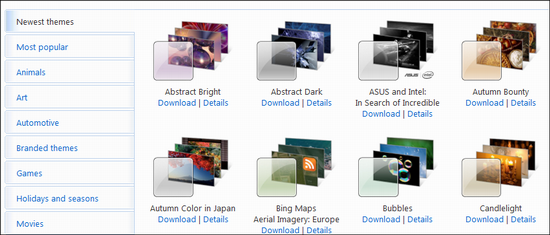
Find the one that appeals to you and click on “Details”. I’m a huge World Cup soccer fan, so when I saw an EA Sports FIFA World Cup theme, I wanted to see more. I did so by clicking on ‘Details”, which produced the following info:

Looks great! To download and install it, simply click on the “Download” button on the lower left, which pops up one of those useful Win7 warning windows:
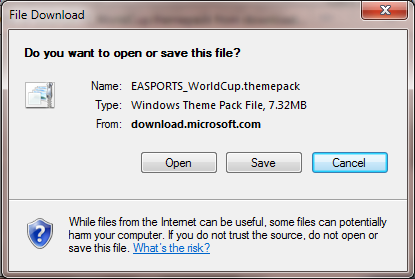
We do want to download this theme, so click on “Open” and…
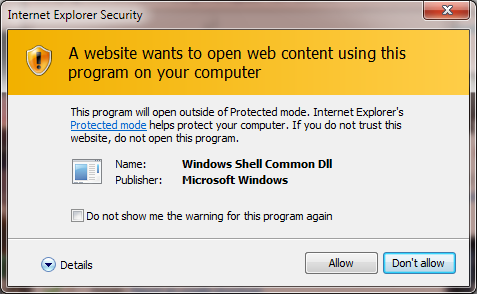
Yup. We want to do this too, so a click on “Allow” lets you proceed with the download of the World Cup theme.
Once it’s done, the “Appearance and Personalization” control panel pops up and the theme’s displayed as an option:
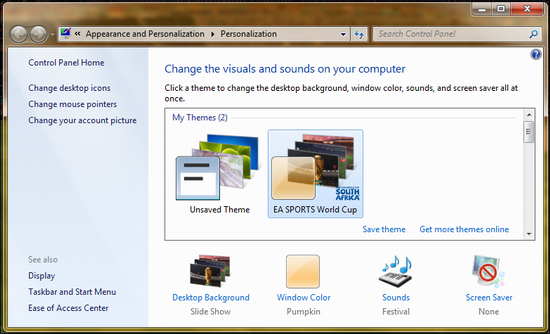
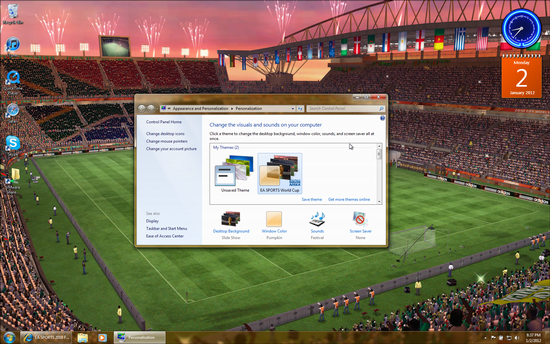
More importantly, however, the theme is also now automatically installed and live on your computer, as is immediately obvious when I zoom out a bit and show you the entire PC desktop:
That’s it. Easy enough, and since they’re both free and small, you really can download and switch between dozens of different themes based on your fancy. Have fun!