
I share my PC with my mom and I don’t know what she does but we get a lot of notifications from different websites. They all have the Microsoft Edge icon in the notification window, so are they from Edge? In any case, how can I disable them?
One of the challenges of running a website is that people visit, enjoy the content, and then forget about it. As a site owner, returning visitors are the best, but how do you let them know when there’s something new? For many sites – including AskDaveTaylor – the answer is notifications. Visitors see a pop-up where they can choose whether they want updates when new content appears. On most sites, this is harmless and hopefully helpful, sparking the thought: “That sounds interesting, I remember that site being really useful.”
But approve too many notifications, and they can quickly shift from helpful reminders to an annoying stream of interruptions.
While most sites utilize notifications exactly as you would hope, “here’s something new that might be of interest to you”, the reality is that there are many sites that abuse this feature to push desktop ads, which is undeniably irritating. Worse still, some send fake system error notifications, luring you to click on them, only to infect your device with malware.
Here are two very typical notifications just to start us out:
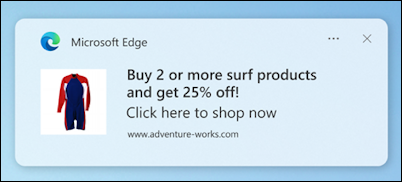
That one’s not too bad, particularly if you really like the product line from that particular website. But what about this one:
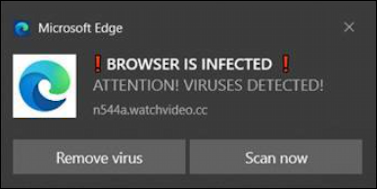
Here’s a perfect example of a notification you don’t want to trust: if it popped up while your mom was on your PC, would she click “scan now” or “remove virus”? Either way, chances are high that it would lead to installing malware that could wreak all kinds of havoc.
Look closely at these notifications, and you’ll see they list the exact website that sent them. That’s a useful clue, since you can identify, isolate, and block specific sites in Microsoft Edge settings. For example, you could look up watchvideo.cc and make sure it’s blocked to prevent any more of these nasty alerts in the future.
Instead of just keeping this theoretical, let’s dive into Microsoft Edge settings so you can see exactly how to turn notifications on or off, or block sites from sending them altogether.
HOW WEBSITES GAIN PERMISSION TO SHOW NOTIFICATIONS
There’s no way to automatically enable notifications simply because you visited a website unless you’ve gone in and made some poorly chosen changes to settings in Edge. We’ll see that in a moment, but generally speaking, when you visit a website that has notifications available, you’ll see a pop-up like this:

By choosing “Sign Up” you have indicated that you’re interested in the notifications from the New York Post, but the web browser hasn’t confirmed your intention yet. As a result, a second window pops up:

At this point, the website nypost.com has permission to send notifications through the Microsoft Edge notification system. These appear in the lower right corner of your Windows screen, even when Edge isn’t open. It’s no surprise many people turn them on, only to later switch them off. After all, who really enjoys constant notifications?
TURN THESE OFF IN SETTINGS
It should be no surprise that the way to manage these notifications is within the Microsoft Edge Settings area. If you want a quick shortcut first, go into Settings (find it in the “•••” menu) and search for “notifications”:
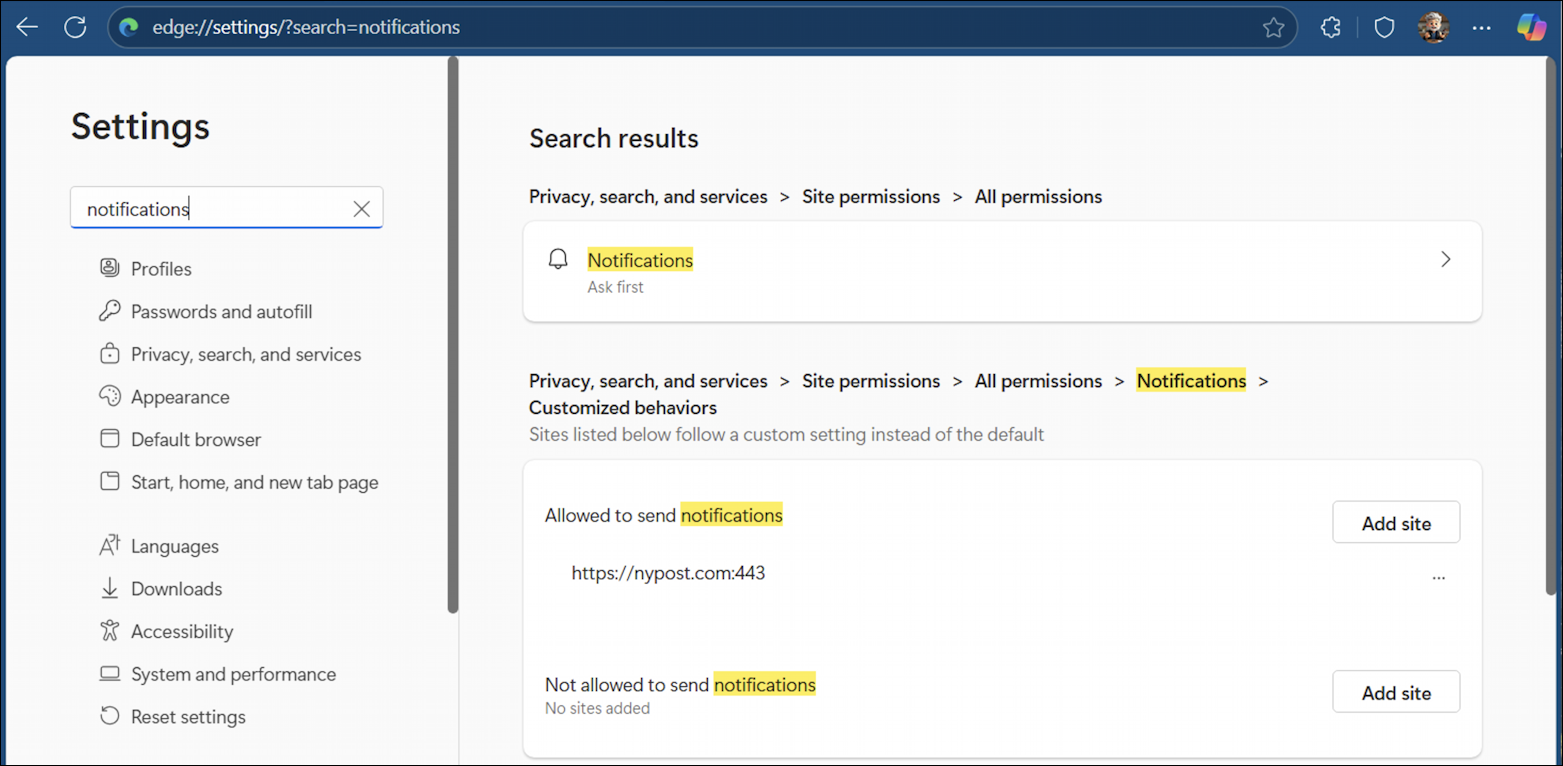
Directly from this search result, you can see that nypost.com is allowed to send notifications, and that in this browser, I haven’t blocked any sites from notifications. Here’s an interesting quirk of Microsoft Edge: if you log in to your Microsoft account then all of your versions of Edge synchronize history and favorites, but each will have its own list of allowed and blocked notifications. I’m not sure why those don’t synchronize, and I feel like that would be a very useful addition, but it doesn’t.
I prefer knowing how to navigate through settings, so instead of using this shortcut, let’s dig more deeply into settings and how all of this is configured within Microsoft Edge.
SETTINGS, PRIVACY, SEARCH, AND SITE PERMISSIONS
On the left side of the main settings screen, click on “Privacy, search, and services”. Now, find and click on “Site permissions”. You’ll end up looking at these three options:
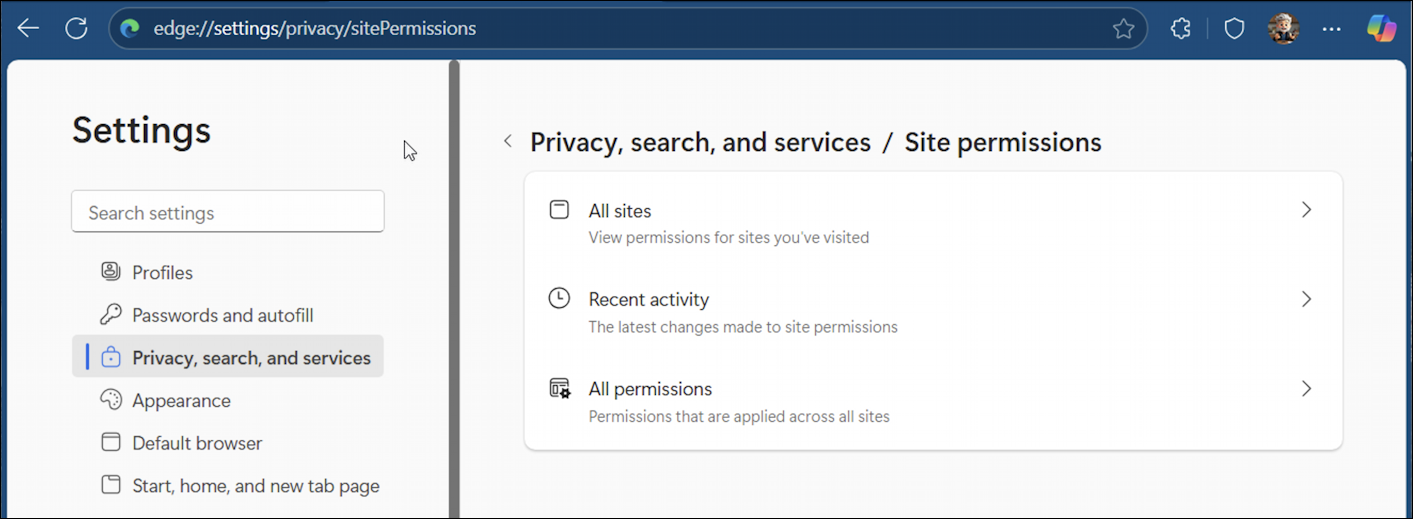
These options allow you to look at permissions in different ways: choose “All sites” and you can navigate by specific permission granted, but choose “All permissions” and you can instead see all of the different permissions granted for a specific website that you have visited.
Let’s start with All permissions:
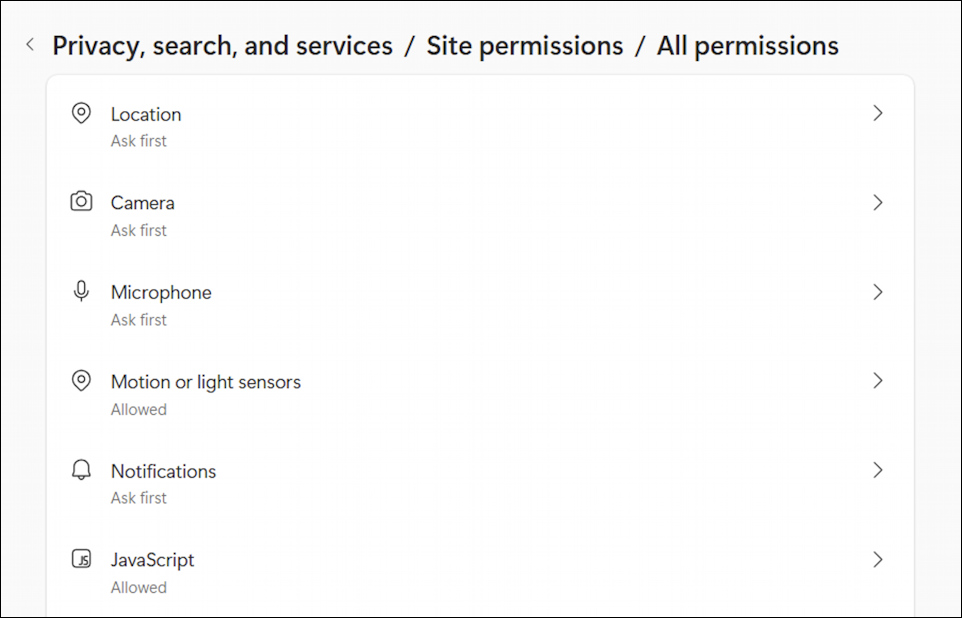
Many people don’t realize how many different permissions a website can request. For example, some sites might ask for access to motion or light sensors on your device. Fortunately, very few PCs actually have these sensors! Still, it’s an interesting thought: imagine a site adjusting its display based on the brightness of your surroundings.
For our task, however, I’m going to go ahead and click on “Notifications”:
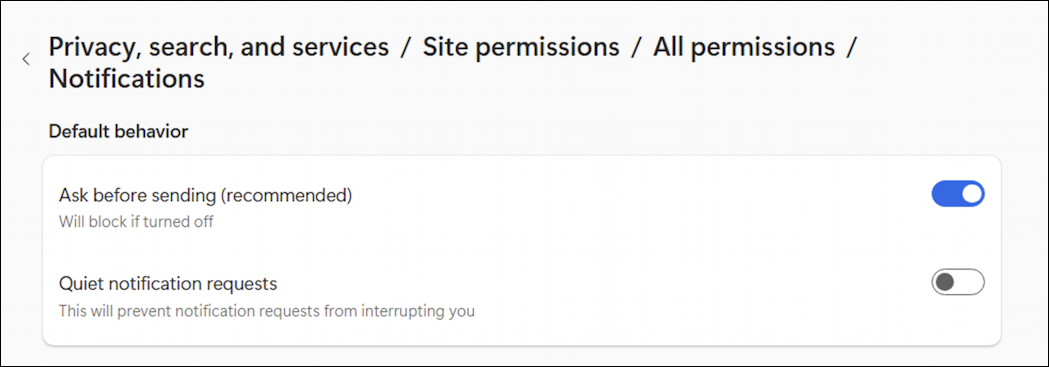
These are the default settings for notifications, and while Microsoft might recommend that you allow “Ask before sending”, if you never want notifications from any website, you can simply disable this feature by turning off this setting.
Scroll down a little bit further, and it will show a list of what websites, by domain, have permission to show notifications on your device:
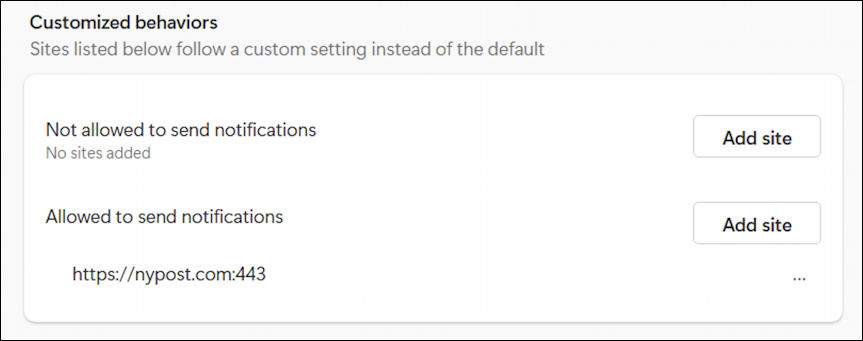
Here’s where we can see that I granted the New York Post permission to send notifications to me. If I changed my mind, I could simply click on the “•••” link and choose:
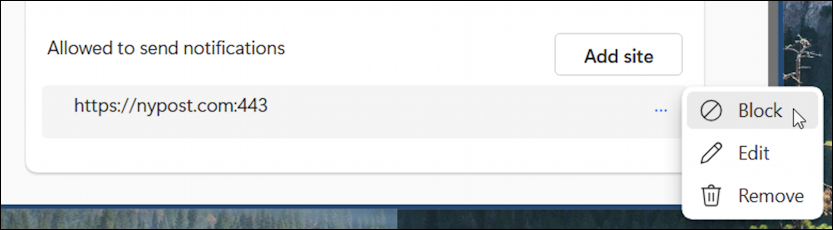
You guessed it: “Block”.
Block or remove all websites that show up in this allowed list, and you should solve the problem. It might be worth restarting your computer just once to make sure everything’s set and saved.
PERMISSIONS ARE DIFFERENT ON DIFFERENT COMPUTERS
The computer I’m using for testing right now only has permission for nypost.com to share notifications with me, but I am logged into my Microsoft account. When I check Microsoft Edge, also logged into the same account, on a different computer, notice that I have entirely different allowed and blocked sites:
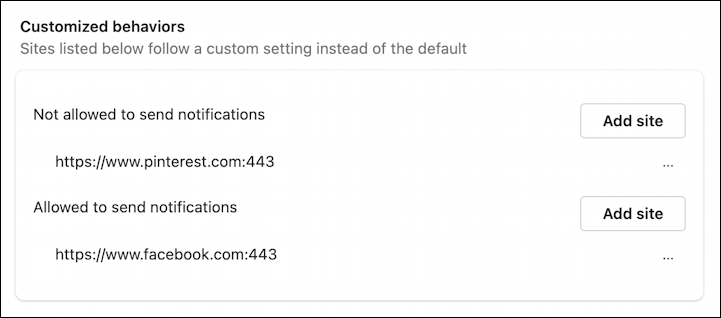
If you’re switching between multiple computers like I am, it’s a good idea to occasionally check the notification settings in Microsoft Edge on each one to make sure nothing slips through. While I suspect that someday they’ll all sync automatically and save you the trouble, for now a little prevention goes a long way in avoiding a flood of annoying notifications.
Pro Tip: I’ve been writing about Windows for years and have quite an extensive Windows 11 help area. Please check it out to find lots of additional tutorials and guides while you’re here. Thanks!