
I noticed that the browser on my Chromebook has a handy shortcut in the address bar for Amazon searches. Nice but I prefer looking for information on Wikipedia than Amazon. How can I create a Wikipedia search shortcut in Chrome on my Chromebook?
If someone’s talking about a Chromebook, odds are extremely good that they’re also talking about Google Chrome as the core browser since it’s the heart of ChromeOS. What is surprising is that even though ostensible Chrome OS is built around Chrome, the core functionality of the browser remains the same as the Chrome people run on a Windows PC or Mac system. Including both the ability to change the default search engine for searches and the ability to create what is known as Search Shortcuts. Want to build one for Wikipedia? Doable. There’s a bit of a trick involved to get it to work just right, but it’s not too complicated!
It’s also a bit curious that Amazon.com is one of the very few sites that appear in the Google Chrome Search Shortcuts list by default. A paid sponsorship to help encourage Chrome users to shop at Amazon? Maybe. You can try it for yourself by typing “amazon” into the address bar and pressing Tab instead of the “.com” portion. Let me demonstrate…
HOW A CHROME SEARCH SHORTCUT WORKS
As always, the first step is to ensure you’re running the latest version of ChromeOS on your system. Since it should keep things updated automatically, you’ll probably find that you are. Now in your browser, type “ama” into the address bar:
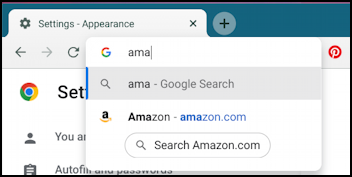
Without going any further, it suggests “amazon.com” as a search completion but it also offers that nice “Search Amazon.com” button too. Where it’s particularly helpful is that you can press Tab and it’ll prompt you for a search term for the remote site directly in the Address bar. If I’m looking for some racing socks, for example, I could do this:
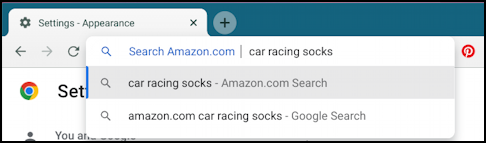
That’s a very convenient way to search Amazon, but you want to search Wikipedia. Okay, let’s get that set up. First, perhaps it already is! Type “wikipedia” into the address box and see what appears:
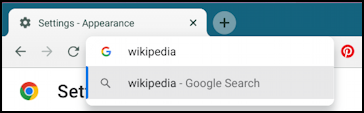
No shortcut. Not even a suggestion to go to wikipedia.com. Time to update this browser!
HOW TO CHANGE YOUR SEARCH ENGINE
Go to chrome://settings/search or navigate to “Search engine” in the Settings area. Either way, you’ll be taken here:
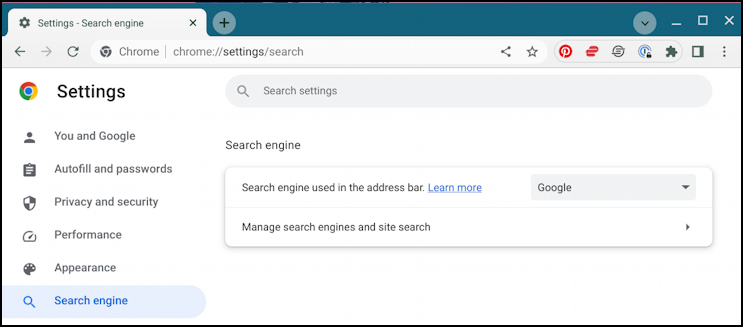
At this point, you can actually change your default search engine for terms entered into the address bar if you want. There are a number of possibilities:
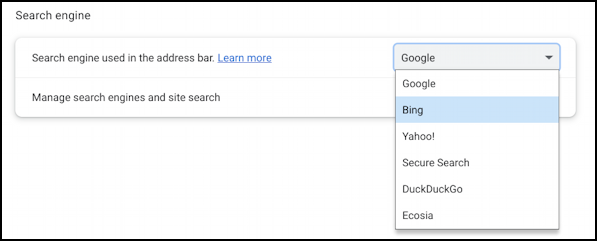
This can be particularly good if you’re concerned about privacy and about Google tracking all your searches. Or you can leave it as is and scroll down to…
SEARCH SHORTCUTS IN CHROME
Scroll down just a bit and you’ll see the existing search shortcuts, called “Site search”, in your Chrome browser:
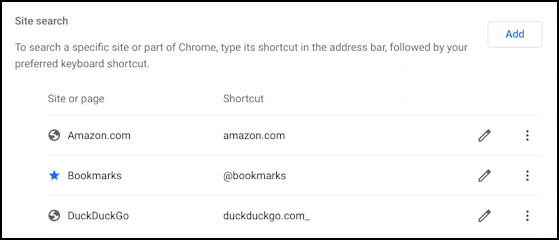
Interesting to know that you can type @bookmarks followed by a search term to easily search your saved favorite sites, isn’t it? Turns out you can do @history to do a search of your recently visited Web pages too.
To add a new search shortcut, tap or click on the “Add” button on the top right. It’ll prompt for three fields:
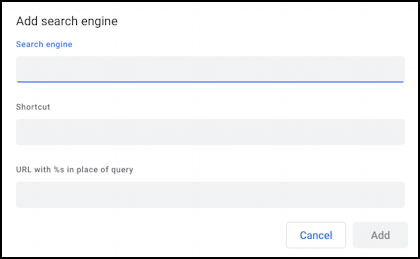
The first two fields are easy enough, the name of the Search engine and the shortcut you want to be able to type to access the search in the address bar. But what’s “URL with %s in place of query“? Turns out that these shortcuts only work with certain types of search on Web sites, those that use what’s known as a “GET” query. How do you know? Because the search results page URL includes the search term word or phrase. For example, search for “hacker” here on AskDaveTaylor and the resultant page will have this URL:
https://www.askdavetaylor.com/?s=hacker
The “search term” is ‘hacker’, so Chrome is indicating it needs that replaced with ‘%s’, like so:
https://www.askdavetaylor.com/?s=%s
For many sites, it’s quite easy: Invoke a search then look at the resultant URL. For Wikipedia, it’s a bit more tricky…
EXTRACTING A SEARCH URL FOR WIKIPEDIA
The problem is that Wikipedia is too smart; if you search for something that matches a page, like “sneakers”, it will take you directly to that page without ever showing a search results page. The solution? Search for something sufficiently nonsensical that it will force a results page because there isn’t a perfect match. I’m going to search for “aardvark feet”, figuring that’s unlikely to have its own page.
Here’s the resultant landing page on Wikipedia:
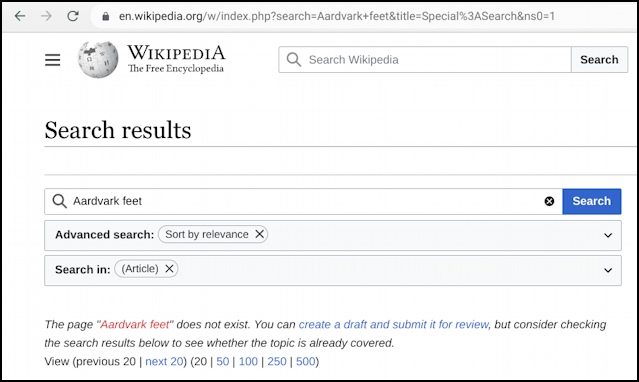
Notice on the bottom “The page “Aardvark feet” does not exist. Good. Now we can grab that long, rather complicated URL to have a closer look:
https://en.wikipedia.org/w/index.php?search=Aardvark+feet&title=Special%3ASearch&ns0=1
We can replace “Aardvark+feet” with the “%s” sequence easily enough:
https://en.wikipedia.org/w/index.php?search=%s&title=Special%3ASearch&ns0=1
A little bit of experimentation reveals that everything else is actually superfluous and that the URL can be simplified down to:
https://en.wikipedia.org/w/index.php?search=%s
URL created!
FINISHING UP THE WIKIPEDIA SEARCH SHORTCUT
Let’s add that as the third field for this search shortcut:
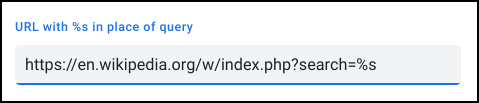
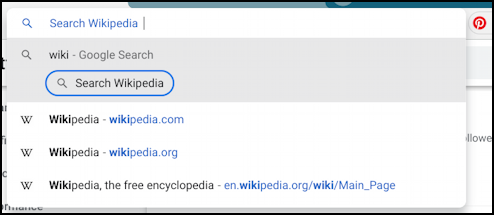
All looks good. A click on “Add” and there’s a new search shortcut in Chrome. To test it, go into the address bar, type “wiki” then press Tab. Here’s what I see:
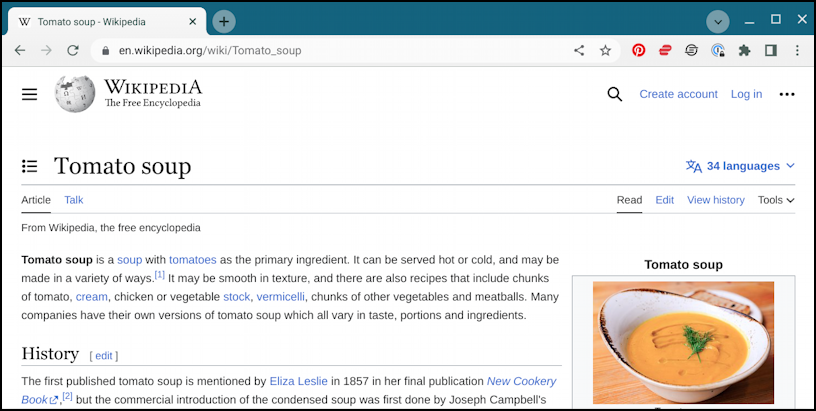
Now it’s a breeze to search for, say, “tomato soup”. Press Return or Enter on the keyboard and it goes directly to the Tomato Soup page on Wikipedia, no intermediate steps involved:
That’s a much easier way to work with Wikipedia from within the world of Chrome OS. Enjoy!
Pro Tip: I’ve been writing about operating systems for many years. You can find a lot more useful tutorials about Chrome OS in my Chrome OS and Chromebook help library here on the site. Why not check it out while you’re visiting?