
Ask Dave Taylor
  • Facebook
  • Instagram
  • Linkedin
  • Pinterest
  • Twitter
  • YouTube
  • Home
  • YouTube Channel
  • Most Popular
  • Newsletter!
  • Ask Me A Question
  • Meet Dave
  • Home
  • Google, Chrome & Gmail Help
  • How do I Create a Simple Survey with Google Forms?

How do I Create a Simple Survey with Google Forms?

May 3, 2021 / Dave Taylor / Google, Chrome & Gmail Help / No Comments

I’m always asking my friends about favorite books, favorite Marvel movies, even about their favorite pizza topping. Is there some way I can send out a weekly survey and organize things a bit better using Google Forms?

  ★ ASKDAVETAYLOR WEEKLY EMAIL! ★
Guaranteed to Make you Smarter.
Click Here to Subscribe.

Since it’s inevitable that at least some of your friends think the same way you do and have similar tastes (a solid basis for friendship) it only makes sense to be asking your friends about their favorite bands, movies, pizza toppings, etc. It can be a bit overwhelming if you keep sending out these questions every few days, however, and it’s really hard for you to tally up responses if you have more than a half-dozen people in your social circle too.

Enter Google Forms. Part of the terrific Google Docs office suite, Forms lets you easily create surveys, questionnaires, and other structured documents where you seek to collect information from others, whether your friends, colleagues, or customers. Google Forms has also been around for quite a while so it’s no surprise that it’s gotten more flexible and has quite a bit of power buried in its typically Google confusing interface. Let’s have a look…

HOW TO BUILD A SIMPLE SURVEY WITH GOOGLE FORMS

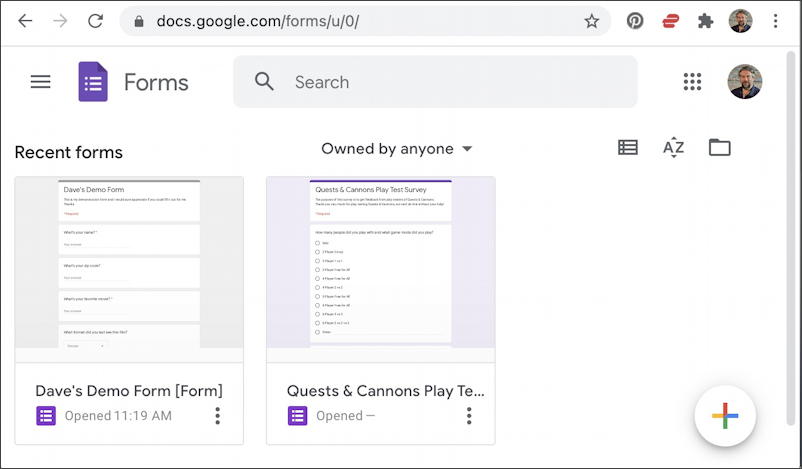
To start out, you’ll want to be logged in to your Google account, which you can do by going to Gmail or Google Docs. Now go to forms.google.com, a handy shortcut that shows you any forms you have created or have had shared with you from others:
google forms docs - overview

I have one I’ve created — Dave’s Demo Form – and one that’s shared with me – Quests & Cannons Play Testing. You can’t differentiate them from this view but clicking to learn more will reveal the difference. We want to create a new form, however, so that’s done by clicking on the “+” icon on the lower right.

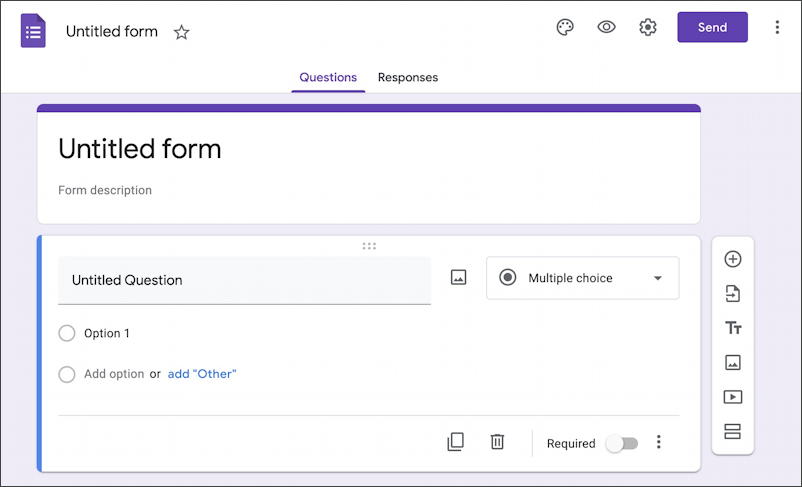
Immediately you’ll have a new blank form appear:
google forms docs - new form survey questionnaire - basic

There’s lots to do here but start by noticing on the top that there are two tabs: Questions, and Responses. For now, responses is empty but once the form is live, that’s where you’ll want to go to see what answers have been submitted.

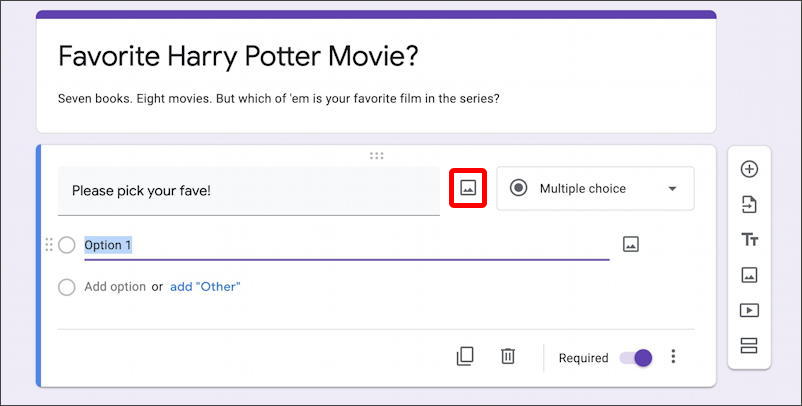
Let’s start by entering a name for this form, a brief description and a specific survey question:
google forms docs - new form survey questionnaire - favorite harry potter movie

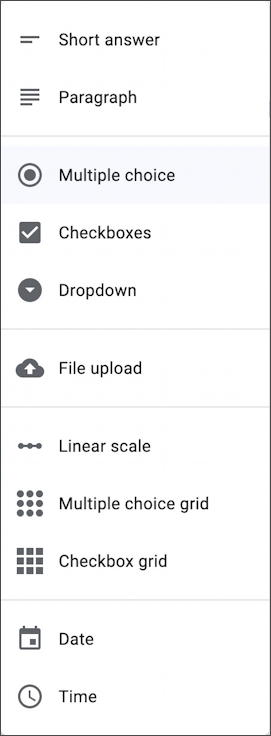
Notice the box labeled “Multiple choice“. Turns out that there are quite a few different types of questions you can include in your form, as revealed by clicking on that menu:
google forms docs - new form survey questionnaire - possible types of questions

Of all these options, Multiple Choice is the best for our simple film question, so let’s stick with that. Just remember all these other options are available if you want to build something more sophisticated. It’s also a bit confusing that multiple choice really means “pick one choice from multiple”; if you want to really let the user choose more than one option, that’s “checkboxes”.

Now click on the tiny picture icon (highlighted above) to add an image to the question box in the nascent form. It’ll prompt for the image to be identified and then upload it, ready to go. Easy, and you’ll see the results momentarily.

Before we see the image, however, click on “Add option” so you have a few fields to fill out, then enter the possible answers for the first question. In this instance, it looks like this:
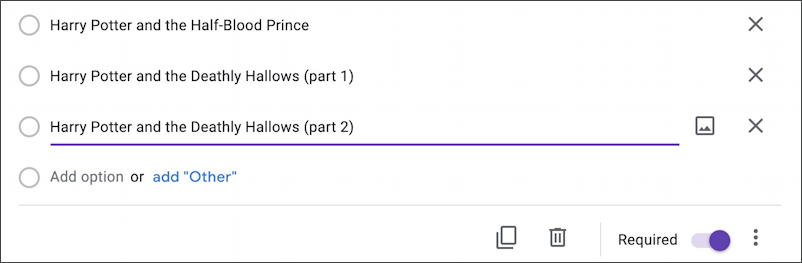
google forms docs - new form survey questionnaire - enter options multiple choice

You can always remove a question with the “X” and fine-tune the question overall with the “•••” button on the lower right. Beware that if you change the question type while entering data everything vanishes, however. Pick the question type, then enter your data!

Change the background color and typeface by choosing the paint palette icon “Customize Theme” from the top of the screen:

google forms docs - new form survey questionnaire - change theme

That brings up a narrow little box with a few changes:
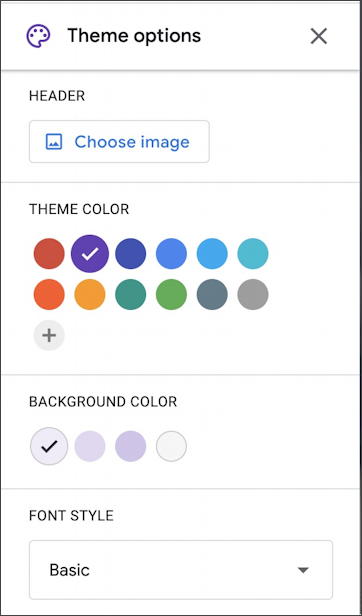
google forms docs - new form survey questionnaire - customize theme colors

Not really much to update, but a few tweaks are possible. I’ll switch from lavender to light blue for the background. Now here’s the survey, ready to share, courtesy of the eyeball “preview” icon on the top of the screen:
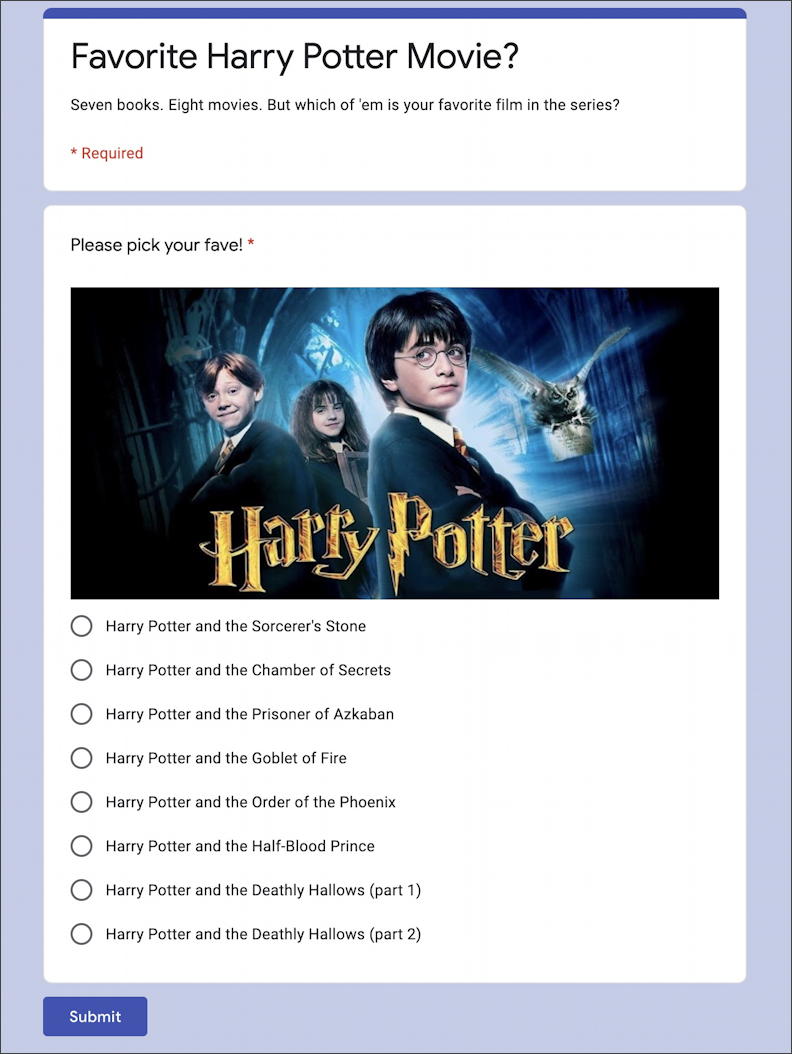
google forms docs - new form survey questionnaire - ready to go

Looks good. Now which is my favorite Harry Potter film?

HOW TO SHARE A GOOGLE FORMS SURVEY

Now that it’s done, I bet you’re wondering how you share it! That’s easily done by clicking on the “Send” button on the top right. Why it has that label when lots of people want to share the link, not email someone, is puzzling but a click on “Send” produces this window:
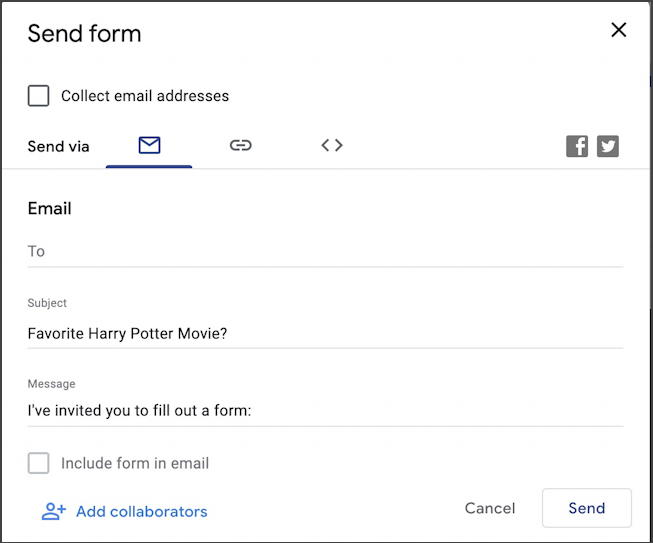
google forms docs - new form survey questionnaire - share survey

If you do want to email it to one or more people. you can see exactly how to do so. Notice the “include form in email” checkbox, which can be very helpful if you don’t want to rely on people clicking on the link to get to the survey.

Or if you just want a link, click on the tiny link icon along the top. (and notice you can share it on Facebook or LinkedIn directly with those two icons in the window too). It’ll show you a long, fairly gnarly URL:

google forms docs - new form survey questionnaire - share link

But in this instance, you can also opt to check “Shorten URL” and have it shrink down somewhat:
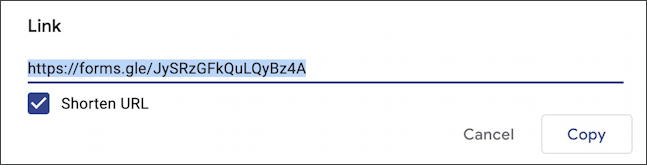
google forms docs - new form survey questionnaire - shortened url

And that’s it. Now you know how to create and share simple surveys and questionnaires on Google Forms. I’ll share how to read, analyze, and export results in another post once I get some responses to my own survey. 😁

Pro Tip: I’ve been writing about Google’s office suite and tools since the very beginning. Please check out my extensive Google Help Library for lots of useful tutorials while you’re here. Thanks!

Enjoy watching videos? I've got hundreds of lively and interesting product reviews you can enjoy with just a click. Please check 'em out: AskDaveTaylor Video Gallery.

About the Author: Dave Taylor has been involved with the online world since the early days of the Internet. Author of over 20 technical books, he runs the popular AskDaveTaylor.com tech help site. You can also find his gadget reviews on YouTube and chat with him on X as @DaveTaylor.

Let’s Stay In Touch!

Never miss a single article, review or tutorial here on AskDaveTaylor, sign up for my fun weekly newsletter!
Name: 
Your email address:*
Please enter all required fields
Correct invalid entries
No spam, ever. Promise. Powered by FeedBlitz
Please choose a color:
Starbucks coffee cup I do have a lot to say, and questions of my own for that matter, but first I'd like to say thank you, Dave, for all your helpful information by buying you a cup of coffee!
create survey, google docs, google forms, google questionnaire, google survey, harry potter

Leave a Reply Cancel reply

Your email address will not be published. Required fields are marked *

Search

Recent Posts

  • How to Download Free Movies & TV Shows from The Internet Archive
  • How to Use Microsoft OneDrive on a Mac System
  • How to Update the Software on your KOBO Ebook Reader
  • How to Change Your Default Web Browser in Windows
  • How to Check for Spam DM’s in Facebook Messenger

On Our YouTube Channel

The NearHub Frames 10 Smart Photo Frame Really is SMART

Endless Cleaning with the Roborock Q10 S5+ Robot Vacuum & Mop

Categories

  • AdSense, AdWords, and PPC Help (106)
  • AI and ChatGPT Help (75)
  • Alexa, Kindle, and Nook Help (112)
  • Amazon, eBay, and Online Shopping Help (176)
  • Android Help (321)
  • Apple iPad Help (156)
  • Apple Watch & Smartwatch Help (63)
  • Articles, Tutorials, and Reviews (361)
  • Auto Tech Help (31)
  • Business Advice (202)
  • Chromebook & ChromeOS Help (80)
  • Computer & Internet Basics (848)
  • d) None of the Above (169)
  • Facebook Help (405)
  • Google, Chrome & Gmail Help (227)
  • HTML & Web Page Design (249)
  • Instagram, Bluesky & Threads Help (70)
  • iPhone & iOS Help (702)
  • iPod & MP3 Player Help (173)
  • LinkedIn Help (98)
  • Linux Help (182)
  • Linux Shell Script Programming (95)
  • Mac & MacOS Help (995)
  • Microsoft Outlook and Office 365 Help (53)
  • Most Popular (16)
  • PayPal Help (69)
  • Pinterest Help (58)
  • Reddit Help (24)
  • SEO & Marketing (83)
  • Spam, Scams & Security (130)
  • Trade Show News & Updates (23)
  • Video Game Tips (66)
  • Web Site Traffic Tips (62)
  • Windows PC Help (1,093)
  • Wordpress Help (207)
  • Writing and Publishing (72)
  • X/Twitter Help (233)
  • YouTube Help (54)
  • YouTube Video Reviews (159)
  • Zoom, Skype & Video Chat Help (80)

Archives

Social Connections:

Ask Dave Taylor


Follow Me on Pinterest
Follow me on Twitter
Follow me on LinkedIn
Follow me on Instagram


AskDaveTaylor on Facebook


microsoft insider mvp


This web site is for the purpose of disseminating information for educational purposes, free of charge, for the benefit of all visitors. We take great care to provide quality information. However, we do not guarantee, and accept no legal liability whatsoever arising from or connected to, the accuracy, reliability, currency or completeness of any material contained on this site or on any linked site. Further, please note that by submitting a question or comment you're agreeing to our terms of service, which are: you relinquish any subsequent rights of ownership to your material by submitting it on this site. Our lawyer says "Thanks for your cooperation."
© 2025 by Dave Taylor. "Ask Dave Taylor®" is a registered trademark of Intuitive Stories, LLC.
FTC Notice: If you buy products through links on this site we may receive a modest affiliate commission. This won’t affect the price you pay.
Privacy Policy - Terms and Conditions - Accessibility Policy - Humix Video Content
  • Home
  • YouTube Channel
  • Most Popular
  • Newsletter!
  • Ask Me A Question
  • Meet Dave