
Ask Dave Taylor
  • Facebook
  • Instagram
  • Linkedin
  • Pinterest
  • Twitter
  • YouTube
  • Home
  • YouTube Channel
  • Most Popular
  • Newsletter!
  • Ask Me A Question
  • Meet Dave
  • Home
  • iPhone & iOS Help
  • How to Set a Max Volume Limit on your Child’s iPhone

How to Set a Max Volume Limit on your Child’s iPhone

August 28, 2023 / Dave Taylor / iPhone & iOS Help / No Comments

Dave, my son listens to music at a really high volume and I’m afraid it is going to affect his hearing. Is there a way in iOS that I can set a max volume limit to prevent any hearing loss? He’s got an iPhone SE.

  ★ ASKDAVETAYLOR WEEKLY EMAIL! ★
Guaranteed to Make you Smarter.
Click Here to Subscribe.

It’s alarmingly common for children – and adults – to listen to music from their personal devices at what can best be described as ear-splitting volume. With headphones and earbuds, it’s so easy to crank up the tunes without anyone else really knowing just how loud it is. The problem is that this can also cause both short-term and long-term hearing loss, which is a matter of great concern if you’re a parent.

Previous generations of audio gear simply didn’t have the ability to get that crazy loud, including your parent’s hi-fidelity system. Crank it up all the way, it probably wasn’t very loud, particularly when compared to the latest personal audio gear. There are some headphones, like those from Puro Sound Labs, that have built-in volume limiting, but odds are your son already has his favorite ‘buds or ‘phones, which mitigates that as a good solution.

Shortcuts: Apple Watch Monitor | iPhone Audio Level Limits | Reduce Loud Sounds

Fortunately, it turns out that iOS does have a volume limiting feature, though it’s not something you can lock so he could ostensibly disable it when he wants to listen to his music maximally loud. Then again, a combination of a discussion about hearing loss and setting it pretty high (rather than at the lowest possible point) might work fine. Then he can still boast to his friends that he’s got it “at max” even though it’s not actually at the level of causing potential hearing damage.

COOL APPLE WATCH TRICKS

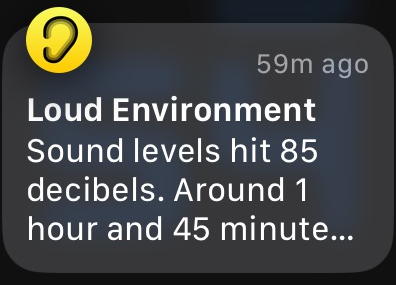
Before I show you the iPhone settings, I do want to point out that if he wears an Apple Watch, there are some settings that can have it monitor sound levels too, so he’ll know if he’s in a dangerously loud environment at a concert or similar:
apple watch warning: loud environment

Interestingly, I got this warning at a movie theater! Yes, the volume was turned up pretty loud. Want to learn how to set this up? Check out my Let Your Apple Watch Monitor Sound Levels tutorial for all the details.

IPHONE AUDIO LEVEL MONITORING

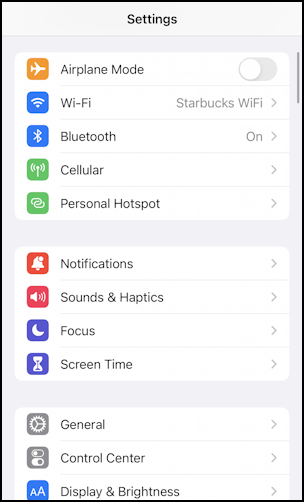
Turns out that the iPhone is actually constantly analyzing the audio it’s playing, whether it’s through a plug or a Bluetooth connection. It can actually indicate how often dangerous audio levels have been played in the previous six months. First, though, you have to get to that spot. Start by opening up “Settings” on the iPhone.
iphone set max volume level hearing - settings

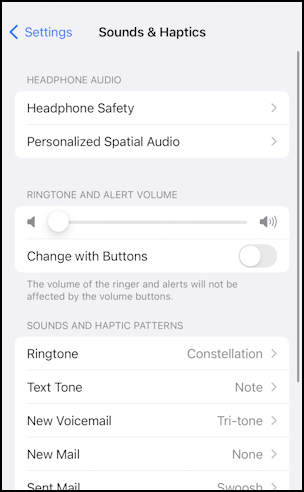
There are a couple of ways to get to the settings, but I prefer going through “Sound & Haptics” in the second section of Settings. Find it and tap on it…
iphone set max volume level hearing - settings > sound and haptics

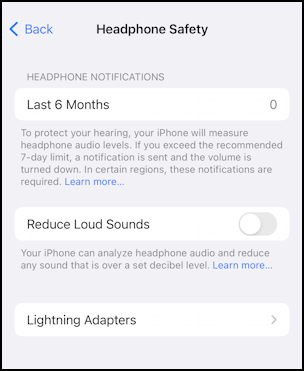
This is the central spot to change ringtones, voicemail beeps, etc, but for our task it’s the “Headphone Safety” entry that’s of interest. Tap on it.
iphone set max volume level hearing - headphone safety disabled

Notice that in the last six months I have had zero notifications about overly loud playback; I try not to listen to my audio too loud because I don’t want any hearing loss. If your son also has none, then the music he’s listening too might not be as loud as you fear.

IPHONE: REDUCE LOUD SOUNDS

While you’re in this area, however, why not enable “Reduce Loud Sounds” anyway? Simply tap to enable the feature and it will show a slider that offers a decibel level and equivalent sound:
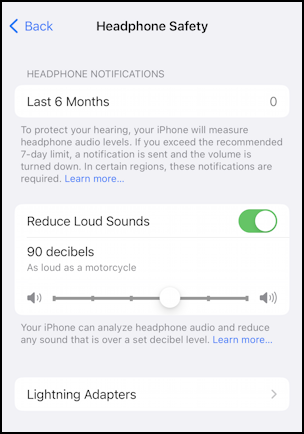
iphone set max volume level hearing - reduce max loud sounds 90db

If you are curious, tap on “Learn more” and you’ll find this reference table from Apple:
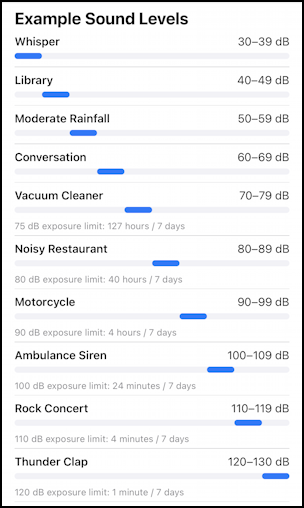
comparative volume of various sounds in decibels

For the loudest sounds, it also recommends a max exposure per seven days: A Thunder Clap can be so loud that the recommendation is more more than one minute per week! Not always easy to implement, but it’s good to know just how dangerous really, really loud sounds can be.

Set this up, talk with your son about what you’ve done, and good luck to you!

Note: If you set up Screen Time for family members, you can prevent children from changing the Reduce Loud Sounds level. Go to Settings > Screen Time > Content & Privacy Restrictions > Reduce Loud Sounds, then select Don’t Allow.

Pro Tip: I’ve written quite a bit about the Apple iPhone and iOS both. Please check out my extensive iPhone & iOS Help Library for lots of additional details.

Enjoy watching videos? I've got hundreds of lively and interesting product reviews you can enjoy with just a click. Please check 'em out: AskDaveTaylor Video Gallery.

About the Author: Dave Taylor has been involved with the online world since the early days of the Internet. Author of over 20 technical books, he runs the popular AskDaveTaylor.com tech help site. You can also find his gadget reviews on YouTube and chat with him on X as @DaveTaylor.

Let’s Stay In Touch!

Never miss a single article, review or tutorial here on AskDaveTaylor, sign up for my fun weekly newsletter!
Name: 
Your email address:*
Please enter all required fields
Correct invalid entries
No spam, ever. Promise. Powered by FeedBlitz
Please choose a color:
Starbucks coffee cup I do have a lot to say, and questions of my own for that matter, but first I'd like to say thank you, Dave, for all your helpful information by buying you a cup of coffee!
ios limit loud sounds, limit dangerous volume iphone

Leave a Reply Cancel reply

Your email address will not be published. Required fields are marked *

Search

Recent Posts

  • How to Update the Software on your KOBO Ebook Reader
  • How to Change Your Default Web Browser in Windows
  • How to Check for Spam DM’s in Facebook Messenger
  • How to Automatically Close Your Garage Door with MyQ App
  • Best Time to Post on Facebook Business Pages?

On Our YouTube Channel

Endless Cleaning with the Roborock Q10 S5+ Robot Vacuum & Mop

Cleer ARC 4 Open Ear Headphones: Ideal for Outdoors - DEMO & REVIEW

Categories

  • AdSense, AdWords, and PPC Help (106)
  • AI and ChatGPT Help (75)
  • Alexa, Kindle, and Nook Help (112)
  • Amazon, eBay, and Online Shopping Help (176)
  • Android Help (321)
  • Apple iPad Help (156)
  • Apple Watch & Smartwatch Help (63)
  • Articles, Tutorials, and Reviews (361)
  • Auto Tech Help (31)
  • Business Advice (202)
  • Chromebook & ChromeOS Help (80)
  • Computer & Internet Basics (847)
  • d) None of the Above (169)
  • Facebook Help (405)
  • Google, Chrome & Gmail Help (227)
  • HTML & Web Page Design (249)
  • Instagram, Bluesky & Threads Help (70)
  • iPhone & iOS Help (702)
  • iPod & MP3 Player Help (173)
  • LinkedIn Help (98)
  • Linux Help (182)
  • Linux Shell Script Programming (95)
  • Mac & MacOS Help (994)
  • Microsoft Outlook and Office 365 Help (53)
  • Most Popular (16)
  • PayPal Help (69)
  • Pinterest Help (58)
  • Reddit Help (24)
  • SEO & Marketing (83)
  • Spam, Scams & Security (130)
  • Trade Show News & Updates (23)
  • Video Game Tips (66)
  • Web Site Traffic Tips (62)
  • Windows PC Help (1,093)
  • Wordpress Help (207)
  • Writing and Publishing (72)
  • X/Twitter Help (233)
  • YouTube Help (54)
  • YouTube Video Reviews (159)
  • Zoom, Skype & Video Chat Help (80)

Archives

Social Connections:

Ask Dave Taylor


Follow Me on Pinterest
Follow me on Twitter
Follow me on LinkedIn
Follow me on Instagram


AskDaveTaylor on Facebook


microsoft insider mvp


This web site is for the purpose of disseminating information for educational purposes, free of charge, for the benefit of all visitors. We take great care to provide quality information. However, we do not guarantee, and accept no legal liability whatsoever arising from or connected to, the accuracy, reliability, currency or completeness of any material contained on this site or on any linked site. Further, please note that by submitting a question or comment you're agreeing to our terms of service, which are: you relinquish any subsequent rights of ownership to your material by submitting it on this site. Our lawyer says "Thanks for your cooperation."
© 2025 by Dave Taylor. "Ask Dave Taylor®" is a registered trademark of Intuitive Stories, LLC.
FTC Notice: If you buy products through links on this site we may receive a modest affiliate commission. This won’t affect the price you pay.
Privacy Policy - Terms and Conditions - Accessibility Policy - Humix Video Content
  • Home
  • YouTube Channel
  • Most Popular
  • Newsletter!
  • Ask Me A Question
  • Meet Dave