
Ask Dave Taylor
  • Facebook
  • Instagram
  • Linkedin
  • Pinterest
  • Twitter
  • YouTube
  • Home
  • YouTube Channel
  • Most Popular
  • Newsletter!
  • Ask Me A Question
  • Meet Dave
  • Home
  • Android Help
  • Stretch Your Android Battery with Battery Saver?

Stretch Your Android Battery with Battery Saver?

March 11, 2019 / Dave Taylor / Android Help / No Comments

My Android smartphone isn’t so smart after all: The battery doesn’t last the entire day. Would “Battery Saver” help me out? Running Android 9.0 on this device…

  ★ ASKDAVETAYLOR WEEKLY EMAIL! ★
Guaranteed to Make you Smarter.
Click Here to Subscribe.

The more we create energy saving processors and jam more storage capacity into the same slim rechargeable batteries, the more we then immediately add increasing power demands to the firmware to consume ’em. You’d think that by now we’d have laptops that ran for a week and smartphones that you charged every 3-4 days or even less, but it just ain’t so. I always think of it as the fridge space dilemma: However much space you’ve made, when you come home from the market, you always have a bit more than you can fit in!

Android 9 does have a lot of power management tools to help you stretch out the life of your battery – because even developers have to deal with the hassle of charging their phones too often – but it also gives you the ability to install dozens of apps that run all the time, constantly check online, and generally eat up all the power. The worst offenders, according to the UK Independent, are Facebook, SnapChat, WhatsApp and Google Maps. Also on the list are a lot of Samsung apps if you’re on a Galaxy and having these issues. Netflix, Spotify and Microsoft Outlook are also called out as particular battery hogs too. FYI.

You can actually look on your phone to see which apps are the worst offenders too: Fix Battery Drain Problems on Android. And iPhone users aren’t left out, as I write about in this article: iPhone apps with the worst battery usage.

Don’t want to go through all this hassle? Okay, let’s talk about Battery Saver. Surprisingly, it’s not that much of a drag on your phone user experience and you can enable it without losing very much of the overall user experience of Android! As Google explains, when you have Battery Saver enabled, your device:

    • Waits until you look at an app to refresh its content, like email or news
    • Stops use of Location services when your screen is off
    • Stops apps from doing things in the background, unless you turn off battery optimization
    • Delays some notifications.

The best part is that you can enable it, try it for a few hours, and disable it if the limitations are getting in the way.

The fast and easy way to enable Battery Saver is right from the pull-down menu you get if you swipe from the top:

android 9 pull down settings menu

The rightmost icon, the battery, enables you to turn on – and off – Battery Saver. Tap on it and…
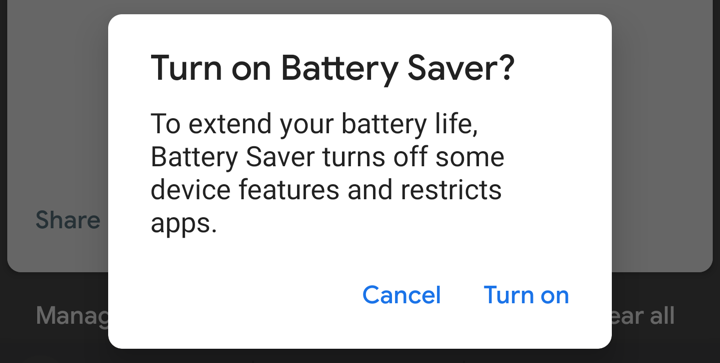
Turn on battery saver confirmation window

Once it’s turned on you’ll find that things change just a bit and your battery charge indicator on the very top of the Android screen goes a cool red:
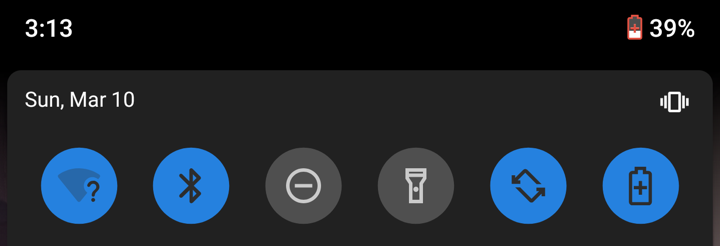
android 9 battery saver enabled

Try that out for a bit, see if the limitations are problematic or something you don’t even notice. My guess is the latter, but some people are pretty plugged in and might dislike having even a bit less connection to the online universe…

Here’s what’s also cool is that Android 9 “Pie” lets you specify that if your battery gets to a certain level that Battery Saver should automatically be enabled, so that if your phone is almost dead you can eke out just a bit more battery life. To set that up, go into Settings then search for “battery”:
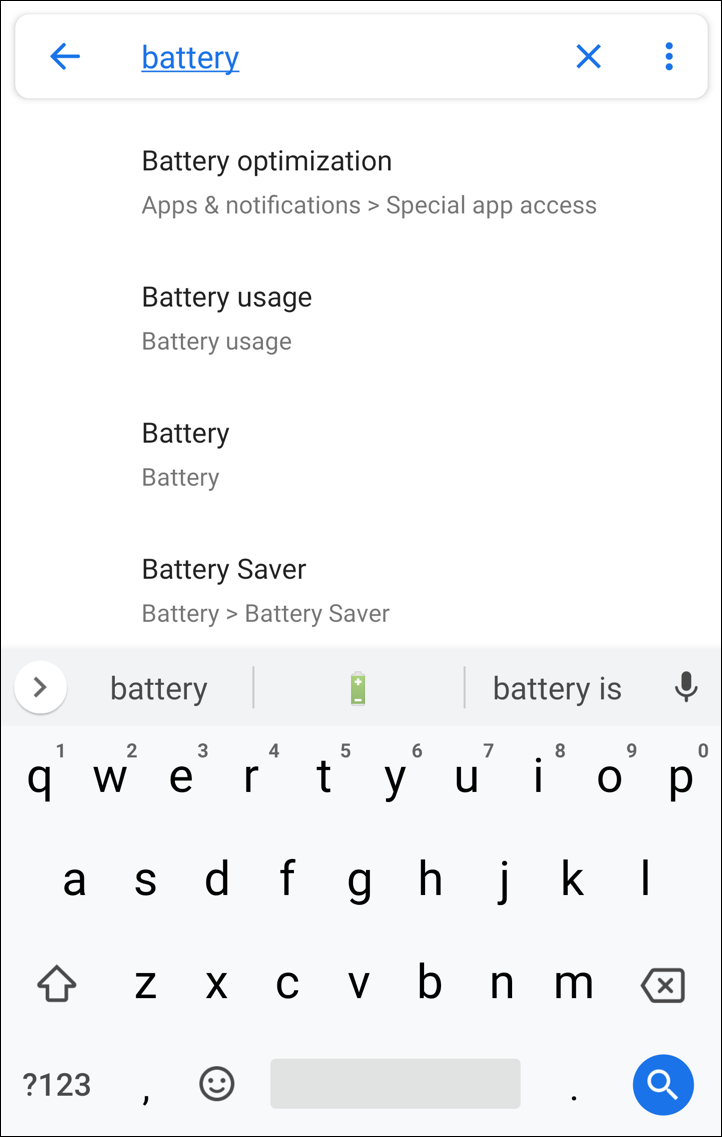
android settings - battery

That last option is what you want: Battery > Battery Saver.

Tap on that to jump straight to that setting:

battery saver settings android pie 9

Tap to turn Battery Saver on automatically and you’ll get a chance to specify when it should be enabled:

android pie 9 battery saver automatic

If you’re fine with the experience of having Battery Saver enabled, consider having it turn on at 25% or 30%, but if it does kind of bug you, having it enabled at 10% or 15% is probably a better option.

That’s it. Now you know how to work with Battery Saver on your Android Pie 9.0 phone. Good luck!

Pro Tip: I’ve been writing about Android for many years, so please do check out my Android help archives while you’re here!

Enjoy watching videos? I've got hundreds of lively and interesting product reviews you can enjoy with just a click. Please check 'em out: AskDaveTaylor Video Gallery.

About the Author: Dave Taylor has been involved with the online world since the early days of the Internet. Author of over 20 technical books, he runs the popular AskDaveTaylor.com tech help site. You can also find his gadget reviews on YouTube and chat with him on X as @DaveTaylor.

Let’s Stay In Touch!

Never miss a single article, review or tutorial here on AskDaveTaylor, sign up for my fun weekly newsletter!
Name: 
Your email address:*
Please enter all required fields
Correct invalid entries
No spam, ever. Promise. Powered by FeedBlitz
Please choose a color:
Starbucks coffee cup I do have a lot to say, and questions of my own for that matter, but first I'd like to say thank you, Dave, for all your helpful information by buying you a cup of coffee!
android battery, android battery saver, battery drain, battery hogs, battery saver, extend battery life

Leave a Reply Cancel reply

Your email address will not be published. Required fields are marked *

Search

Recent Posts

  • How to Download Free Movies & TV Shows from The Internet Archive
  • How to Use Microsoft OneDrive on a Mac System
  • How to Update the Software on your KOBO Ebook Reader
  • How to Change Your Default Web Browser in Windows
  • How to Check for Spam DM’s in Facebook Messenger

On Our YouTube Channel

The NearHub Frames 10 Smart Photo Frame Really is SMART

Endless Cleaning with the Roborock Q10 S5+ Robot Vacuum & Mop

Categories

  • AdSense, AdWords, and PPC Help (106)
  • AI and ChatGPT Help (75)
  • Alexa, Kindle, and Nook Help (112)
  • Amazon, eBay, and Online Shopping Help (176)
  • Android Help (321)
  • Apple iPad Help (156)
  • Apple Watch & Smartwatch Help (63)
  • Articles, Tutorials, and Reviews (361)
  • Auto Tech Help (31)
  • Business Advice (202)
  • Chromebook & ChromeOS Help (80)
  • Computer & Internet Basics (848)
  • d) None of the Above (169)
  • Facebook Help (405)
  • Google, Chrome & Gmail Help (227)
  • HTML & Web Page Design (249)
  • Instagram, Bluesky & Threads Help (70)
  • iPhone & iOS Help (702)
  • iPod & MP3 Player Help (173)
  • LinkedIn Help (98)
  • Linux Help (182)
  • Linux Shell Script Programming (95)
  • Mac & MacOS Help (995)
  • Microsoft Outlook and Office 365 Help (53)
  • Most Popular (16)
  • PayPal Help (69)
  • Pinterest Help (58)
  • Reddit Help (24)
  • SEO & Marketing (83)
  • Spam, Scams & Security (130)
  • Trade Show News & Updates (23)
  • Video Game Tips (66)
  • Web Site Traffic Tips (62)
  • Windows PC Help (1,093)
  • Wordpress Help (207)
  • Writing and Publishing (72)
  • X/Twitter Help (233)
  • YouTube Help (54)
  • YouTube Video Reviews (159)
  • Zoom, Skype & Video Chat Help (80)

Archives

Social Connections:

Ask Dave Taylor


Follow Me on Pinterest
Follow me on Twitter
Follow me on LinkedIn
Follow me on Instagram


AskDaveTaylor on Facebook


microsoft insider mvp


This web site is for the purpose of disseminating information for educational purposes, free of charge, for the benefit of all visitors. We take great care to provide quality information. However, we do not guarantee, and accept no legal liability whatsoever arising from or connected to, the accuracy, reliability, currency or completeness of any material contained on this site or on any linked site. Further, please note that by submitting a question or comment you're agreeing to our terms of service, which are: you relinquish any subsequent rights of ownership to your material by submitting it on this site. Our lawyer says "Thanks for your cooperation."
© 2025 by Dave Taylor. "Ask Dave Taylor®" is a registered trademark of Intuitive Stories, LLC.
FTC Notice: If you buy products through links on this site we may receive a modest affiliate commission. This won’t affect the price you pay.
Privacy Policy - Terms and Conditions - Accessibility Policy - Humix Video Content
  • Home
  • YouTube Channel
  • Most Popular
  • Newsletter!
  • Ask Me A Question
  • Meet Dave