
Ask Dave Taylor
  • Facebook
  • Instagram
  • Linkedin
  • Pinterest
  • Twitter
  • YouTube
  • Home
  • YouTube Channel
  • Most Popular
  • Newsletter!
  • Ask Me A Question
  • Meet Dave
  • Home
  • iPhone & iOS Help
  • How do I send money with Apple Pay Cash?

How do I send money with Apple Pay Cash?

December 7, 2017 / Dave Taylor / iPhone & iOS Help, Mac & MacOS Help / 2 Comments

My friends and I are always paying for each other’s drinks, sandwiches and pizza. I’d like to start paying them with Apple Pay Cash instead of real cash, but how do I get started?

  ★ ASKDAVETAYLOR WEEKLY EMAIL! ★
Guaranteed to Make you Smarter.
Click Here to Subscribe.

Sounds like a good strategy and Apple just launched Apple Pay Cash so your timing is very good. There are two small hiccups, however: The little problem is that you can only send dollar amounts over $1.00 so if you owe someone $0.75 that’ll have to be sent as $1.00, a significant 25% surcharge. More seriously, the bigger issue is that both the sender and recipient have to already be set up with Apple Pay, so if they’re using an Android phone or an iPhone but have no payment system setup you’ll see an error message rather than the send window.

There’s also the curious puzzle of where does the money actually go which I haven’t quite been able to figure out yet. It appears that Apple Pay Cash lives in its own little world and so when people send you money it just sits in your APC (Apple Pay Cash, of course) account until you send it to someone else. To start you need to hook up a credit card (which incurs fees) or a debit card, but once the money’s in the system, it seems rather stuck there.

Still, for your situation it’ll probably work great because it sounds like you all keep handing each other the same few dollars anyway, assuming that it’s spread evenly and there’s no deadbeat in the group!

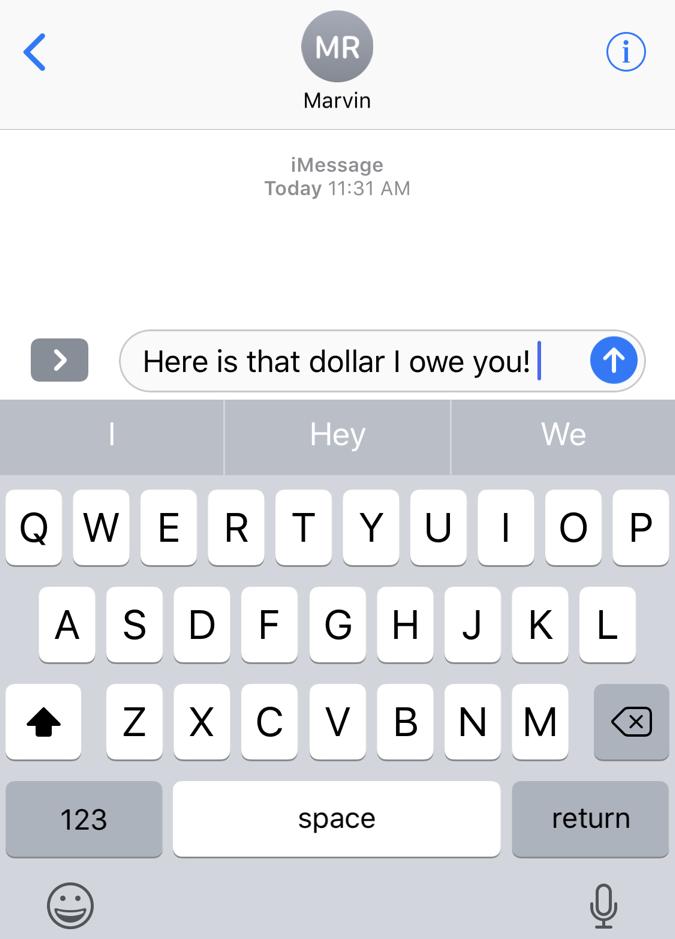
Let me show you how I sent my friend Marvin a buck and he then sent that same dollar back to me. To start, remember that the entire transaction takes place within iMessage [Messages] on your iOS device. Go to Messages on your Mac and you can see the transaction that’s occurred, but you can’t initiate or receive payments directly. Yet.

At this initial point, there’s certainly no clue how to get to APC, that’s for sure:
get started apple pay cash

But the “>” button just to the left of the input window is where all the action really happens for Apple Messages! Tap on it and a few buttons show up instead:

apple messages imessage get to apps

The “A” app button is the one you want to choose and it reveals a whole world of features and capabilities in the program that most people don’t know even exists! The apps all show up along the very bottom and a single tap on the Apple Pay button produces a bit, easy to use payment widget in the middle of your message screen:

apple pay cash in iphone ios imessage

If you have a few minutes, do explore the different apps here – there are some really cool ones. And you don’t have the shrieking monkey? That’s the animoji app and it’s only available on the iPhone X at this point. FYI.

Back to Apple Pay Cash, however. Let’s say that you do want to pay exactly $1.00 and are ready to proceed. You can also tap on the amount and then specify cents to get to, say, $2.75, but it won’t let you send less than $1.00 at this time.

Ready to proceed? Tap on “Pay” to send the cash.

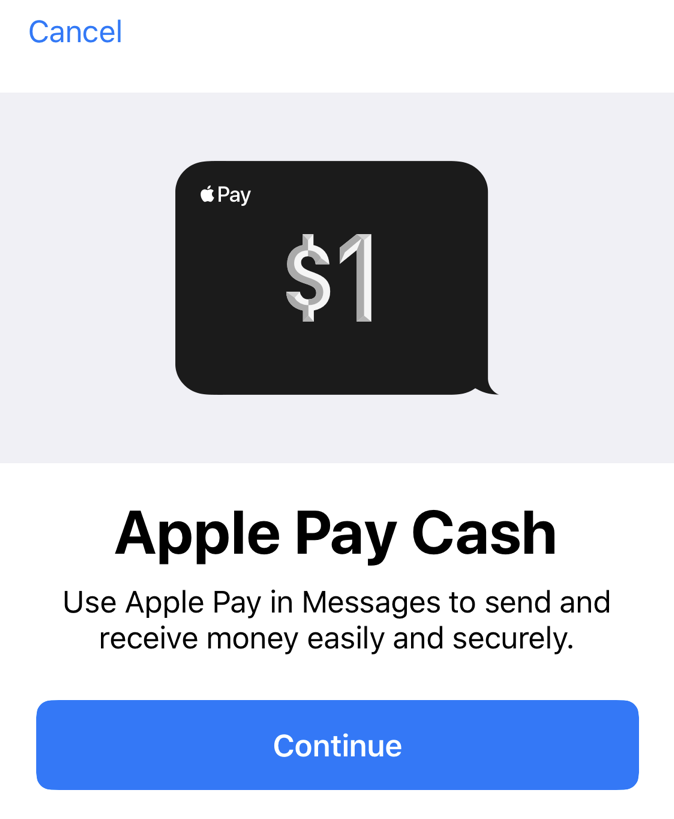
Well, almost. First time through you’ll need to set things up…
set up apple pay cash

Yeah, you already know you’re setting up Apple Pay Cash, so not sure why this window pops up, but… whatev’s. Tap on “Continue”.
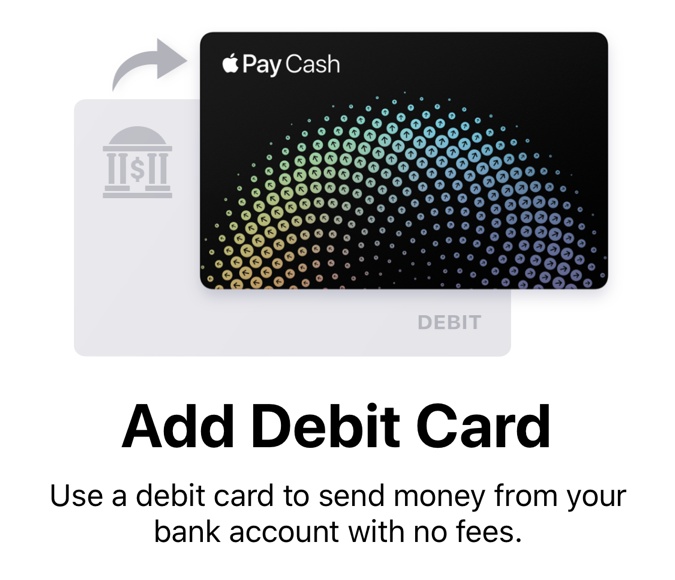
apple pay cash add debit card

You can also add a credit card if your debit cards won’t work: none of mine work with Apple Pay, as it happens. Still, using a credit card as the source of the money you’re sending does incur a transaction fee which doesn’t happen if you have a debit card setup instead.

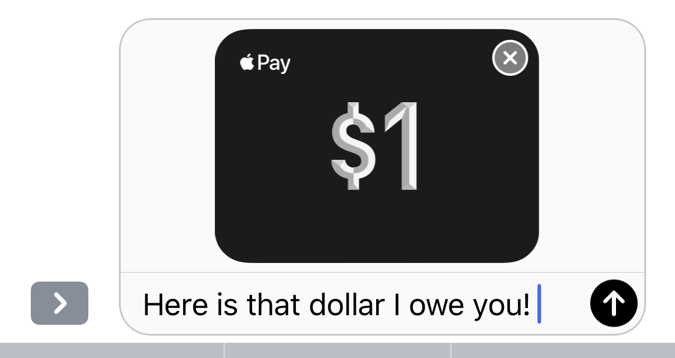
Finally, though, you’re ready to actually use Apple Pay Cash, as is obvious when you get back to the point where you can actually send something:
sending $1 via apple pay cash to a friend imessage messages

Looks good. A tap on the (now black) send arrow and…

confirm apple pay cash transaction

Ah, there is a confirmation step. A relief when otherwise a friend could grab your phone and send themselves $500 or something crazy! A double-click to confirm payment and it’s sent.

Notice that there’s a 3% transaction fee due to me using a credit card here, so it’s costing me $1.03 to send Marvin $1.00. Not too bad. Once he receives and accepts the payment I’ll get a brief confirmation notification:
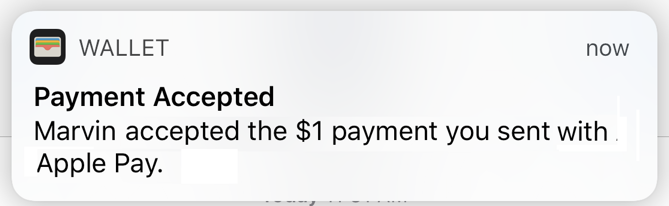
apple pay cash payment accepted

He’s feeling generous, so he immediately returns the favor by sending me back that $1.00. I see this in Messages:

you've been sent $1.00 via apple pay cash imessage

Interestingly, I didn’t have to confirm receipt; as soon as he sent it the transaction completed and it was in my APC balance. My theory: You have to confirm and accept the very first payment transaction because of the setup required, but once you’ve done that, the money can flow freely between you and your friends and family. Pretty cool, really.

Want to learn more about Apple Pay Cash? Apple has a page with lots of info: All About Apple Pay Cash.

Enjoy watching videos? I've got hundreds of lively and interesting product reviews you can enjoy with just a click. Please check 'em out: AskDaveTaylor Video Gallery.

About the Author: Dave Taylor has been involved with the online world since the early days of the Internet. Author of over 20 technical books, he runs the popular AskDaveTaylor.com tech help site. You can also find his gadget reviews on YouTube and chat with him on X as @DaveTaylor.

Let’s Stay In Touch!

Never miss a single article, review or tutorial here on AskDaveTaylor, sign up for my fun weekly newsletter!
Name: 
Your email address:*
Please enter all required fields
Correct invalid entries
No spam, ever. Promise. Powered by FeedBlitz
Please choose a color:
Starbucks coffee cup I do have a lot to say, and questions of my own for that matter, but first I'd like to say thank you, Dave, for all your helpful information by buying you a cup of coffee!
apple imessage, apple messages, apple pay, apple pay cash, apple pay cash imessage, apple pay cash messages, receive cash, send cash

2 comments on “How do I send money with Apple Pay Cash?”

  1. Eric says:
    December 10, 2017 at 10:11 pm

    The option to either automatically or manually accept payments can be found in the APC Card settings in the Wallet app.

    Also, if you want to send 75 cents, you can send $1.75 and have your friend send you $1 back 🙂

    Reply
    • Dave Taylor says:
      December 11, 2017 at 9:48 am

      If you trust your friend to send you back the $1.00, that is. 🙂

      Reply

Leave a Reply Cancel reply

Your email address will not be published. Required fields are marked *

Search

Recent Posts

  • How to Download Free Movies & TV Shows from The Internet Archive
  • How to Use Microsoft OneDrive on a Mac System
  • How to Update the Software on your KOBO Ebook Reader
  • How to Change Your Default Web Browser in Windows
  • How to Check for Spam DM’s in Facebook Messenger

On Our YouTube Channel

The NearHub Frames 10 Smart Photo Frame Really is SMART

Endless Cleaning with the Roborock Q10 S5+ Robot Vacuum & Mop

Categories

  • AdSense, AdWords, and PPC Help (106)
  • AI and ChatGPT Help (75)
  • Alexa, Kindle, and Nook Help (112)
  • Amazon, eBay, and Online Shopping Help (176)
  • Android Help (321)
  • Apple iPad Help (156)
  • Apple Watch & Smartwatch Help (63)
  • Articles, Tutorials, and Reviews (361)
  • Auto Tech Help (31)
  • Business Advice (202)
  • Chromebook & ChromeOS Help (80)
  • Computer & Internet Basics (848)
  • d) None of the Above (169)
  • Facebook Help (405)
  • Google, Chrome & Gmail Help (227)
  • HTML & Web Page Design (249)
  • Instagram, Bluesky & Threads Help (70)
  • iPhone & iOS Help (702)
  • iPod & MP3 Player Help (173)
  • LinkedIn Help (98)
  • Linux Help (182)
  • Linux Shell Script Programming (95)
  • Mac & MacOS Help (995)
  • Microsoft Outlook and Office 365 Help (53)
  • Most Popular (16)
  • PayPal Help (69)
  • Pinterest Help (58)
  • Reddit Help (24)
  • SEO & Marketing (83)
  • Spam, Scams & Security (130)
  • Trade Show News & Updates (23)
  • Video Game Tips (66)
  • Web Site Traffic Tips (62)
  • Windows PC Help (1,093)
  • Wordpress Help (207)
  • Writing and Publishing (72)
  • X/Twitter Help (233)
  • YouTube Help (54)
  • YouTube Video Reviews (159)
  • Zoom, Skype & Video Chat Help (80)

Archives

Social Connections:

Ask Dave Taylor


Follow Me on Pinterest
Follow me on Twitter
Follow me on LinkedIn
Follow me on Instagram


AskDaveTaylor on Facebook


microsoft insider mvp


This web site is for the purpose of disseminating information for educational purposes, free of charge, for the benefit of all visitors. We take great care to provide quality information. However, we do not guarantee, and accept no legal liability whatsoever arising from or connected to, the accuracy, reliability, currency or completeness of any material contained on this site or on any linked site. Further, please note that by submitting a question or comment you're agreeing to our terms of service, which are: you relinquish any subsequent rights of ownership to your material by submitting it on this site. Our lawyer says "Thanks for your cooperation."
© 2025 by Dave Taylor. "Ask Dave Taylor®" is a registered trademark of Intuitive Stories, LLC.
FTC Notice: If you buy products through links on this site we may receive a modest affiliate commission. This won’t affect the price you pay.
Privacy Policy - Terms and Conditions - Accessibility Policy - Humix Video Content
  • Home
  • YouTube Channel
  • Most Popular
  • Newsletter!
  • Ask Me A Question
  • Meet Dave