
Let’s face it, iOS devices like the iPad and iPhone are black holes: You can put data into it, but it’s hard to get anything back onto your computer with iTunes. Fortunately, there are options like the slick, easy to use FonePaw iOS Transfer…
I’ve had iPods since they were clunky hard drives with a mechanical wheel and a black and white screen, and one thing’s never really changed: iTunes has always been a pain to work with and the devices have always held on to their data like the innkeeper at the Hotel California: you can check out data any time, but it’ll never really leave the device.
A great example are SMS text messages. I get constant queries from people asking how to archive or backup text message discussions, whether for legal, historical or romantic reasons, and the answer is always “can’t be done with iTunes”. And what about those photos that your friends send you via text message? How do you save those to your computer so you can print them out?
The reality is that iTunes just isn’t designed for that sort of task and even with its current 12th major revision to the system, it’s still big, clunky and confusing, with some features missing completely. In fact, as far as iTunes is concerned, your device has no text message archive at all.
You know what I mean. Here’s an example, iTunes showing what’s on an iPad Mini:

It’s really not designed to let you get to your data, is it? What if you want to save a favorite episode of a TV show to your Desktop, for example?
That’s where the oddly named FonePaw iOS Transfer program — for Mac or PC — is such a win. It offers up an elegant, easy to understand interface that lets you rummage around in the data on your iOS device whether you’ve an old iPod running iOS 7 or the latest and greatest iPhone or iPad running iOS 8. Indeed, from the launch screen you can see it looks at the data quite differently:

Going down the left side, it organizes all the data by the following categories: media, playlists, photos, books, contacts, sms and tools.
A click on Media causes the program to dig around for a bit…

(I always think about what Yoda would say when I see this message: Do or don’t do, there is no try! 🙂
After a while — sometimes quite a long time depending on how big your device is — the data shows up:

Black Mirror! I forgot about that series.
I can easily download it by selecting it from the list, or if there’s a lot of media, I can choose a specific category from the list along the top (music, movies, tv shows, music videos, podcasts, iTunes U, ringtones, audio books and voice memos) first. Either way, it’ll look like this:
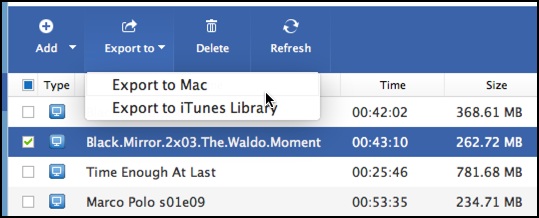
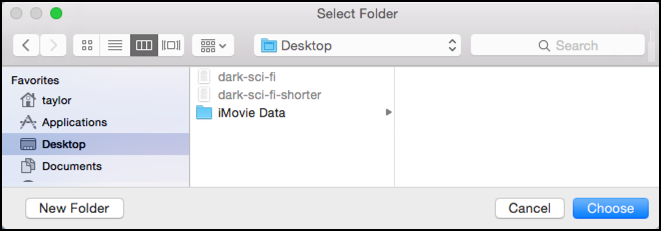
You can see all I need to do is check the box adjacent to the episode (in this case The Waldo Moment, season 2, episode 3) then choose “Export to Mac” from the “Export to” menu. It asks where I want to save it with a standard dialog box:
Then just whirrs away copying data…
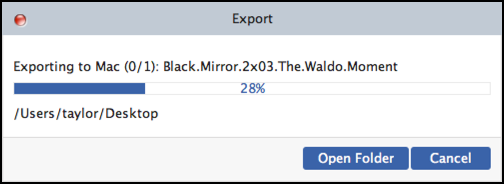
After a short time the file is saved on my Desktop, ready to watch, save, copy to a flash drive, upload to cloud storage, or whatever.
That was easy!
Let’s also back up a tiny bit because one of the other things you just saw is easy with FonePaw iOS Transfer is saving voicemail messages. Again, this is something that Apple’s made really hard if you have particularly great or important voicemail messages on your iPhone device. With this program, however, it’s a breeze to archive ’em. Darn handy. Really darn handy.
The program really shines when you check out the SMS text message area:
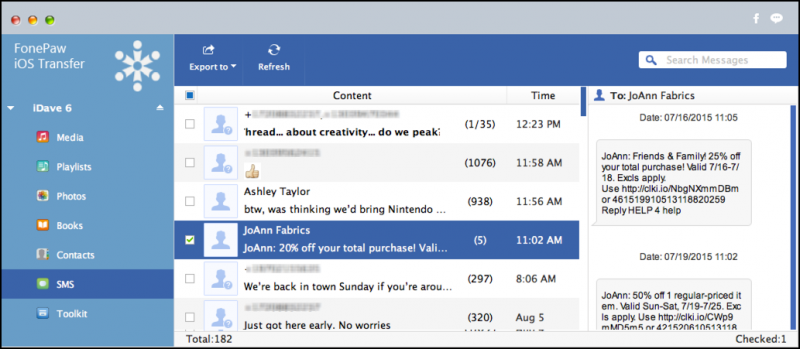
I’ve blanked out phone numbers, etc, for privacy, but notice that with the currently selected contact, “JoAnn Fabrics”, the actual text messages themselves are shown in the rightmost column. Pick someone else, scroll around, and you might find that they’ve sent you a photograph, like this:

All pretty small, but that’s okay, it’s really just a preview pane. When I select a specific contact I can then easily export our entire dialog as far back as the phone or other iOS device has stored:
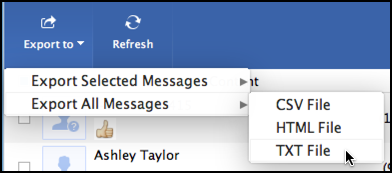
I personally prefer the format of the HTML File, but choose CSV (comma separated values, easily imported into a spreadsheet) or TXT (plain text) and a separate folder is created as it exports, saving every photo and image too.
The text messages aren’t sexy in presentation:

(notice the “To” and “From” along with the timestamps, and that it also exports emoticons!)
Where this is such a win, of course, is with the photos and images, all of which are neatly saved in a separate folder on your computer, as this preview and underlying icons of other saved images demonstrates:

If you’re ever working with iPhones, iPods or iPhones, you know what a nightmare it can be to pull some of this data off the device, and voicemails? Photos from text messages? Heck, text messages themselves? Just about impossible.
FonePaw iOS Transfer can also be invaluable when you have to re-pair your device with a new Mac system: simply grab everything you want to retain before you click the “erase” button in iTunes, then copy it all back. Way easier than working within iTunes.
FonePaw iOS Transfer is also quite reasonably priced, at $39.95 for the Mac or Windows version (single user) with a lifetime license to the software. Painless enough, really, and compared to using unknown open source code with your precious — and private! — iOS data or struggling through what little bits and pieces iTunes will let you access, it’s an absolute breeze and well worth the license cost.
Learn more about FonePaw iOS Transfer, $39.95 (Mac or PC single user license) at fonepaw.com.