
Ask Dave Taylor
  • Facebook
  • Instagram
  • Linkedin
  • Pinterest
  • Twitter
  • YouTube
  • Home
  • YouTube Channel
  • Most Popular
  • Newsletter!
  • Ask Me A Question
  • Meet Dave
  • Home
  • Windows PC Help
  • How Do I Mute All Sounds in a Windows System?

How Do I Mute All Sounds in a Windows System?

September 7, 2017 / Dave Taylor / Windows PC Help / 2 Comments

I was given a new Windows computer at work and it’s great, with a big, bright screen and comfortable keyboard. Problem is, it’s noisy and I want to mute all the system sounds. Not turn off all sound, just system beeps and such. Can I do that, and if so, how?

  ★ ASKDAVETAYLOR WEEKLY EMAIL! ★
Guaranteed to Make you Smarter.
Click Here to Subscribe.

Glad you specified that you don’t want to turn off all the sound on your computer, because that’s really easy: Just click on “mute” or turn off your speakers. Having it so you can play music or listen to the audio from a YouTube video or similar is a bit more tricky, however, because you need to go into your Windows theme and change the sound set. Making this more tricky, there are some themes that actually install a new sound set so your system beep becomes a dog bark or fire siren or similar. Sure to please everyone else in your office area, yes? 🙂

Start with the same tactic I always suggest with Windows: Use the search system that’s part of your Start Menu. Running the first generation of Windows 10 with a start screen instead? Then use the Windows+S keyboard shortcut to bring up the search area on the right side of the screen instead. And upgrade to 10.1 so you can have a Desktop again and because it turns out that the old Start Menu is pretty handy!

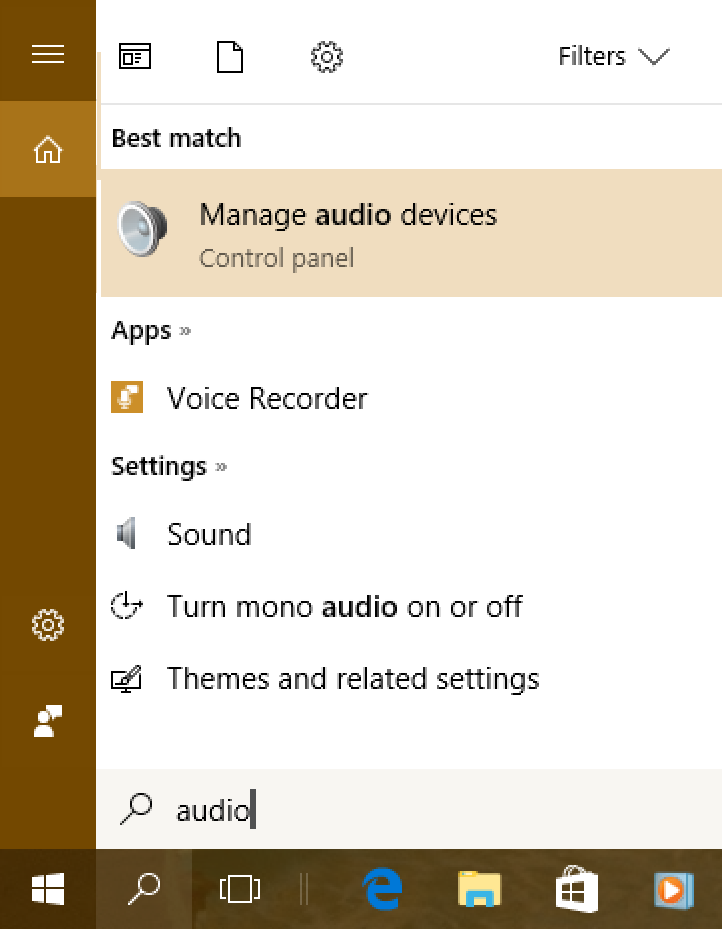
Either way, a search for “audio” brings up a number of options:
win10 search 'audio'

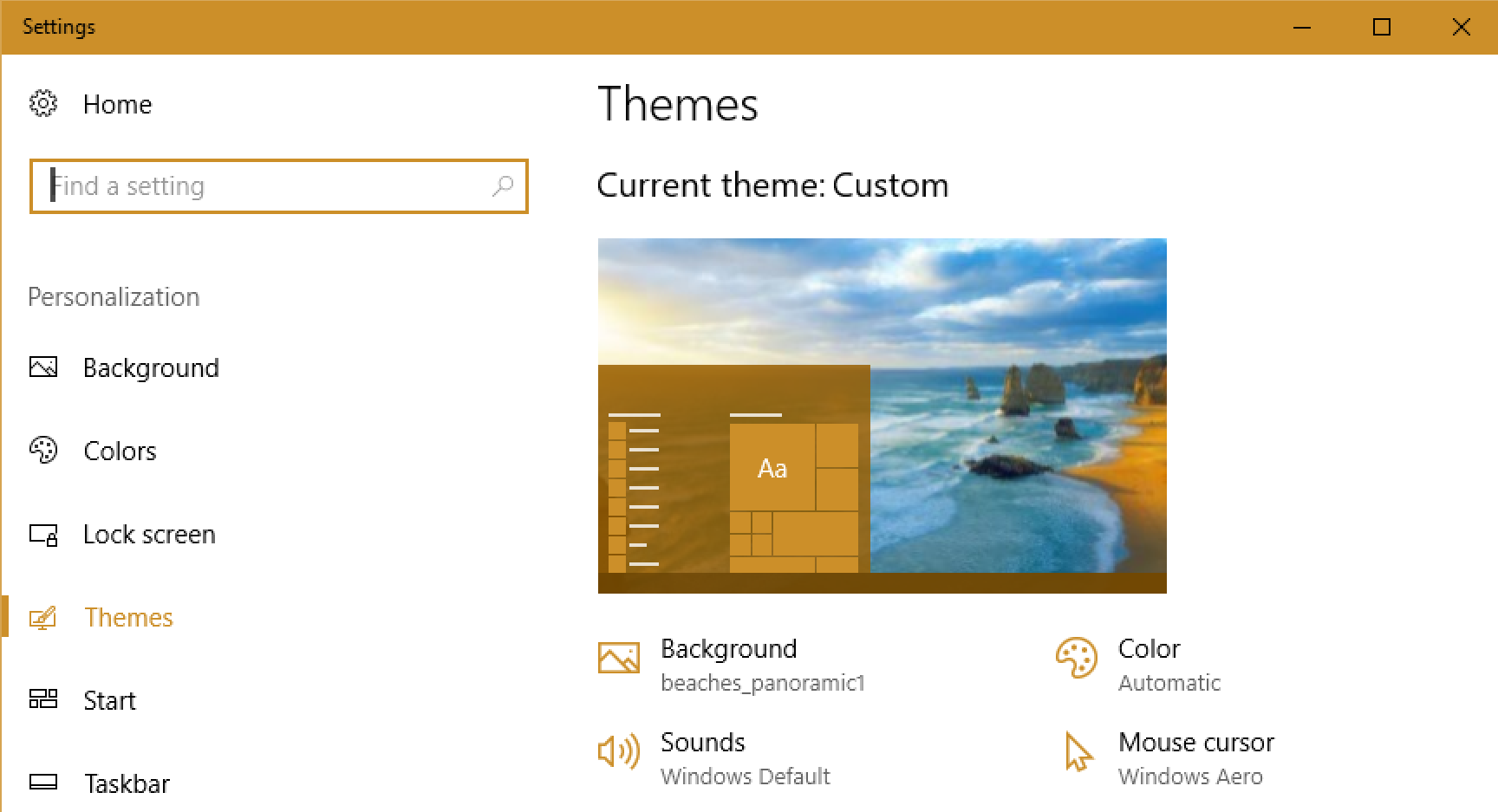
Unusually, the top match is not what you want to choose; we’re not managing audio devices, but audio sounds. Instead click on and select “Themes and related settings“. That brings up this window of options and settings:
windows themes win10

I happen to really like themes and am constantly tweaking and changing my themes to change the appearance and wallpaper on my own Win10 systems, but if this is new to you, notice on the left side that “Themes” is highlighted. The find and click on “Sounds“.

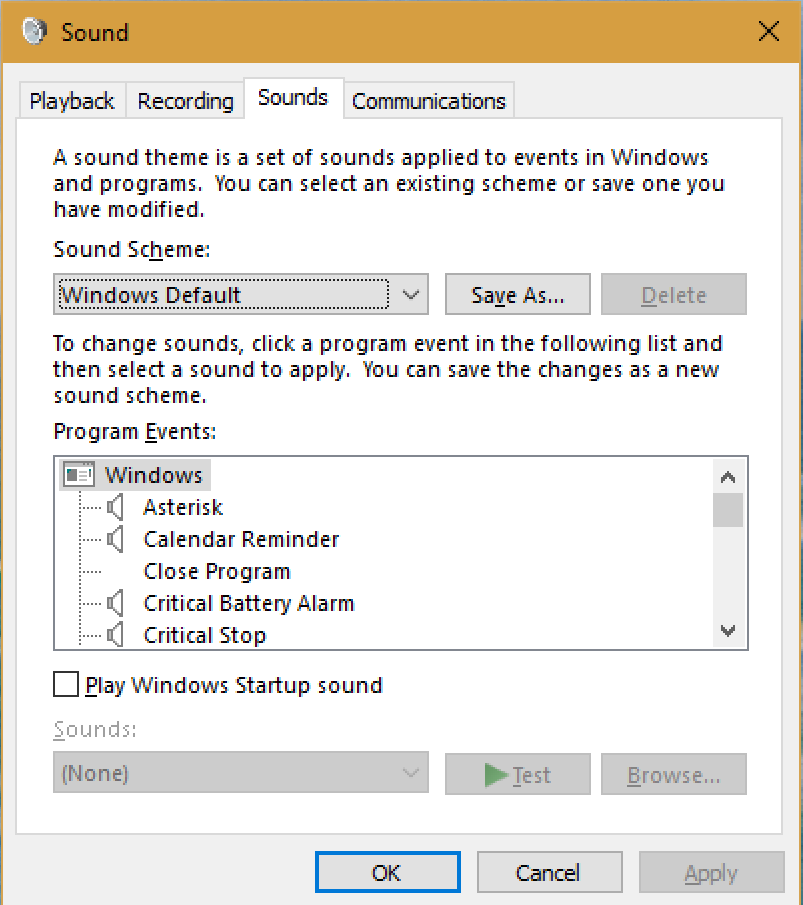
Weirdly, this brings up an old-school Windows 95-style window that looks like no-one’s updated it since about 1992:
windows microsoft audio sound

I know, ugly as sin, and confusing too. But basically if you look in the middle section, it lists events that can trigger audio, then has a tiny speaker icon to denote if there’s a sound assigned to that particular trigger. Calendar Reminder has an associated sound, but Close Program does not. See how that works?

If you want, you can go through and turn off sounds throughout your Windows system on an event-by-event basis.

Note also “Play Windows Startup sound“. Yes, this is where you can turn that bing-bong sound off!

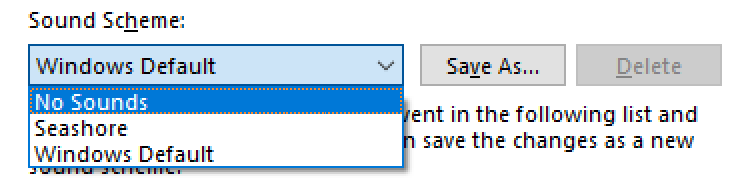
You want to turn off all alert sounds, however, so the quick and easy way to do that is through the tiny pop-up menu:
windows turn off system sounds alerts

Choose “No Sounds”. Click “Apply”.

Close window.

Breath out. Ahhhhhh…. done.

Enjoy watching videos? I've got hundreds of lively and interesting product reviews you can enjoy with just a click. Please check 'em out: AskDaveTaylor Video Gallery.

About the Author: Dave Taylor has been involved with the online world since the early days of the Internet. Author of over 20 technical books, he runs the popular AskDaveTaylor.com tech help site. You can also find his gadget reviews on YouTube and chat with him on X as @DaveTaylor.

Let’s Stay In Touch!

Never miss a single article, review or tutorial here on AskDaveTaylor, sign up for my fun weekly newsletter!
Name: 
Your email address:*
Please enter all required fields
Correct invalid entries
No spam, ever. Promise. Powered by FeedBlitz
Please choose a color:
Starbucks coffee cup I do have a lot to say, and questions of my own for that matter, but first I'd like to say thank you, Dave, for all your helpful information by buying you a cup of coffee!
disable alerts, mute alerts, mute beep, mute system sounds, no beep, quiet alerts, quiet computer, windows alert, windows sound

2 comments on “How Do I Mute All Sounds in a Windows System?”

  1. Bill Brenner says:
    September 13, 2017 at 12:35 pm

    Really like your weekly emails. I was just wondering, I’m trying to find a list of keyboard short cuts for both windows 10 and Google Chrome. My wife and I have several cats (+ dogs, no children) that love to show us keyboard shortcuts when we are trying to do something on the computers. Only problem, they (the cats) don’t show us what keys they walked on so we spent a bit of time trying to figure out how to un-do what they did. I have been trying to find something on the web, but really haven’t found any comprehensive lists/cheat sheets yet.
    If you could just point me in the right direction, I would greatly appreciate it.

    Bill

    Reply
    • Dave Taylor says:
      September 13, 2017 at 2:05 pm

      I think you need to take your pets to computer classes, Bill! 🙂 More seriously, though, try a Google search for “windows 10 keyboard shortcuts” and/or “Google Chrome keyboard shortcuts” and you’ll find a wealth of options!

      Reply

Leave a Reply Cancel reply

Your email address will not be published. Required fields are marked *

Search

Recent Posts

  • How to Change Your Default Web Browser in Windows
  • How to Check for Spam DM’s in Facebook Messenger
  • How to Automatically Close Your Garage Door with MyQ App
  • Best Time to Post on Facebook Business Pages?
  • How to Find and Remove Stray Android Background Apps

On Our YouTube Channel

Endless Cleaning with the Roborock Q10 S5+ Robot Vacuum & Mop

Cleer ARC 4 Open Ear Headphones: Ideal for Outdoors - DEMO & REVIEW

Categories

  • AdSense, AdWords, and PPC Help (106)
  • AI and ChatGPT Help (75)
  • Alexa, Kindle, and Nook Help (111)
  • Amazon, eBay, and Online Shopping Help (176)
  • Android Help (321)
  • Apple iPad Help (156)
  • Apple Watch & Smartwatch Help (63)
  • Articles, Tutorials, and Reviews (361)
  • Auto Tech Help (31)
  • Business Advice (202)
  • Chromebook & ChromeOS Help (80)
  • Computer & Internet Basics (847)
  • d) None of the Above (169)
  • Facebook Help (405)
  • Google, Chrome & Gmail Help (227)
  • HTML & Web Page Design (249)
  • Instagram, Bluesky & Threads Help (70)
  • iPhone & iOS Help (702)
  • iPod & MP3 Player Help (173)
  • LinkedIn Help (98)
  • Linux Help (182)
  • Linux Shell Script Programming (95)
  • Mac & MacOS Help (994)
  • Microsoft Outlook and Office 365 Help (53)
  • Most Popular (16)
  • PayPal Help (69)
  • Pinterest Help (58)
  • Reddit Help (24)
  • SEO & Marketing (83)
  • Spam, Scams & Security (130)
  • Trade Show News & Updates (23)
  • Video Game Tips (66)
  • Web Site Traffic Tips (62)
  • Windows PC Help (1,093)
  • Wordpress Help (207)
  • Writing and Publishing (72)
  • X/Twitter Help (233)
  • YouTube Help (54)
  • YouTube Video Reviews (159)
  • Zoom, Skype & Video Chat Help (80)

Archives

Social Connections:

Ask Dave Taylor


Follow Me on Pinterest
Follow me on Twitter
Follow me on LinkedIn
Follow me on Instagram


AskDaveTaylor on Facebook


microsoft insider mvp


This web site is for the purpose of disseminating information for educational purposes, free of charge, for the benefit of all visitors. We take great care to provide quality information. However, we do not guarantee, and accept no legal liability whatsoever arising from or connected to, the accuracy, reliability, currency or completeness of any material contained on this site or on any linked site. Further, please note that by submitting a question or comment you're agreeing to our terms of service, which are: you relinquish any subsequent rights of ownership to your material by submitting it on this site. Our lawyer says "Thanks for your cooperation."
© 2025 by Dave Taylor. "Ask Dave Taylor®" is a registered trademark of Intuitive Stories, LLC.
FTC Notice: If you buy products through links on this site we may receive a modest affiliate commission. This won’t affect the price you pay.
Privacy Policy - Terms and Conditions - Accessibility Policy - Humix Video Content
  • Home
  • YouTube Channel
  • Most Popular
  • Newsletter!
  • Ask Me A Question
  • Meet Dave