
I’ve been suffering through tiny text on the tiny screen of my Apple iPhone 5s and my sister showed me how on her phone she’s made the text bigger. That’d be a huge relief, especially with text messages. How do I increase the size of text on my iPhone?
I know what you mean about the size of the screen and text, actually. I marvel at how my kids can watch movies on these little screens that are not much bigger than a playing card, but for them the privacy and convenience of the unit far outweighs the limitations of the screen. Then again, the resolution and brightness are great, so on the positive side it’s small, but it looks terrific.
Still, the screen on an iPad is expansive, and doubly so when compared to an iPhone screen. But at this point you can’t use an iPad Mini or iPad as a phone (though other companies like Nokia and Samsung have tablet-size smartphones, called “phablets” (phone + tablet) if you really wanted to switch.
Apple’s iOS 7 system supports different font sizes, however, though increasing the size doesn’t mean that absolutely everything on the device is bigger. Just the text where it can be resized, like in your text messages.
Let’s have a look!
Here’s my default text size with a back-and-forth via iMessage. Pay attention to how much dialog appears on the screen:
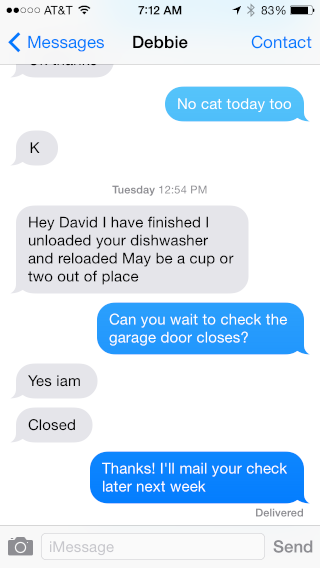
Nice, but it’s pretty small on the screen.
To fix that and make the text bigger, tap on “Settings” and look for the General settings:
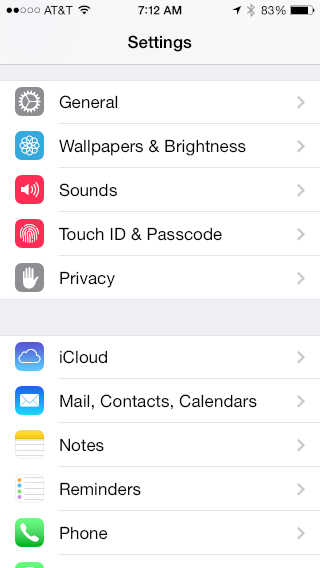
Tap on General and look for “Text Size”:
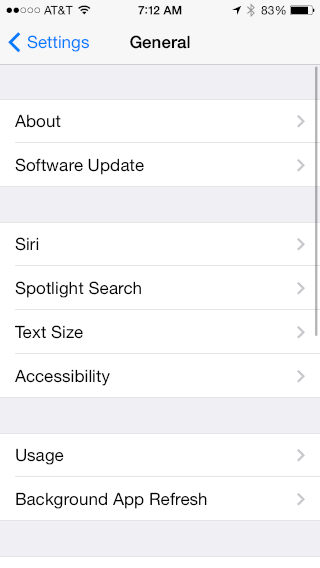
You can see the entry you want: “Text Size”. Tap on it to make the text bigger or smaller on your messages, etc:
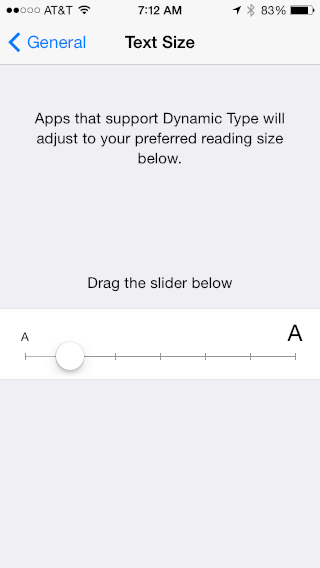
My default is pretty small, but sliding it all the way to the right will make everything bigger.
Try that.
Adjust the slider, then go back to the text message screen:
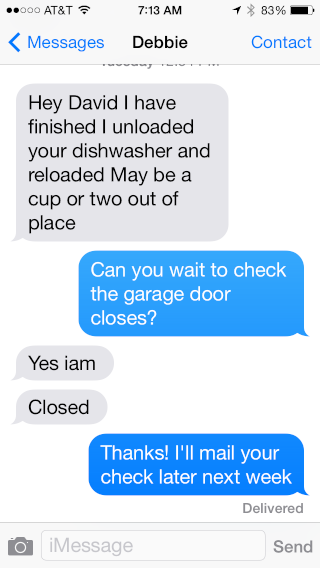
As you can see there’s less on screen when you compare it to the first text message but the messages are bigger and easier to read.
Hope that helps you enjoy your iPhone more with its smaller screen. A little birdie suggests that by the end of the year there’ll be iPhones with bigger screens too, so stay tuned for that…
ok, but can I change the iconfonts, setings fonts..?
Thanks
Ok, so your instructions are completely useless, because text size is not listed under “general” settings. I looked, before ‘asking Dave Taylor’. Got any other good ideas?
Acmejunk@hotmail.com.
Easy does it, Brian. The text size option has moved into “Accessibility” off the “General” menu in iOS 9.3. So go to Settings > General > Accessibility and you can enabled larger text as needed. 🙂