
My Windows 10 system is slowing down and I can’t figure out what’s going on. I’ve run my anti-virus and it says the system’s clean, but it’s clearly slower than when I first bought it. What could be the culprit?
Whenever I hear about a computer that’s slowing down, whether it’s a Mac or Windows machine, I always suspect that there’s malicious software that’s slipped onto the drive. Particularly in the Windows world, it’s amazing how many Web sites and email attachments there are that seem hell-bent on slipping their “innocuous” little app or utility onto your system and then making your computer less secure, sharing your data or even making you part of a so-called botnet. Not good.
Fortunately, it sounds like you’ve done the right thing and run some malware and anti-virus software (really, anyone who is running Microsoft Windows and isn’t running an antivirus program is playing with fire. Don’t have one? Check out Windows Defender, included from Microsoft with Windows 8 and Windows 10, or PCMatic, a third-party antivirus app). If that’s not the culprit — and you should also check for unauthorized new toolbars in your browser, by the way! — then another possibility is that the programs you’ve legitimately installed are all running in the background even when you’re not using them.
It’s quick and easy to find out!
To start, go into the Cortana / Windows search box and type in “background apps”:
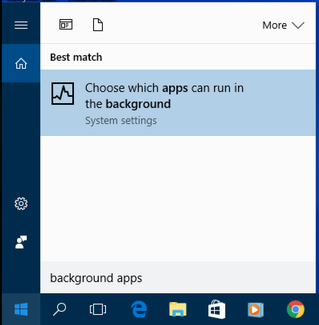
As you can see, Win10 search saves the day yet again, offering up the option of “Choose which apps can run in the background“.
That’s what you want. Click on it (or tap it, depending on your hardware configuration).
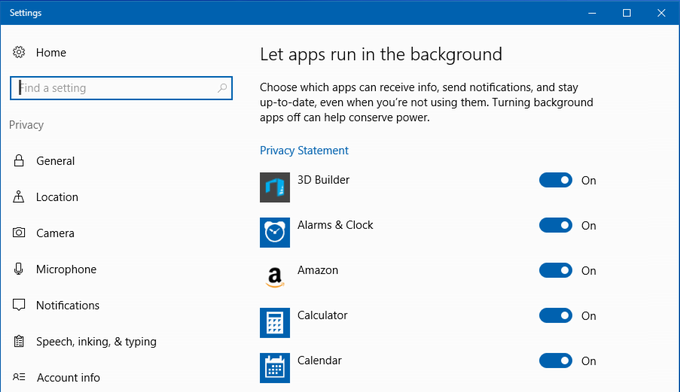
Close examination reveals that this particular Setting is within “Privacy” for no obvious reason. That’s why the search box is your friend: sometimes finding these settings can be pretty tricky if you’re just browsing around!
While there are some apps that should legitimately run in background, a closer examination will reveal lots of Windows programs that will have you scratching your head and trying to figure out what they are in the first place, let alone why they’re running in background:
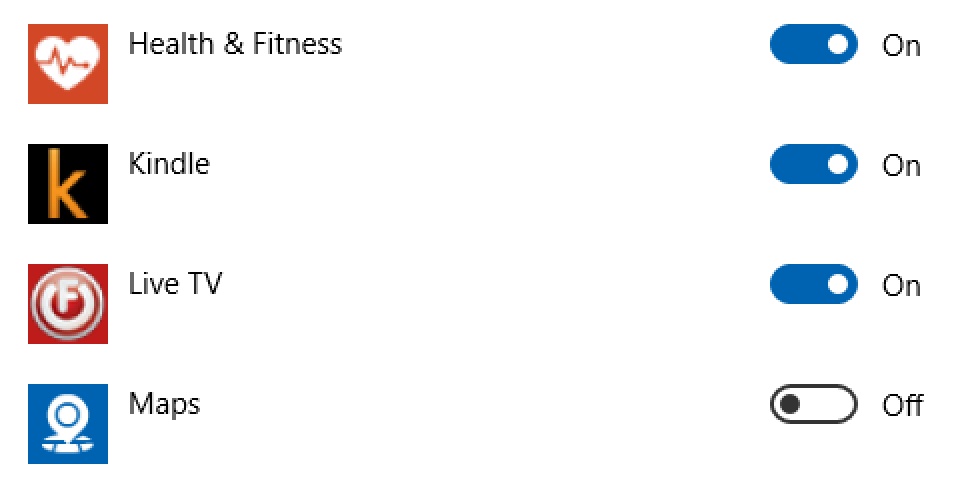
A good example is the Kindle app. Okay, so you might read ebooks on your computer or Win10 tablet. Makes sense. But why does it need to run in background? Whenever you click to bring it to the foreground it’s running as you would expect, but if your attention is elsewhere, what possible need do you have of it checking in with Amazon.com?
Fortunately, it’s but a single mouse click to turn off any of these apps that you feel don’t need background permission:

Why did I leave Live TV on? Because if I do watch live television on my Win10 system, I’d want it to continue running even if I pop over to send a quick email or check a Web page.
I recommend you go down the list and turn off anything that doesn’t make sense to you. If an app complains or seems to be acting weirdly, you can always turn it on again later, right?
And good luck getting your PC back to its original speed!
You should also do that for the start up applications. Disable those that you don’t need and you’ll notice a performance boost in both boot times and actual system performance.
Thanks Dave
I enjoyed this article. Although I have not noticed a slowdown in normal operating, I have found that start up seems to be getting slower. When I went into the background aps, I found that amost everything in it was on. More disturbing was the fact that I could not read any of the items, because they were all in Czech. I have an English installation of Windows 8.1, updated to Windows 10, and about a month ago to the latest update. I live in Czechia but do not speak or read the language, although I have the Czech language pack installed so that I can type Czech charaters from time to time. I find it incredible that Microsoft would update my Windows and install some pages in a language other than that which is my default language. Now I would like to know how to get it back to English.
Seeing that you have a .cz email domain, I suspect that Microsoft’s trying to be “regional savvy” and automatically switching you to Czech on the system. I’d do a Cortana search (search box, that is) for ‘locale’ and ‘set language’ and make sure they’re correctly set, Warren!
If you have an SSD Hard Drive, do NOT defrag it.
Thank you, Dave!
It could also mean that your computer needs to be ‘Defragged’
Check out ‘iOBit Smart Defrag’ It is FREE.
Cheers,
Ronnie West.
Thanks Dave.
Great idea! And its a good way to stay ahead of potential system slow down.
Now, I need to do this on my Win 8 machine.