
One of the great things about having a Facebook business page is that you can schedule posts rather than be stuck logging in every time you want something to go live. You can even schedule Instagram posts in the Meta Business Suite. It’s darn helpful!
Way back in the dawn of Facebook, the site was a social network offering college students a smarter way to connect. No ads, no business pages, no ad management teams, and definitely way fewer than 3 billion users. As Facebook grew more and more popular, however, businesses joined up and began to ask for pro-level features. One of the most useful – that doesn’t require an ad spend – is the post scheduler, a key part of the Meta Business Suite (formerly Facebook Business Manager).
Remember, though, this is not available to regular user or personal accounts. Even through HubSpot or Hootsuite, two excellent third-party social media marketing management tools, you can’t schedule posts for a personal account. But if you have a business page, a fan page, a non-profit page, a group, even a community or interest page, you can use Meta Business Suite.
Shortcuts: Launch the Suite | Creating a Post | Adding Some Bling | Scheduling the Post
With its enormous user base, most every company, non-profit, and group has a presence on Facebook. To maximize the value, it really is important to learn the basics of Meta Business Suite. Let’s have a closer look…
LAUNCH META BUSINESS SUITE
I have a business page for Ask Dave Taylor over on Facebook – facebook.com/askdavetaylor – and when I switch to that account and click to post content, the window isn’t quite the same as a personal profile:
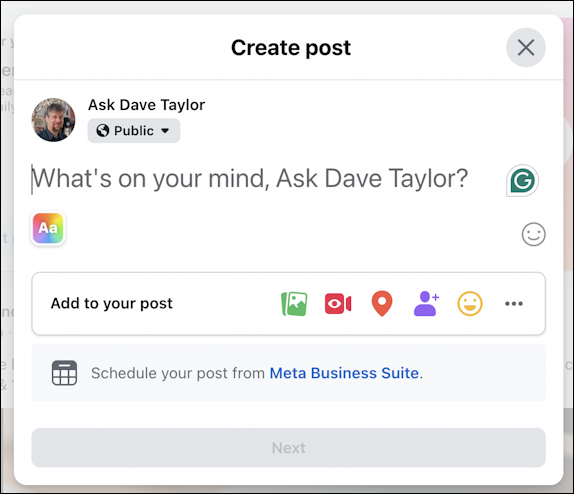
If you also see “Schedule your post from Meta Business Suite” when you go to post, congrats, you’re managing a page, not a personal profile, and can use MBS! To proceed, click on “Meta Business Suite“, and take a deep breath. It’s… complicated.
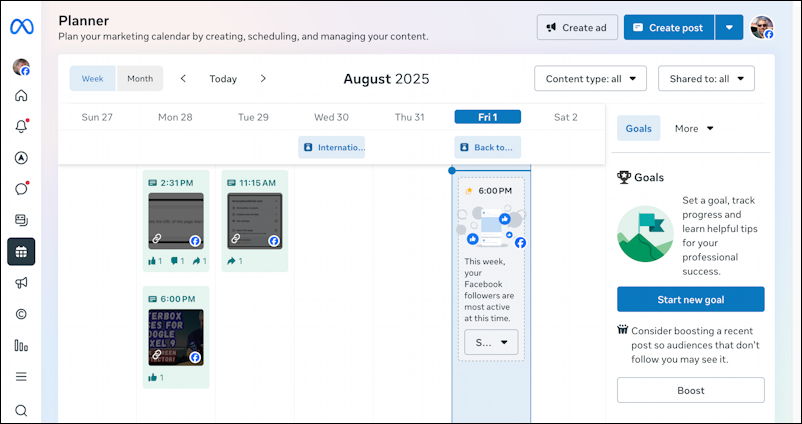
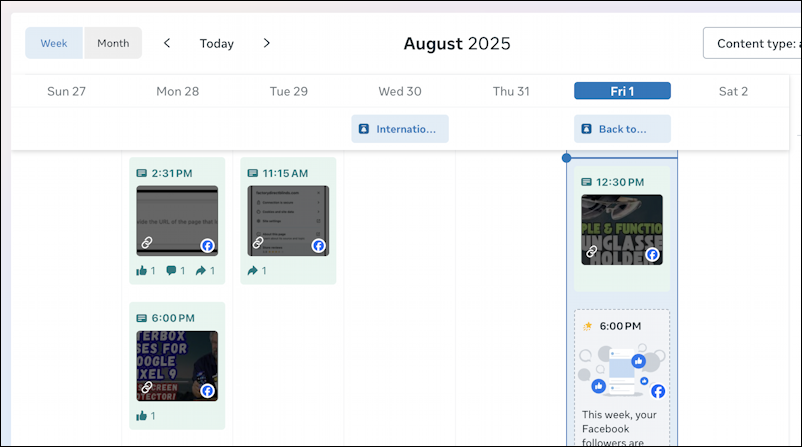
The default view is Planner, which is a sort of week-at-a-glance view. You can see I posted two things on Monday, one on Tuesday, and that’s it so far. Today is Friday, August 1, so “Fri 1” is highlighted with a small indicator that my Facebook followers are most active at 6pm.
There’s quite a lot to explore at this level, so I highly recommend you go through the Introduction to Meta Business Suite mini-course from Facebook. For this tutorial, I’m going to just focus on scheduling posts. Notice along the top there are two buttons: “Create ad” and “Create post”. Click on the latter.
BASICS OF CREATING A POST IN MBS
The Create post page has a lot of options, but much of it is taken up by a preview area:
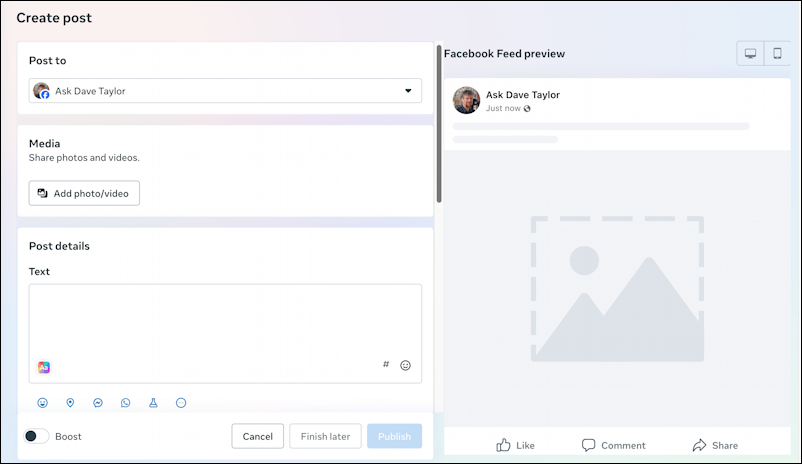
To create a Facebook post, you’ll want to work with the “Post details” box on the lower left. I’m going to be posting about a video I just released on my YouTube channel – AskDaveTaylor, naturally! – so here’s how that looks on first text entry:
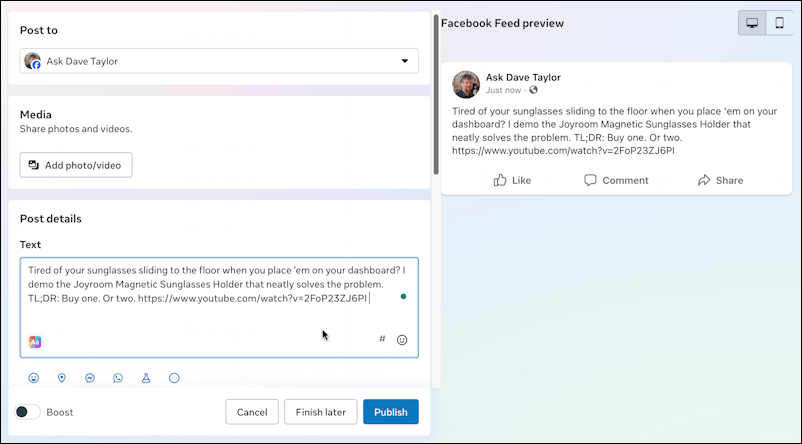
Interestingly, it sometimes takes a moment or two for Facebook to build a preview image, so there’s no thumbnail for the video yet. A few moments later, however, the preview box becomes much more interesting:

That looks good, but we’re not ready to schedule it quite yet: there’s more you can do inside Meta Business Suite that’s worth a quick look…
ADDING THE BELLS AND WHISTLES
What’s a social media post without flair? Facebook certainly offers quite a variety, and some cool features that aren’t available to personal profiles. Look back two images and you’ll notice a tiny “#” on the lower right of the post entry box. A click on that and…
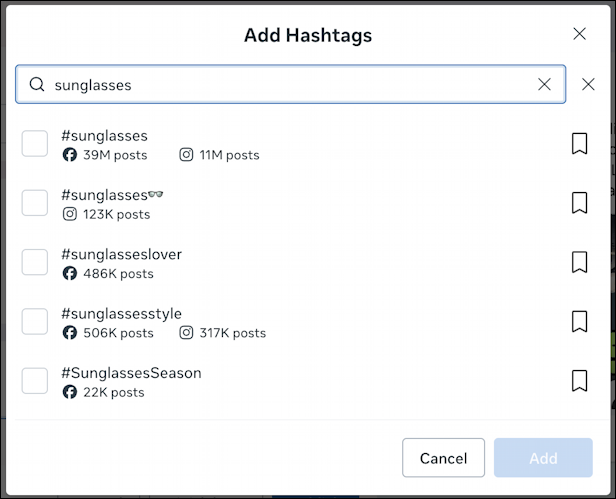
Yes, Facebook has a hashtag database squirreled away in the MBS for businesses. This is great, because you can easily see which hashtags are more popular. For example, “#SunglassesSeason” has 22K posts, while “#sunglasses” has a whopping 39M posts on Facebook and another 11M on Instagram. I’ll choose a couple by checking the corresponding boxes.
Next up, let’s add an emoji because they’re fun! Click on the smiley face icon and you can even search the thousands of emoji to find the perfect choice:

If you’re thinking that the “smiley with sunglasses” emoji looks different on your iPhone or Android phone, you’re right. Each company is allowed to interpret the various emoji UNICODE values however they’d like, as long as the general meaning remains the same. An AI company might reinterpret them all to look like robots making the various expressions, for example. Facebook has more casual emoji than, say, Apple.
I’ll add one more bit of digital bling, a feeling “tagline” for the post:
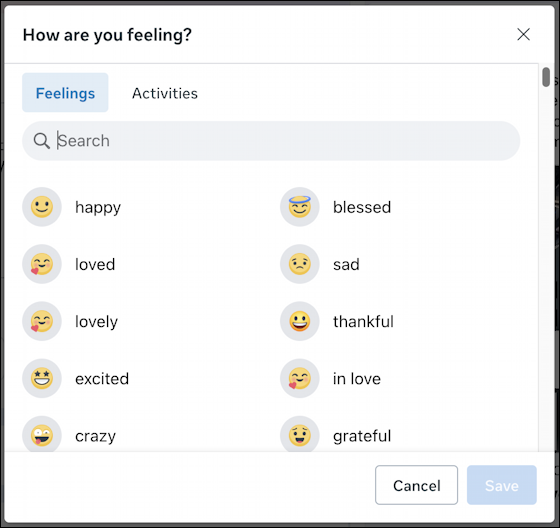
Again, search to find the perfect emotion or activity, and add it.
HOW TO SCHEDULE THE PERFECT FB POST
Now that the post looks great, with all sorts of bling, it’s time to schedule when it should go live. That’s done by finding this entry on the left side (often just below the fold):

A click on “Set date and time” opens up some options:
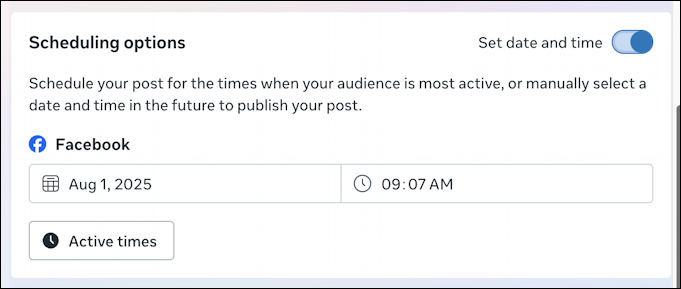
One interesting datum to consider is “Active times”. Each page will vary, but mine is pretty consistently 6:00pm every day of the week:
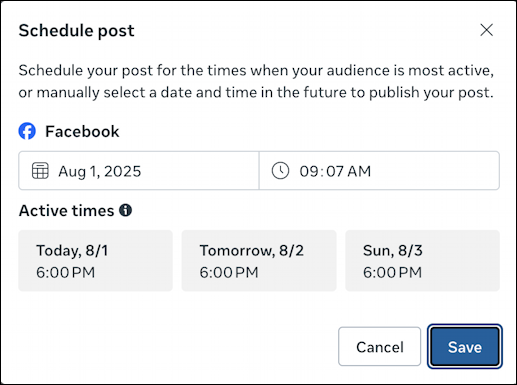
You can simply click on a suggested time to have the post appear then, but I’m going to instead aim for lunchtime by typing in “12:07 PM” into the scheduler box. First, though, a quick glance at the preview area to ensure it’s all looking good:

Notice the “feeling cool” and the sunglasses smiley emoji at the beginning of the text. Hidden behind the “See more” are the hashtags I selected too.
Looks great! Let’s schedule it with a click on “Save“. Done.
But wait! I can also turn the post into an advert by simply choosing “Boost” from the confirmation window:

Facebook will suggest an amount and probable reach for that investment, which can often be a smart move to gain maximum eyeballs. Me, I’m going to skip the boost and just schedule it by clicking on “Schedule“.
Now the calendar shows the scheduled post, as expected:
When the time and date roll around, Facebook automatically posts the content, whether you’re logged in or not. You can see how it looks by clicking on this link.
Pro Tip: I’ve been writing about Facebook for years and have an extensive Facebook help library. Please check out all my tutorials while you’re visiting, and don’t forget to follow AskDaveTaylor on Facebook, where I post some exclusive content too!