
Hi Dave! I spend a lot of time on LinkedIn and at night, that bright white background hurts my eyeballs. Is there a way to have LinkedIn display in dark mode or to use a dark theme? Thanks.
Shortcuts: Dark Mode | Feed Settings | Hide Political Content | Two Step Verification
MySpace tried to start a trend all those years ago with its extreme support of customized profiles and experience, but the other social networks resisted that particular siren song and Facebook, Twitter, LinkedIn, and the rest of ’em offer the same basic content-against-a-white-background interface that defines so much of the modern Web. We’re not immune: AskDaveTaylor has the same basic design and no, we don’t have a dark theme (though it’s a great idea!). To combat this, particularly at night when having a darker screen is better for your eyes, operating systems and individual Web sites have started to adopt “dark mode” or “dark theme”. And, finally, so has LinkedIn.
It’s not even that hard to find the dark theme settings on LinkedIn, once you know that it’s an option, which is something that the site hasn’t done a very good job of announcing. Indeed, most of the big sites seem to add cool features and capabilities without any fanfare at all, leaving it up to us users to discover the updates and improvements by ourselves. That’s why I occasionally just peruse the Settings and Preferences area on a site to see what has been added, but that’s not for everyone, I admit.
In this instance, however, you’re in luck! Not only did I uncover the dark mode settings in LinkedIn, but some cool other options you’ll want to check – and possibly change – too. Let’s dig in!
HOW TO ENABLE DARK MODE IN LINKEDIN
First off, our baseline, the home page on LinkedIn if you’re logged in to your account:

Round-edged white boxes of information against a light grey background. Attractive enough when it’s daytime and you want something bright and visible, but at night? Not so great.
To change it, click on your profile icon on the top right. It says “Me”:

Choose “Settings & Privacy” to get to all the useful settings, preferences, and options, then make sure you’re on the “Account preferences” option on the left menu. Front and center look at what’s shown up:
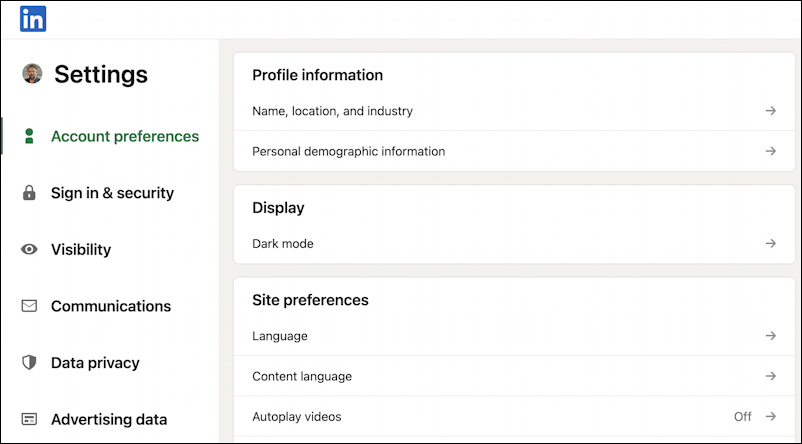
Click on the “–>” arrow adjacent to “Dark mode” and you’ll be able to choose from any of three setting options:

To see the difference, simply click on “Dark mode” and be prepared to gasp! It’s pretty cool after a lifetime of seeing the ubiquitous – and boring – white background:

You can leave it in Dark mode, which will stick 24×7 or, if you have light and dark mode alternating on your PC or Mac based on time of day (called “dark mode” on a PC and “night shift” on a Mac) then you can have LinkedIn track that change by choosing “Device settings”. That’s what I chose, which switches everything back to “Light mode” since it’s daytime as I write this.
IMPROVE YOUR LINKEDIN FEED WITH SETTINGS
While we’re in the Settings & Privacy area of LinkedIn, there are some other settings that you most definitely will want to consider changing. Top of those in terms of the quality of your experience on the site is to disable Autoplay videos! On the main Settings & Privacy screen, just a few entries below “Dark mode” is an entry for “Autoplay videos”. Click on it and you’ll get to this setting:

I strongly recommend that you turn this feature OFF. Having videos play simply because you’re scrolling past them is something I personally find super annoying, so being able to disable it is a great thing.
Here’s another setting that might be a bit more obscure, but is still useful to check: Show profile photos. When you have content show up in your feed you can opt to hide the photos associated with unconnected LinkedIn users, which can be a good thing as some people set strange, offensive, or political images as their profile picture. Choose “Show profile photos” and you can change it as desired:

I haven’t had an issue with profile photos personally, but I have heard anecdotally that there can be some strange situations that arise, and this is how you can mask it so that you don’t have to worry about them showing up uninvited in your LinkedIn feed.
HIDE POLITICAL CONTENT IN YOUR LINKEDIN FEED
One of the most useful features on LinkedIn – one I wish they had on Facebook! – is the ability to hide content that it categorized as political. You might enjoy that in your feed, which is fine, but I prefer to have LinkedIn focused more on work, job searches, and workplace issues. It’s hidden under the rather benign setting “Feed preferences”. Click on it, however, and you’ll find that it offers exactly one option:

Kind of a game changer with LinkedIn, especially around election time.
Now, there’s one more really important setting, and this one requires you to click on “Signin & security” on the left side. Then choose “two step verification”…
ENABLE TWO STEP VERIFICATION FOR LINKEDIN LOGIN
One of the best ways to increase the security of your LinkedIn account is to enable two-step verification. This means that LinkedIn will need to know your smartphone number, but when you next try to log in, it will require that you know your password and have access to your phone since it will text you a one-time code that you’ll also need to enter to gain access. The benefit? If someone steals your password, they still won’t be able to log in to your account without having your phone in hand too.
Click on “Two step verification” and LinkedIn will explain how to proceed, or tell you it’s already enabled:

Unsure how to proceed? No worries, I have a tutorial on How to Enable Two-Step Verification on LinkedIn too, though the interface is a smidge updated since this feature was first introduced in 2014.
Now go and enjoy a better, more functional LinkedIn!
Pro Tip: I’ve been writing about LinkedIn since the launch of the popular professional networking site. Please do check out my extensive LinkedIn help area for lots more tutorials while you’re here!